Difference between revisions of "Manual:Extension/BlueSpiceUserManager"
| [quality revision] | [quality revision] |
m (Tag: Visual edit) |
(Tag: 2017 source edit) |
Contents
About User manager[edit | edit source]
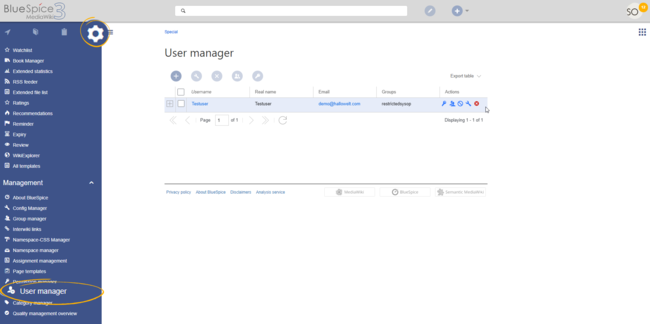
Administrators can access the User manager under Global actions > Management > User Manager. The User manager link opens the page Special:UserManager. It shows an editable list of all registered users.
Creating users[edit | edit source]
To create a user:
-
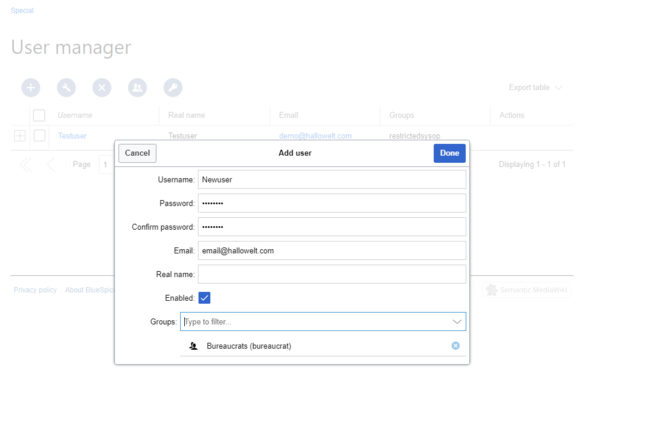
Click the "+"-button. This opens a dialog.
-
Enter the user information in the dialog:
- Username: must be unique and cannot contain special characters
- Password and Confirm password: the password for the new user. Users can later change their passwords.
- Email: The email address of the user (optional)
- Real name: can be a duplicate of an existing user's real name (optional)
- Enabled: if checked, user account is active
- Groups: a user can be assigned to multiple groups. If no group is selected, the user belongs to the default group user.
- Click Done to create the user account.
Editing users[edit | edit source]
The tools for editing a user are shown in the table grid when hovering over or selecting the user from the list.

- Key icon: change password
- People icon: assign groups to this user
- Block icon: disable/enable user. Disabling does not delete the account.
- Wrench icon: edit email and real name
- "x" icon: Delete user. This action is irreversible.
Tip: User groups can be set for multiple users at the same time by selecting the users and clicking on the "groups" icon above the grid.
Inactive users[edit | edit source]
By default, the list displays users with active user accounts (enabled).
To view inactive users:
- Click on the table header (any column).
- Select "Columns", then select "Enabled". This will add additional column "Enabled" to the grid.
- Click on the header of this column and select Filter > Show all deactivated users.
Technical details[edit | edit source]
The extension BlueSpiceUserManager provides this visual interface for managing users.
Related info
{{DISPLAYTITLE:User manager}}

        __TOC__


        ==About User manager==

        Administrators can access the User manager under ''Global actions > Management > User Manager''. The User manager link opens the page <code>Special:UserManager.</code> It shows an editable list of all registered users.


        <br />

        [[File:UserManager1a.png|alt=Screenshot: user manager|border|center|650x650px]]


        <br />


        ==Creating users==

        '''To create a user:'''


        #'''Click''' the "+"-button. This opens a dialog.[[File:UserManager2.png|Creating new user|link=https://en.wiki.bluespice.com/wiki/File:UserManager2.png|border|center|650x650px]]

        #'''Enter''' the user information in the dialog:

        #*''Username:'' must be unique and cannot contain special characters

        #*''Password and Confirm password:'' the password for the new user. Users can later change their passwords.

        #*''Email:'' The email address of the user (optional)

        #*''Real name:'' can be a duplicate of an existing user's real name (optional)

        #*''Enabled:'' if checked, user account is active

        #*Groups: a user can be assigned to multiple groups. If no group is selected, the user belongs to the default group ''user''.

        #Click '''Done''' to create the user account.


        ==Editing  users==

        The tools for editing a user are shown in the table grid when hovering over or selecting the user from the list.

        [[File:Manual:usermanager-tools.png|alt=Screenshot:user manager tools|center|650x650px]]


        <br />


        *''Key icon:'' change password

        *''People icon:'' assign groups to this user

        *''Block icon:'' disable/enable user. Disabling does not delete the account.

        *''Wrench icon:'' edit email and real name

        *''"x" icon:'' Delete user. This action is irreversible.

        {{Box Note|boxtype=tip|Note text=User groups can be set for multiple users at the same time by selecting the users and clicking on the "groups" icon above the grid.}}


        ==Inactive users==

        By default, the list displays users with active user accounts (enabled).


        '''To view inactive users:'''


        #'''Click''' on the table header (any column).

        #'''Select''' "Columns", then select "Enabled". This will add additional column "Enabled" to the grid.

        #'''Click''' on the header of this column and '''select''' ''Filter > Show all deactivated users''.


        ==Technical details==

        The extension '''BlueSpiceUserManager''' provides this visual interface for managing users.

        {{Box Links-en|Topic1=[[Reference:UserManager|Reference:UserManager]]}}


            [[en:{{FULLPAGENAME}}]]

[[de:Handbuch:Erweiterung/BlueSpiceUserManager]]| Line 45: | Line 45: | ||
The extension '''BlueSpiceUserManager''' provides this visual interface for managing users. | The extension '''BlueSpiceUserManager''' provides this visual interface for managing users. | ||
{{Box Links-en|Topic1=[[Reference:UserManager|Reference:UserManager]]}} | {{Box Links-en|Topic1=[[Reference:UserManager|Reference:UserManager]]}} | ||
| + | |||
| + | |||
| + | [[en:{{FULLPAGENAME}}]] | ||
| + | [[de:Handbuch:Erweiterung/BlueSpiceUserManager]] | ||