Difference between revisions of "Manual:Extension/BlueSpiceFilterableTables"
| [unchecked revision] | [quality revision] |
(Tag: 2017 source edit) |
(Changed categories.) |
FilterableTables applies a filterable and sortable table layout to regular content tables in wiki articles.
Contents
- 1 What is BlueSpiceFilterableTables? 2 Usage 2
- Setting the filter option 2
- WikiText editor
- 3
- 2 Filtering tables
- 4 3 Related info
BlueSpiceFilterableTables offers the ability to filter regular content tables in wiki articles.
UsageSetting the filter option[edit | edit source]
To add filterablity to a table, a create the table filter, the CSS class "filterable" must be is added to the table.
Using VisualEditor[edit | edit source]
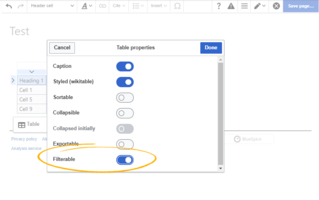
Once in In edit mode, click on the table to open the options popup and click on "Properties". In the dialog that opens, toggle on "Filterable" option.
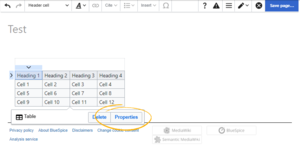
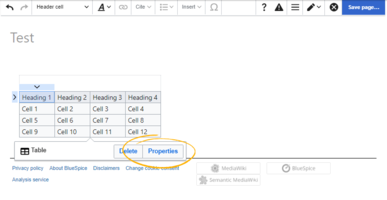
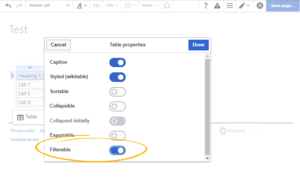
|
Using Wikitext[edit | edit source]
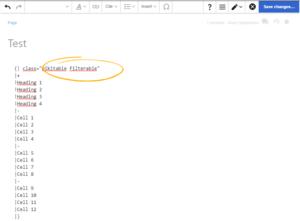
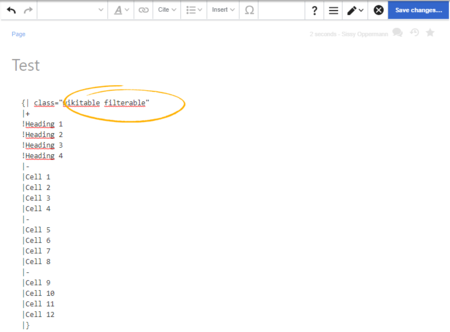
Once in edit In source-editing mode, add the class "filterable" to the table header.
{| class="wikitable filterable"
|+
!Heading 1
...
Class filterable can be used in combinations with classes other than "wikitable" as well as be used alone.
Filtering tables[edit | edit source]
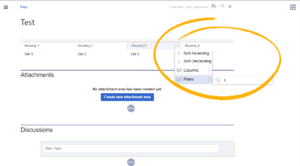 Using the FilterableTables
Once the table with CSS class "filterable" is saved, in view mode, table look will change. In order to The special filter layout of a table is only applied in view mode.
To filter the values in the table, click on the header of the column to filter and select "Filter" from the dropdown menu. In the input field that opens, type in the filter text.
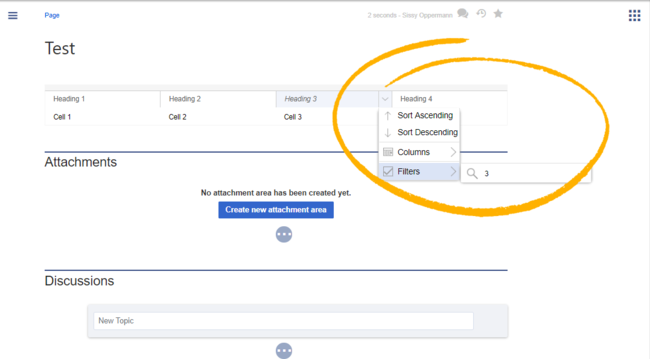


Note: Any table styles that are applied by the table class are ignored as long as the value "filterable" exists in the class rule. A filterable table comes with its own table styling.
Related info
            __TOC__


            ==What is BlueSpiceFilterableTables?==

            '''BlueSpiceFilterableTables''' offers the ability to filter {{DISPLAYTITLE:Filtering tables}}


            '''FilterableTables''' applies a filterable and sortable table layout to regular content tables in wiki articles.


        ==Usage==

            To add filterablity to a table, a CSS class "filterable" must be Setting the filter option==

            To create the table filter, the CSS class "filterable" is added to the table.


        ===Using VisualEditor===


        Once in In edit mode, click on the table to open the options popup and click on "Properties". In the dialog that opens, toggle on "Filterable" option.


        <br />


        {| class="wikitable"

        |+

        |[[File:FitlerableTables1a.png|thumb|alt=Selecting table properties|center|387x387px|Selecting table properties]]

        |[[File:FitlerableTables2a.png|thumb]]

            |}


            ===Using WikiText editor|alt=Setting the filter option|center|319x319px|Setting the filter option]]

            |}


            ===Using Wikitext===

        [[File:FitlerableTables4a.png|thumb|Adding  the "filterable" class in wikitext]]

            Once in edit mode, add |alt=Adding the "filterable" class in wikitext|center|450x450px]]

            In source-editing mode, add the class "filterable" to the table header.


        <pre>

        {| class="wikitable filterable"

        |+

        !Heading 1

        ...


        </pre>


        Class filterable can be used in combinations with classes other than "wikitable" as well as be used alone.


            <br />


            ==Filtering tables==

            [[File:FitlerableTables3a.png|thumb|Using the FilterableTables]]


            Once the table with CSS class "filterable" is saved, in view mode, table look will change.

            In order to==Filtering tables==


            The special filter layout of a table is only applied in view mode.


            To filter the values in the table, click on the header of the column to filter and select "Filter" from the dropdown menu. In the input field that opens, type in the filter text.


        {{Box [[File:FitlerableTables3a.png|thumb|Applying a table filter|alt=Applying a table filter|center|650x650px]]{{Box Note|boxtype=note|Note text=Any table styles that are applied by the table class are ignored as long as the value "filterable" exists in the class rule. A filterable table comes with its own table styling.}}{{Box Links-en|Topic1=[[Reference:BlueSpiceFilterableTables]]}}


        [[en:Manual:Extension/{{PAGENAME{{FULLPAGENAME}}]]

        [[de:Handbuch:Erweiterung/{{PAGENAME}}]]BlueSpiceFilterableTables]]

            __FORCETOC__

            [[Category:Editing]]
| (4 intermediate revisions by the same user not shown) | |||
| Line 1: | Line 1: | ||
| + | {{DISPLAYTITLE:Filtering tables}} | ||
| − | + | '''FilterableTables''' applies a filterable and sortable table layout to regular content tables in wiki articles. | |
| − | == | + | ==Setting the filter option== |
| − | + | To create the table filter, the CSS class "filterable" is added to the table. | |
| − | |||
| − | |||
| − | To | ||
===Using VisualEditor=== | ===Using VisualEditor=== | ||
| − | + | In edit mode, click on the table to open the options popup and click on "Properties". In the dialog that opens, toggle on "Filterable" option. | |
| − | |||
{| class="wikitable" | {| class="wikitable" | ||
|+ | |+ | ||
| − | |[[File:FitlerableTables1a.png|thumb]] | + | |[[File:FitlerableTables1a.png|thumb|alt=Selecting table properties|center|387x387px|Selecting table properties]] |
| − | |[[File:FitlerableTables2a.png|thumb]] | + | |[[File:FitlerableTables2a.png|thumb|alt=Setting the filter option|center|319x319px|Setting the filter option]] |
|} | |} | ||
| − | ===Using | + | ===Using Wikitext=== |
| − | [[File:FitlerableTables4a.png|thumb|Adding "filterable" class in wikitext]] | + | [[File:FitlerableTables4a.png|thumb|Adding the "filterable" class in wikitext|alt=Adding the "filterable" class in wikitext|center|450x450px]] |
| − | + | In source-editing mode, add the class "filterable" to the table header. | |
<pre> | <pre> | ||
{| class="wikitable filterable" | {| class="wikitable filterable" | ||
| Line 26: | Line 23: | ||
... | ... | ||
</pre> | </pre> | ||
| − | |||
| − | |||
| − | |||
| − | |||
==Filtering tables== | ==Filtering tables== | ||
| − | |||
| + | The special filter layout of a table is only applied in view mode. | ||
| − | + | To filter the values in the table, click on the header of the column to filter and select "Filter" from the dropdown menu. In the input field that opens, type in the filter text. | |
| − | |||
| − | {{Box Links-en|Topic1=[[Reference:BlueSpiceFilterableTables]]}} | + | [[File:FitlerableTables3a.png|thumb|Applying a table filter|alt=Applying a table filter|center|650x650px]]{{Box Note|boxtype=note|Note text=Any table styles that are applied by the table class are ignored as long as the value "filterable" exists in the class rule. A filterable table comes with its own table styling.}}{{Box Links-en|Topic1=[[Reference:BlueSpiceFilterableTables]]}} |
| − | [[en: | + | [[en:{{FULLPAGENAME}}]] |
| − | [[de:Handbuch:Erweiterung/ | + | [[de:Handbuch:Erweiterung/BlueSpiceFilterableTables]] |
| + | __FORCETOC__ | ||
| + | [[Category:Editing]] | ||