Difference between revisions of "Manual:Extension/BlueSpiceVisualDiff"
| [unchecked revision] | [quality revision] |
(Tag: 2017 source edit) |
(Tag: Visual edit) |
BlueSpiceVisualDiff enables users to easily compare two versions of a wiki page.
Contents
- 1 What is BlueSpiceVisualDiff? Comparing page versions
- 2.1 2 UsageReading the diff
- 3 See also
BlueSpiceVisualDiff enables users to easily compare two versions of an article.
UsageComparing page versions[edit | edit source]
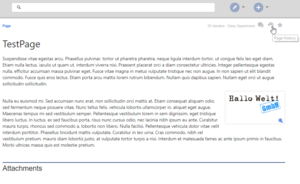 Accessing page history
 Selecting revisions
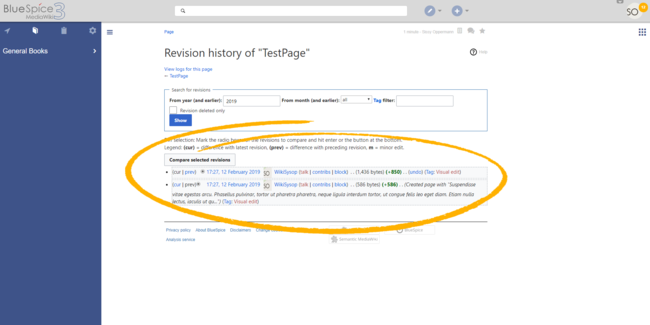
VisualDiff is integrated in the history page of every articlecontent page. Users with reading rights for the corresponding article can access the version comparison tool by clicking on the "History" icon in the page tools in the right upper corner of an article Page > History at the top of the content area.
Once in history view, select two versions (revisions) to compare (by marking the radio button in front of every revision) and click "Compare selected revisions".
This opens the compare view, with several modes of comparison available:
- VisualDiff - mode that this page describes.
- WikiText - shows difference in underlying wikitext.
-
Classic - shows basic visual difference with old version on the left and new on the right. It highlights which lines were added or removed.


Reading the diff[edit | edit source]
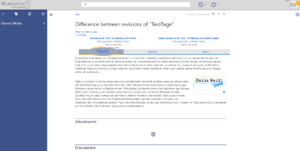 Viewing the VisualDiff
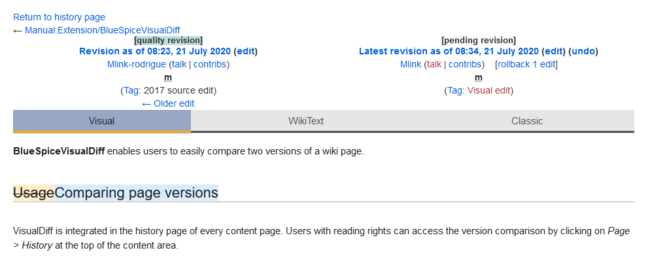
A change can be “added”, “deleted”, “changed”, or be marked as “conflict” content. Due to the nature of wiki articles, “changed” and “conflict” are very rare. “Changed” will be shown e.g. , for example, if a word was linked subsequently. All other changes (although being “changed” as well) are shown as “added” or “deleted”.
Color code for text changes:
- Light blue: additions to the text.
- Orange and crossed-out: deletions from the text.
- Blue dashed lines: Changes in the structure of the article. This is usually the case when a word has been linked subsequently, or a header has been changed.
Color code for image changes:
- Light blue frame: added picture, or the current format of a changed image.
- Red frame: deleted picture, or the former format of a changed image.
See also[edit | edit source]
Reference page for this extension.Important! Changes that are only visible in the source view (e.g., changes to categories or tags) are not refelcted in the visual comparison mode), you should always check the classic comparison mode in addition to "catch" these changes.
Related info
__HIDETITLE__


            <bs:bookshelf src="Book:User manual" />


            __TOC__


            ==What is BlueSpiceVisualDiff?==


        {{DISPLAYTITLE:Visual version comparison (VisualDiff)}}


        '''BlueSpiceVisualDiff''' enables users to easily compare two versions of an article.


            ==Usage==

            [[File:VisualDiff0a.png|thumb|Accessing page history]]

            [[File:VisualDiff1a.png|thumb|Selecting revisions]]


        a wiki page.


            ==Comparing page versions==


        VisualDiff is integrated in the history page of every articlecontent page. Users with reading rights for the corresponding article can access the version comparison tool by clicking on the "History" icon in the page tools in the right upper corner of an article''Page > History'' at the top of the content area.


        Once in history view, select two versions (revisions) to compare (by marking the radio button in front of every revision) and click "Compare selected revisions".


        <br />[[File:VisualDiff1a.png|thumb|Selecting revisions|alt=Selecting revisions|center|650x650px]]


        This opens the compare view, with several modes of comparison available:


        * '''

            *VisualDiff - mode that this page describes.'''

            *

            *WikiText - shows difference in underlying wikitext

            * .

            *Classic - shows basic visual difference with old version on the left and new on the right. It highlights which lines were added or removed.


            ===Reading the diff===

            [[File:VisualDiff2a.png|thumb|Viewing the VisualDiff]]


        <br />


            [[File:Manual:VisualDiff-example.png|alt=VisualDiff color coding|center|thumb|650x650px|VisualDiff color coding]]


            ==Reading the diff==


        A change can be “added”, “deleted”, “changed”, or be marked as “conflict” content. Due to the nature of wiki articles, “changed” and “conflict” are very rare. “Changed” will be shown e.g. , for example, if a word was linked subsequently. All other changes (although being “changed” as well) are shown as “added” or “deleted”.


        Color code for text changes:


        * Light blue: additions to the text.

        * Orange and crossed-out: deletions from the text.

        * Blue dashed lines: Changes in the structure of the article. This is usually the case when a word has been linked subsequently, or a header has been changed.


        Color code for image changes:


        * Light blue frame: added picture, or the current format of a changed image.

        * Red frame: deleted picture, or the former format of a changed image.


            ==See also==

            [[Reference:VisualDiff|Reference page]] for this extension.{{Box Note|boxtype=important|Note text=Changes that are only visible in the source view (e.g., changes to categories or tags) are not refelcted in the visual comparison mode), you should always check the classic comparison mode in addition to "catch" these changes.}}<br />{{Box Links-en|Topic1=[[Reference:BlueSpiceVisualDiff]]}}


            [[en:{{FULLPAGENAME}}]]

            [[de:Handbuch:Erweiterung/BlueSpiceVisualDiff]]

            __FORCETOC__

            [[Category:Content]]
| (12 intermediate revisions by 4 users not shown) | |||
| Line 1: | Line 1: | ||
| − | + | {{DISPLAYTITLE:Visual version comparison (VisualDiff)}} | |
| − | |||
| − | + | '''BlueSpiceVisualDiff''' enables users to easily compare two versions of a wiki page. | |
| − | == | + | ==Comparing page versions== |
| + | VisualDiff is integrated in the history page of every content page. Users with reading rights can access the version comparison by clicking on ''Page > History'' at the top of the content area. | ||
| − | + | Once in history view, select two versions (revisions) to compare (by marking the radio button in front of every revision) and click "Compare selected revisions". | |
| − | + | <br />[[File:VisualDiff1a.png|thumb|Selecting revisions|alt=Selecting revisions|center|650x650px]] | |
| − | [[File: | ||
| − | |||
| − | |||
| − | + | This opens the compare view, with several modes of comparison available: | |
| − | + | *VisualDiff - mode that this page describes. | |
| − | * | + | *WikiText - shows difference in underlying wikitext. |
| − | * WikiText - shows difference in underlying wikitext | + | *Classic - shows basic visual difference with old version on the left and new on the right. It highlights which lines were added or removed.<br /> |
| − | * Classic - shows basic visual difference with old version on the left and new on the right. It highlights which lines were added or removed. | ||
| − | + | [[File:Manual:VisualDiff-example.png|alt=VisualDiff color coding|center|thumb|650x650px|VisualDiff color coding]] | |
| − | [[File: | ||
| − | A change can be “added”, “deleted”, “changed”, or “conflict” content. Due to the nature of wiki articles, “changed” and “conflict” are very rare. “Changed” will be shown | + | ==Reading the diff== |
| + | A change can be “added”, “deleted”, “changed”, or be marked as “conflict” content. Due to the nature of wiki articles, “changed” and “conflict” are very rare. “Changed” will be shown, for example, if a word was linked subsequently. All other changes (although being “changed” as well) are shown as “added” or “deleted”. | ||
Color code for text changes: | Color code for text changes: | ||
| − | * Light blue: additions to the text. | + | *Light blue: additions to the text. |
| − | * Orange and crossed-out: deletions from the text. | + | *Orange and crossed-out: deletions from the text. |
| − | * Blue dashed lines: Changes in the structure of the article. This is usually the case when a word has been linked subsequently, or a header has been changed. | + | *Blue dashed lines: Changes in the structure of the article. This is usually the case when a word has been linked subsequently, or a header has been changed. |
Color code for image changes: | Color code for image changes: | ||
| − | * Light blue frame: added picture, or the current format of a changed image. | + | *Light blue frame: added picture, or the current format of a changed image. |
| − | * Red frame: deleted picture, or the former format of a changed image. | + | *Red frame: deleted picture, or the former format of a changed image. |
| + | {{Box Note|boxtype=important|Note text=Changes that are only visible in the source view (e.g., changes to categories or tags) are not refelcted in the visual comparison mode), you should always check the classic comparison mode in addition to "catch" these changes.}}<br />{{Box Links-en|Topic1=[[Reference:BlueSpiceVisualDiff]]}} | ||
| − | + | [[en:{{FULLPAGENAME}}]] | |
| − | [[ | + | [[de:Handbuch:Erweiterung/BlueSpiceVisualDiff]] |
| + | __FORCETOC__ | ||
| + | [[Category:Content]] | ||