Difference between revisions of "Reference:BlueSpiceBookshelf"
(→User manual) |
(→Manage books) |
Extension: BlueSpiceBookshelf
| Overview | |||
|---|---|---|---|
| Description: | enables you to combine different wiki articles to create books and also to export those as a pdf document. | ||
| State: | stable | Dependency: | BlueSpice |
| Developer: | HalloWelt | License: | - |
| Type: | Category: | Book | |
| Edition: | BlueSpice pro | ||
Features[edit source]
Contents
Description[edit | edit source]
Bookshelf is an extension of the package BlueSpice Bookmaker. Bookshelf enables you to combine different wiki articles to create books and also to export those as a pdf document.
Usage/ Features[edit | edit source]
Manage books[edit | edit source]
Click on "Manage books" in your WidgetBar and it leas you to the special page Special:BookManager, which provides an overview of all available books.
The following actions can be performed:
| Button | Action |
|---|---|

|
Add book: opens a dialogue for inserting the title of the new book. |

|
Copy book: Copy an existing book and edit it afterwards. |

|
Edit book: leads you to the book editor, where you can add articles to the book, delete them or change the position in the book structure with drag & drop. |

|
Delete book: completely deletes the article collection (but not the articles). |
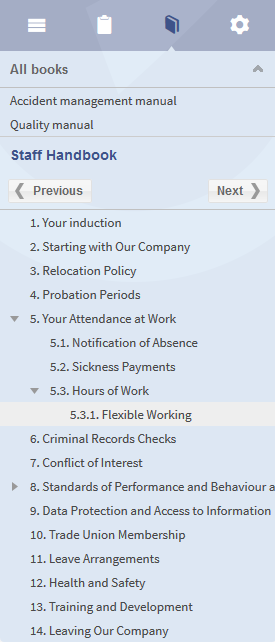 Screenshot: Chapter navigation in the sidebar
Technical information[edit | edit source]
Configuration[edit | edit source]
Rights (permissions)[edit | edit source]
The right to create a book depends on the "write" permission in the "book" namespace.
Requirements[edit | edit source]
User manual[edit | edit source]
For detailed description and usage please visit our user manual.
Try free our BlueSpice[edit | edit source]
{{BSExtensionInfobox

        |desc=enables you to combine different wiki articles to create books and also to export those as a pdf document.

        |status=stable

        |developer=HalloWelt

        |type=BlueSpice

        |edition=BlueSpice pro

        |active=Yes

        |compatible=BlueSpice

        |package=Bookmaker

        |category=Book

        }}

        __TOC__


        ==Description==


        '''Bookshelf''' is an extension of the package [[Bookmaker|BlueSpice Bookmaker]]. Bookshelf enables you to combine different wiki articles to create books and also to export those as a pdf document.


        ==Usage/ Features==


        ===Manage books===

            Click on "Manage books" in your WidgetBar and it leas you to the special page <code>Special:BookManager</code>, which provides an overview of all available books.<br />

            The following actions can be performed:


            {|

            |-

            !|'''Button'''

            !|'''Action'''

            |-

            ||[[File:Button_Add.png]]

            ||

            '''Add book''': opens a dialogue for inserting the title of the new book.


            |-

            ||[[File:Btn-BookCopy.png]]

            ||

            '''Copy book''': Copy an existing book and edit it afterwards.


            |-

            ||[[File:Button_Edit.png|65x62px]]

            ||

            '''Edit book''': leads you to the book editor, where you can add articles to the book, delete them or change the position in the book structure with drag & drop.


            |-

            ||[[File:Button_Delete.png]]

            ||

            '''Delete book''': completely deletes the article collection (but not the articles).


            |}

            [[File:BlueSpice223-Bookmaker-Kapitelnavigation-en.png|thumb|none|275px|Screenshot: Chapter navigation in the sidebar]]


            ==Technical information==


        ===Configuration===


        ===Rights (permissions)===

        The right to create a book depends on the "write" permission in the "book" namespace.


        ===Requirements===


        ==User manual==

        For detailed description and usage please visit our [Https://en.help.bluespice.com/wiki/Extensions/Bookshelf| user manual.]


        ==Try free our BlueSpice==

        [https://en.demo.bluespice.com/wiki/Main_Page BlueSpice Demo.]


        [[de:{{FULLPAGENAME}}]][[en:{{FULLPAGENAME}}]]

[[Category:Extension]]| Line 17: | Line 17: | ||
==Usage/ Features== | ==Usage/ Features== | ||
| − | |||
| − | |||
| − | |||
| − | |||
| − | |||
| − | |||
| − | |||
| − | |||
| − | |||
| − | |||
| − | |||
| − | |||
| − | |||
| − | |||
| − | |||
| − | |||
| − | |||
| − | |||
| − | |||
| − | |||
| − | |||
| − | |||
| − | |||
| − | |||
| − | |||
| − | |||
| − | |||
| − | |||
| − | |||
| − | |||
| − | |||
==Technical information== | ==Technical information== | ||