Difference between revisions of "Reference:FlexiSkin"
RichardHeigl (talk | contribs) |
(Tag: 2017 source edit) |
FlexiSkin is an extension to change basic design elements.
Technical background[edit | edit source]
Flexiskin is a special page. CSS will be inserted by a RessourceLoader.
Where do I find Flexiskin?[edit | edit source]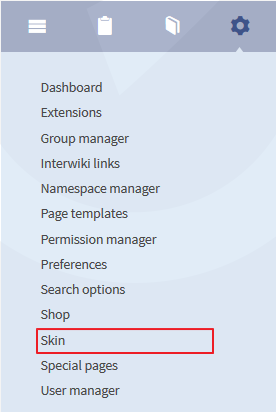 Screenshot: Starting the FlexiskinFlexiskin is a special page. Open this page directly by using
 Special:Wiki_Admin&mode=Flexiskin.
The most common way to open the Flexiskin is by clicking on "Skin" at the admin navigation.
Functionality of Flexiskin[edit | edit source]
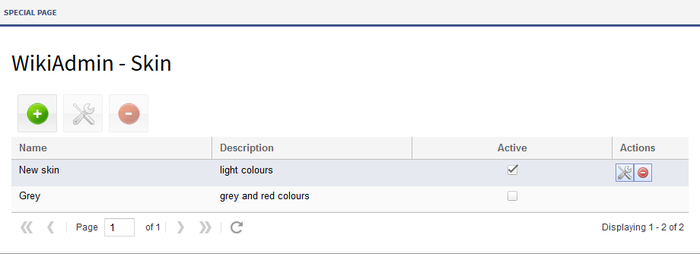 Screenshot:Special page of the Flexiskin. Here you will find an overview of existing skins and also the possibility to create, edit or delete a skin.
Create a new skin[edit | edit source]
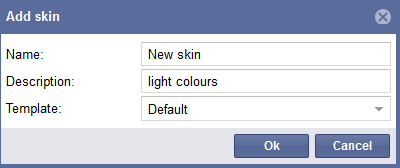 Screenshot: Title and description for the new skinClick on the green plus symbol
  , to add a new skin and enter title and description of the new skin. You can also choose a related template at the dropdown. Click on "Ok" to create the new skin.
Adapting the skin[edit | edit source]
Mark the skin you want to adapt and click on the tool symbol next to it to go to the skin editor. 
On the left hand side you will find the edit functionalities on the right hand side there is a preview.
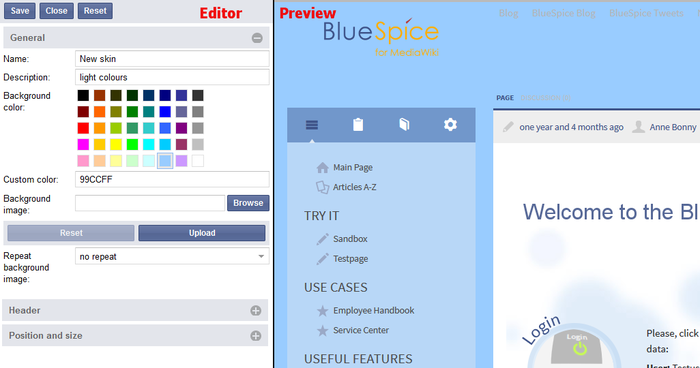 Screenshot:Layout of the editor window
Don't forget to click the "Save" button at the top of the editor area.
Attention: The Reset button only resets the last set value.
To close the skin editor click on "close". Please confirm to the pop-up to really close the editor.
The following changes for the skin are possible with Flexiskin:
-
General: Change the background in the wiki. Just choose one of the colours or enter a vertain value.
-
Header/Logo: At the bottom of the editor on the left you will find "Header". Here you can upload an individual logo. To see changes in the preview please click on "save" at the top.
-
Position and size: Choose wether the navigation shall appear left or right next to the content. Position means that you can display the content left, center or rioght in the browser. You can also change the complete width.
Default for the skin is navigation on the left, content in the middle and width 1000px.
Activating a skin[edit | edit source]
To finally activate a new skin please select the skin at the overview of skins (Spezial:Wiki_Admin&mode=Flexiskin) on the special page by clicking on it.
Delete a skin[edit | edit source]
You want to delete a skin completely? Mark the skin in the overview and click on the delete symbol  . Please confirm that you want to delete the skin.
Extension: FlexiSkin
| Overview | |||
|---|---|---|---|
| Description: | allows to customize the skin of the wiki. | ||
| State: | stable | Dependency: | MediaWiki |
| Developer: | HalloWelt | License: | GPL v2+ |
| Type: | MediaWiki | Category: | Skinning |
| Edition: | BlueSpice Cloud | ||
Features[edit source]
FlexiSkin allows you to customize the skin of your wiki. Choose between different colors or fonts and insert your own logo.
Usage / Features[edit | edit source]
- dedicated special page Special:Flexiskin
- allows setting of various out of the box themes
- allows definition of custom themes
- fields with color picker
- font type, size and color for headings and content
- logo / favicon upload via drag&drop
<bookshelf src="Book:Admin manual" />

            __NOTOC__

            FlexiSkin is an extension to change basic design elements.


            ==Technical background==

            Flexiskin is a special page. CSS will be inserted by a RessourceLoader.


            ==Where do I find Flexiskin?==

            [[File:BlueSpice223-Flexiskin-Navigation-en.png|left|thumb|400px|Screenshot: Starting the Flexiskin]]

            Flexiskin is a special page. Open this page directly by using <code>Special:Wiki_Admin&mode=Flexiskin</code>.<br />The most common way to open the Flexiskin is by clicking on "Skin" at the admin navigation.


            <br /><br /><br /><br /><br /><br /><br /><br /><br /><br /><br /><br /><br /><br /><br /><br /><br /><br /><br />


            ==Functionality of Flexiskin==


            [[File:BlueSpice223-flexiskin-Spezialseite-en.png|700px|thumb|none|Screenshot:Special page of the Flexiskin. Here you will find an overview of existing skins and also the possibility to create, edit or delete a skin.]]


            ===Create a new skin===

            [[File:BlueSpice223-flexiskin-Skin_hinzufügen-en.png|400px|thumb|left|Screenshot: Title and description for the new skin]]

            Click on the green plus symbol [[File:Btn-plus.png]], to add a new skin and enter title and description of the new skin. You can also choose a related template at the dropdown.

            Click on "Ok" to create the new skin.


            <br /><br /><br /><br /><br /><br /><br /><br />

            ===Adapting the skin===

            Mark the skin you want to adapt and click on the tool symbol next to it to go to the skin editor. [[File:Btn-edit.png]]<br />

            On the left hand side you will find the edit functionalities on the right hand side there is a preview.


            [[File: BlueSpice223-flexiskin-Aufbau des Bearbeitungsfenster-en.png|thumb|700px|none|Screenshot:Layout of the editor window]]


            Don't forget to click the "Save" button at the top of the editor area.  <br />

            Attention: The '''Reset''' button only resets the last set value.<br />

            To close the skin editor click on "close". Please confirm to the pop-up to really close the editor.


            The following changes for the skin are possible with Flexiskin:

            *'''General''': Change the background in the wiki. Just choose one of the colours or enter a vertain value. <br />

            You can also insert an image as background image. Upload the image you want to have in the background and specify if you want to have repeats (no repeat, horizontal, vertical repeat). After you uploaded the image plaese click on "save" at the top of the skin editor.


            <br /><br /><br />

            *'''Header/Logo''': At the bottom of the editor on the left you will find "Header". Here you can upload an individual '''logo'''. To see changes in the preview please click on "save" at the top.<br />


            Attention: The logo area in BlueSpice is defined with 276 x 60px.

            You can also change the logo in the admin settings (click on "settings" in the admin navigation) and enter the logo path in the submenu "Flexiskin".


            <br /><br /><br />

            *'''Position and size''': Choose wether the navigation shall appear left or right next to the content. Position means that you can display the content left, center or rioght in the browser. You can also change the complete width. <br />Default for the skin is navigation on the left, content in the middle and width 1000px.


            ==Activating a skin==

            To finally activate a new skin please select the skin at the overview of skins (<code>Spezial:Wiki_Admin&mode=Flexiskin</code>) on the special page by clicking on it.


            ==Delete a skin==

            You want to delete a skin completely? Mark the skin in the overview and click on the delete symbol [[File:Btn-minus.png]]. Please confirm that you want to delete the skin.


            [[de:FlexiSkin]][[en:{{FULLPAGENAME}}]]{{BSExtensionInfobox

            |desc=allows to customize the skin of the wiki.

            |status=stable

            |developer=HalloWelt

            |type=MediaWiki

            |edition=BlueSpice Cloud

            |active=Yes

            |compatible=MediaWiki

            |category=Skinning

            |license=GPL v2+

            |docu=https://en.wiki.bluespice.com/wiki/Manual:Extension/FlexiSkin

            }}

            '''FlexiSkin''' allows you to customize the skin of your wiki. Choose between different colors or fonts and insert your own logo.


            ==Usage / Features==


            *dedicated special page ''Special:Flexiskin''

            *allows setting of various out of the box themes

            *allows definition of custom themes

            *fields with color picker

            *font type, size and color for headings and content

            *logo / favicon upload via drag&drop
| (79 intermediate revisions by 7 users not shown) | |||
| Line 1: | Line 1: | ||
| − | + | {{BSExtensionInfobox | |
| − | + | |desc=allows to customize the skin of the wiki. | |
| − | FlexiSkin | + | |status=stable |
| + | |developer=HalloWelt | ||
| + | |type=MediaWiki | ||
| + | |edition=BlueSpice Cloud | ||
| + | |active=Yes | ||
| + | |compatible=MediaWiki | ||
| + | |category=Skinning | ||
| + | |license=GPL v2+ | ||
| + | |docu=https://en.wiki.bluespice.com/wiki/Manual:Extension/FlexiSkin | ||
| + | }} | ||
| + | '''FlexiSkin''' allows you to customize the skin of your wiki. Choose between different colors or fonts and insert your own logo. | ||
| − | == | + | ==Usage / Features== |
| − | |||
| − | + | *dedicated special page ''Special:Flexiskin'' | |
| − | + | *allows setting of various out of the box themes | |
| − | + | *allows definition of custom themes | |
| − | + | *fields with color picker | |
| − | + | *font type, size and color for headings and content | |
| − | + | *logo / favicon upload via drag&drop | |
| − | |||
| − | |||
| − | |||
| − | |||
| − | |||
| − | |||
| − | |||
| − | |||
| − | |||
| − | |||
| − | |||
| − | |||
| − | |||
| − | |||
| − | |||
| − | |||
| − | |||
| − | |||
| − | |||
| − | |||
| − | * | ||
| − | |||
| − | |||
| − | * | ||
| − | |||
| − | |||
| − | |||
| − | |||
| − | * | ||
| − | |||
| − | |||
| − | |||
| − | |||
| − | |||
| − | |||
| − | |||
| − | |||
| − | |||
| − | |||