Difference between revisions of "Manual:Extension/BlueSpiceMultiUpload"
| [quality revision] | [quality revision] |
m (Tag: Visual edit) |
m (Tag: 2017 source edit) |
MultiUpload allows the simultaneous upload of multiple files to the wiki.
Contents
BlueSpiceMultiUpload allows the simultaneous upload of multiple files to the wiki.
Where to find BlueSpiceMultiUpload?[edit | edit source]
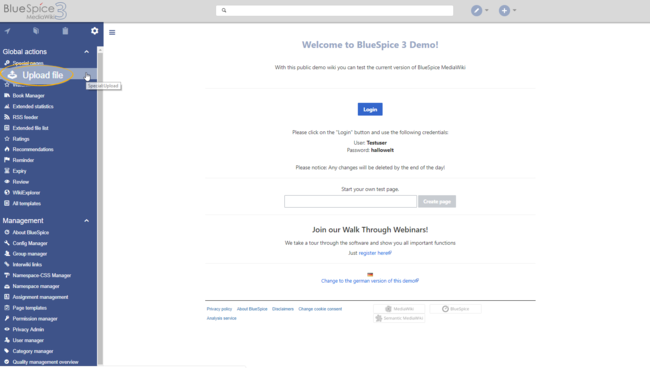
If BlueSpiceMultiUpload is enabled on the wiki, it will replace the link for uploading files, which is located in the left navigation, under the Global actions tab.
Using BlueSpiceMultiUpload[edit | edit source]
Clicking the Upload file link in the left navigation opens the operating system's file manager. Multiple files can be selected.
After confirming the selection of files, a wiki upload dialog appears, in which additional data about files being uploaded can be added collectively:
- the namespace to upload to,
- the category to attach to the files,
- a description (will be the same for all files), and
-
the license information
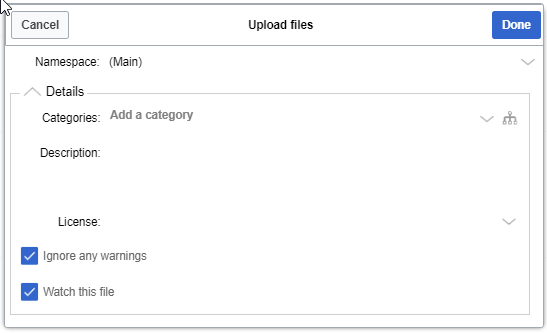
After configuring the settings, click Done to upload the file(s).
Standard MediaWiki upload[edit | edit source]
Even with BlueSpiceMultiUpload installed, the standard Mediawiki upload special page is still available and functional on Special:Upload.
Related info
{{DISPLAYTITLE:UploadingUpload multiple files}}


        __TOC__


            '''BlueSpiceMultiUpload'''MultiUpload''' allows the simultaneous upload of multiple files to the wiki.


        ==Where to find BlueSpiceMultiUpload?==

        If BlueSpiceMultiUpload is enabled on the wiki, it will replace the link for uploading files, which is located in the left navigation, under the ''Global actions'' tab.

        [[File:MultiUpload1a.png|Uploading files|alt=Uploading files|border|center|650x650px]]

        ==Using BlueSpiceMultiUpload==

        Clicking the ''Upload file'' link in the left navigation opens the operating system's file manager. Multiple files can be selected.


        After confirming the selection of files, a wiki upload dialog appears, in which additional data about files being uploaded can be added collectively:


        *the namespace to upload to,

        *the category to attach to the files,

        *a description (will be the same for all files), and

        *the license information <br />


        [[File:MultiUpload2.png|Upload dialog|alt=Upload dialog|border|center|547x547px]]All settings are optional.


        After configuring the settings, click  ''Done'' to upload the file(s).


        ==Standard MediaWiki upload==

        Even with BlueSpiceMultiUpload installed, the standard Mediawiki upload special page is still available and functional on <code>Special:Upload</code>.


        {{Box Links-en|Topic1=[[Reference:BlueSpiceMultiUpload]]}}


        {{Translation}}

[[Category:Editing]]| (One intermediate revision by the same user not shown) | |||
| Line 1: | Line 1: | ||
| − | {{DISPLAYTITLE: | + | {{DISPLAYTITLE:Upload multiple files}} |
| − | + | '''MultiUpload''' allows the simultaneous upload of multiple files to the wiki. | |
| − | |||
| − | ''' | ||
==Where to find BlueSpiceMultiUpload?== | ==Where to find BlueSpiceMultiUpload?== | ||
| Line 27: | Line 25: | ||
{{Translation}} | {{Translation}} | ||
| + | [[Category:Editing]] | ||