Difference between revisions of "Manual:Extension/BlueSpiceMultiUpload"
| [unchecked revision] | [unchecked revision] |
(Copied from Manual:Extension/BlueSpiceConfigManager, revision 11599) |
(Tag: 2017 source edit) |
Contents
- 1 What is BlueSpiceConfigManagerBlueSpiceMultiUpload?
- 2 Where to find BlueSpiceConfigManagerBlueSpiceMultiUpload?
- 3 Using BlueSpiceConfigManager 4
- BlueSpiceMultiUpload
- 4 Integration with other extensions
- 5 Using standard MediaWiki upload
- 6 See also
What is BlueSpiceConfigManagerBlueSpiceMultiUpload?[edit | edit source]
BlueSpiceConfigManager provides a special page that enables managing all BlueSpice wiki-wide settings in one placeBlueSpiceMultiUpload enhances the experience of uploading files to the wiki, with fast and seamless interface.
Where to find BlueSpiceConfigManagerBlueSpiceMultiUpload?[edit | edit source]
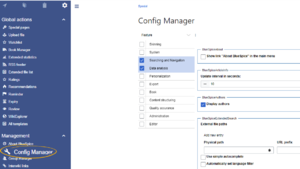 BlueSpiceConfigManager is accessible from the

If BlueSpiceMultiUpload is enabled on the wiki, it will replace the link for uploading files, which is located in the left navigation, from under "Global actions" tab, under "Management section" or by navigating directly to Special:ConfigManager.
Using BlueSpiceConfigManagerBlueSpiceMultiUpload[edit | edit source]
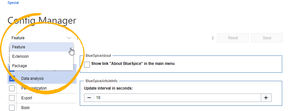 Changing grouping types
Once on the special page, all settings will be grouped by logical groups. There are three ways of grouping the settings:
- Feature - grouping by type of functionality setting belongs to (searching, administration...)
- Extension - grouping by the extension the setting is coming from
- Package - grouping by the package extension providing the setting comes from - namely BlueSpiceFree and BlueSpicePro.
Grouping can be changed by selecting different options from the dropdown list in the top left corner of the ConfigManager. All settings are available in any type of grouping, chaning the grouping type does not add or remove setting options, just groups them differently.
Once the grouping type is selected, a list of all availble groups will appear below the grouping dropdown box (list of features if "Feature" grouping is selected, list of extensions if "Extension" grouping is selected...)
Settings in particular group can be shown by clicking on one of the groups provided. Multiple groups can be selected at a time, in which case the list of settings on the right will show all the settings from selected groups combined.
Once the settings are adjusted, they can be saved by clicking on the "Save" button in the top right corner, or reset to values before changes, by clicking on the "Reset" button.
Searching for settings[edit | edit source]
A search bar is located above the list of settings, which can be used to search for the settings. All settings will be searched always, regardless of what groups are currently selected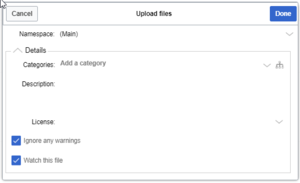
By clicking on the "Upload file" link in the left navigation, a dialog will open prompting to select files to upload. Multiple files can be selected.
After confirming selection of files, an upload dialog will appear, in which additional data about files being uploaded can be added, like:
- namespace to upload to
- category to attach to the files
- descriptions ...
All settings are optional.
After configuring the settings, click on "Done" button to upload the file(s). Progress bar will appear, showing the progress of the file upload. In case there is an error with one or more of the files being uploaded, dialog will be expanded the show the problematic files.
After all files are uploaded, dialog can be closed, completing the process.
Integration with other extensions[edit | edit source]


BlueSpiceMultiUpload also integrates into other extensions, like BlueSpiceExtendedFilelist (accessible from Special:ExtendedFilelist, where an upload button is added above the file grid, providing the same functionality as described above.
Using standard MediaWiki upload[edit | edit source]
Even with BlueSpiceMultiUpload installed, standard MW upload special page is still available and functional on Special:Upload.
See also[edit | edit source]
Reference page for this extension.
<bs:bookshelf src="Book:User manual" />


        __TOC__


        ==What is BlueSpiceConfigManager?==


            '''BlueSpiceConfigManager''' provides a special page that enables managing all BlueSpice wiki-wide settings in one place.


            ==Where to find BlueSpiceConfigManager?==

            [[File:ConfigManager1a.png|thumb]]


            BlueSpiceConfigManager is accessible from the left navigation, from "Global actions" tab, under "Management section" or by navigating directly to <code>Special:ConfigManager</code>.


            ==Using BlueSpiceConfigManager==

            [[File:ConfigManager2a.png|thumb|Changing grouping types]]

            Once on the special page, all settings will be grouped by logical groups. There are three ways of grouping the settings:


            * Feature - grouping by type of functionality setting belongs to (searching, administration...)

            * Extension - grouping by the extension the setting is coming from

            * Package - grouping by the package extension providing the setting comes from - namely BlueSpiceFree and BlueSpicePro.


            Grouping can be changed by selecting different options from the dropdown list in the top left corner of the ConfigManager.

            All settings are available in any type of grouping, chaning the grouping type does not add or remove setting options, just groups them differently.


            Once the grouping type is selected, a list of all availble groups will appear below the grouping dropdown box (list of features if "Feature" grouping is selected, list of extensions if "Extension" grouping is selected...)


            Settings in particular group can be shown by clicking on one of the groups provided.

            Multiple groups can be selected at a time, in which case the list of settings on the right will show all the settings from selected groups combined.


            Once the settings are adjusted, they can be saved by clicking on the "Save" button in the top right corner, or reset to values before changes, by clicking on the "Reset" button.


            ===Searching for settings===

            A search bar is located above the list of settings, which can be used to search for the settings. All settings will be searched always, regardless of what groups are currently selected.


            ==See also==


            [[Reference:BlueSpiceConfigManagerBlueSpiceMultiUpload?==


            '''BlueSpiceMultiUpload''' enhances the experience of uploading files to the wiki, with fast and seamless interface.


            ==Where to find BlueSpiceMultiUpload?==

            [[File:MultiUpload1a.png|thumb|Uploading files]]

            If BlueSpiceMultiUpload is enabled on the wiki, it will replace the link for uploading files, which is located in the left navigation, under "Global actions" tab.


            ==Using BlueSpiceMultiUpload==

            [[File:MultiUpload2.png|thumb|Upload dialog]]

            By clicking on the "Upload file" link in the left navigation, a dialog will open prompting to select files to upload. Multiple files can be selected.


            After confirming selection of files, an upload dialog will appear, in which additional data about files being uploaded can be added, like:


            * namespace to upload to

            * category to attach to the files

            * descriptions ...


            All settings are optional.


            After configuring the settings, click on "Done" button to upload the file(s). Progress bar will appear, showing the progress of the file upload. In case there is an error with one or more of the files being uploaded, dialog will be expanded the show the problematic files.


            After all files are uploaded, dialog can be closed, completing the process.


            ==Integration with other extensions==

            [[File:MultiUpload3a.png|thumb|Integration in to BlueSpiceExtendedFilelist]]

            BlueSpiceMultiUpload also integrates into other extensions, like [[Manual:Extension/BlueSpiceExtendedFilelist|BlueSpiceExtendedFilelist]] (accessible from <code>Special:ExtendedFilelist</code>, where an upload button is added above the file grid, providing the same functionality as described above.


            ==Using standard MediaWiki upload==

            Even with BlueSpiceMultiUpload installed, standard MW upload special page is still available and functional on <code>Special:Upload</code>.


            ==See also==


            [[Reference:BlueSpiceMultiUpload|Reference page]] for this extension.
| Line 3: | Line 3: | ||
__TOC__ | __TOC__ | ||
| − | ==What is | + | ==What is BlueSpiceMultiUpload?== |
| − | ''' | + | '''BlueSpiceMultiUpload''' enhances the experience of uploading files to the wiki, with fast and seamless interface. |
| − | ==Where to find | + | ==Where to find BlueSpiceMultiUpload?== |
| − | [[File: | + | [[File:MultiUpload1a.png|thumb|Uploading files]] |
| + | If BlueSpiceMultiUpload is enabled on the wiki, it will replace the link for uploading files, which is located in the left navigation, under "Global actions" tab. | ||
| − | + | ==Using BlueSpiceMultiUpload== | |
| + | [[File:MultiUpload2.png|thumb|Upload dialog]] | ||
| + | By clicking on the "Upload file" link in the left navigation, a dialog will open prompting to select files to upload. Multiple files can be selected. | ||
| − | + | After confirming selection of files, an upload dialog will appear, in which additional data about files being uploaded can be added, like: | |
| − | |||
| − | |||
| − | * | + | * namespace to upload to |
| − | * | + | * category to attach to the files |
| − | * | + | * descriptions ... |
| − | + | All settings are optional. | |
| − | All settings are | ||
| − | + | After configuring the settings, click on "Done" button to upload the file(s). Progress bar will appear, showing the progress of the file upload. In case there is an error with one or more of the files being uploaded, dialog will be expanded the show the problematic files. | |
| − | + | After all files are uploaded, dialog can be closed, completing the process. | |
| − | |||
| − | + | ==Integration with other extensions== | |
| + | [[File:MultiUpload3a.png|thumb|Integration in to BlueSpiceExtendedFilelist]] | ||
| + | BlueSpiceMultiUpload also integrates into other extensions, like [[Manual:Extension/BlueSpiceExtendedFilelist|BlueSpiceExtendedFilelist]] (accessible from <code>Special:ExtendedFilelist</code>, where an upload button is added above the file grid, providing the same functionality as described above. | ||
| − | == | + | ==Using standard MediaWiki upload== |
| − | + | Even with BlueSpiceMultiUpload installed, standard MW upload special page is still available and functional on <code>Special:Upload</code>. | |
==See also== | ==See also== | ||
| − | [[Reference: | + | [[Reference:BlueSpiceMultiUpload|Reference page]] for this extension. |