Difference between revisions of "Manual:Extension/InsertLink"
| [unchecked revision] | [quality revision] |
m (Text replacement - "<bs:bookshelf src="Book:User manual" />" to "") |
m (Tag: 2017 source edit) |
Contents
Linking pages is an important feature of browser-based knowledge documentation. The links often differ in their function. Links connect wiki pages with:
- other wiki pages
- external websites
- files (images, PDF files, Word documents,...)
- files stored on other drives
Contents
How do I create links?[edit | edit source]
InsertLink offers a dialogue to insert links without using the wiki code.
Where to find InsertLink?[edit | edit source]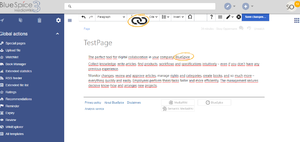
 Links to other wiki pages
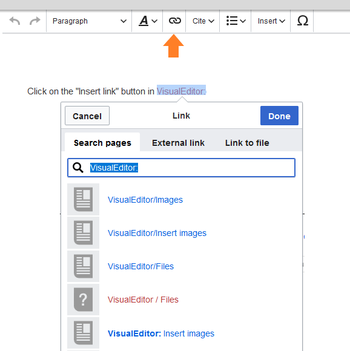
Use the Insert link menu item in VisualEditor or use the shortcut Ctrl+K. In both cases, a dialog box opens.
Link to a wiki page[edit | edit source]
This is the main use. Linking from one article to another. So you can link related issues. You can name articles the same if they exist in different namespaces. So if you choose a namespace InsertLink will show a fitting list.
- Place the cursor where you want the link to be inserted.
- Click the "Insert Link" button.
- Give the target of the link, this is the correct namespace and the article within it, and, if desired, add the text to be displayed for the link.
- Start typing a word and the system will show matching page names and also matching namespaces. So if you want to link a page in a namespace, choose a namespace first and then start typing again to look for a page in this namespace. By the way the auto-complete, which starts while typing a title, uses a left and right truncation and therefore also finds elements which are not located in the beginning of a page title.
- Click on "ok".
- The following code is inserted: [[other_article|text]] or [[namespace:wiki|Wiki article]].
Note: If you link to a page in the namespace "Category", no category will be added, but rather a link will be created to the desired category page. This is done via the automatic insertion of a colon before the link target e.g. [[:category:meta|Wiki article]]. To add a category, it is best to use the InsertCategory function.
External link[edit | edit source]
This is how you link to an external website or blog in the web.
- Place the cursor where you want the link to be inserted.
- Click the "Easy Insert Link" button and go to external link.
- Give the target of the link and, if desired, add the text to be displayed for the link (e.g. http://www.wikipedia.org; Wikipedia).
- Click on "ok".
- The following code is inserted: [http://www.wikipedia.org Wikipedia].
E-mail link[edit | edit source]
It is the "mailto" function. So if you click on an email link later your mailing program will open an email with the receiver.
- Place the cursor where you want the link to be inserted.
- Click the "Easy Insert Link" button and go to "email link".
- Give the target of the link and, if desired, add the text to be displayed for the link (e.g. medienwerkstatt@hallowelt.biz; Email Hallo Welt).
- Click on "ok".
- The following code is inserted: [mailto:medienwerkstatt@hallowelt.biz Email Hallo Welt].
Here you can link to other wikis (MediaWikis).
- Place the cursor where you want the link to be inserted.
- Click the "Easy Insert Link" button and go to "Link to another wiki".
- Give the target of the link and, if desired, add the text to be displayed for the link (e.g. Wiki; Wiki at UseMod)
- Choose the wiki (e.g. UseMod).
- Click on "ok".
- The following code is inserted: [[usemod:Wiki|Wiki at UseMod]].
Links to files[edit | edit source]
See the article FileLink for information on this.
Tips for working with InsertLink[edit | edit source]
-
Every user can use the InsertLink tool.
Cannot find the article you want to link to? Perhaps it is due to the only limitation for linking to wiki pages. If you do not have the correct rights for the namespace of the article you want to link to, it will not be displayed in the drop-down menu. Generally read-rights are necessary.
- When linking to wiki pages, generally only those page names are offered which lie in the chosen namespace. When changing the namespace, you may need to clear the page field to give you a new choice.
See also[edit | edit source]
Our reference page.
Internal links connect related pages or other content that provides more information. Page names can exist multiple times in different namespaces. Therefore, under Search pages, enter the namespace if the destination page is not in the same namespace as the current page.
If you have selected some text on the page, you will find some page suggestions already listed in the Search pages tab. Here, you can adjust the search term accordingly or create a link to a new page.
Then click on Done.
In the source text, links are created with the following structure:
-
Link to a wiki page:
[[landing page name|caption]] -
Link to a wiki page in another namespace:
[[namespace:landing page name|caption]] -
Link to a category page:
[[:Category:category name|caption]]To create a link to a category, the source code is preceded by a colon before the category name. In contrast, the link "Category: BlueSpice" would create a category called BlueSpice instead of linking to the category BlueSpice. -
Interwiki link:
[[Imdb:tt2709692]]If your wiki links to other wikis, you can use the tab Search pages also to directly link to a page in a related wiki. For example, if your administrator maintains an interwiki link for the IMDb movie database, it can be typed in as in the example above. Ask your administrator which interwiki links are available in your wiki.
Link to an external website[edit | edit source]
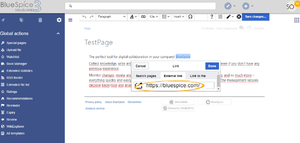
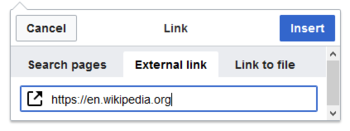
To link to an external website, mark text on your page, e.g. the word "Wikipedia". Press Ctrl+K and switch to the tab External link. There you enter the web address. Then click Insert.
Note: To easily maintain external links on your wiki, use the page Special:LinkSearch. This page allows you to search for external links in your entire wiki. The page also contains a link to the associated Mediawiki help page.
Link to a file[edit | edit source]
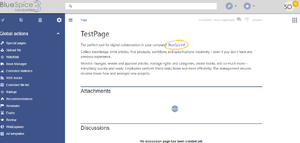
To link a file (for example, a picture or a PDF file) in the current page, go to the Link to File tab. There, you can search for a file or upload a new file.
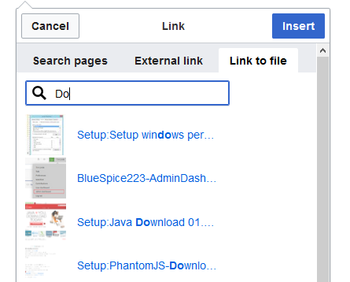
- Search for a file in the wiki and include it as a link: Enter the file name and select the desired file. Then click on "Paste". A link to the file has been added to the page. You can then change the displayed link text.
-
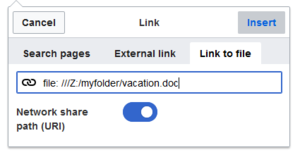
Link file to a network drive: If you want to connect to a file on your company network, enter the path under "Link to file" in the text field and activate "Network share path (URI)". The file path is entered using the following syntax -
[[:file:///Z:/myfolder/vacatio]]. this only works if your wiki has been configured to work with network files. This function also depends on your individual browser security settings.


Related info
            __TOC__


            ==What is InsertLink?==


            '''InsertLink''' offers a dialogue to insert links without using the wiki code.


            ==Where to find InsertLink?==

            [[File:InsertLink1.png|thumb]]

            [[File:InsertLink2.png|thumb]]

            [[File:InsertLink3.png|thumb]]

            [[File:InsertLink4.png|thumb]]

            ===Links to other wiki pages===


            This is the main use. Linking from one article to another. So you can link related issues.

            You can name articles the same if they exist in different namespaces. So if you choose a namespace InsertLink will show a fitting list.


            *Place the cursor where you want the link to be inserted.

            *Click the "Insert Link" button.

            *Give the target of the link, this is the correct namespace and the article within it, and, if desired, add the text to be displayed for the link.


            :Start typing a word and the system will show matching page names and also matching namespaces. So if you want to link a page in a namespace, choose a namespace first and then start typing again to look for a page in this namespace. By the way the auto-complete, which starts while typing a title, uses a left and right truncation and therefore also finds elements which are not located in the beginning of a page title.


            *Click on "ok".

            *The following code is inserted: <nowiki>[[other_article|text]]</nowiki> or <nowiki>[[namespace:wiki|Wiki article]]</nowiki>.


            {{Box_Note|Note text =If you link to a page in the namespace "Category", no category will be added, but rather a link will be created to the desired category page. This is done via the automatic insertion of a colon before the link target e.g. <nowiki>[[:category:meta|Wiki article]]</nowiki>.  To add a category, it is best to use the [[Reference:InsertCategory|InsertCategory]] function.}}


            ===External link===


            This is how you link to an external website or blog in the web.


            *Place the cursor where you want the link to be inserted.

            *Click the "Easy Insert Link" button and go to external link.

            *Give the target of the link and, if desired, add the text to be displayed for the link (e.g. http://www.wikipedia.org; Wikipedia).

            *Click on "ok".

            *The following code is inserted: <nowiki>[http://www.wikipedia.org Wikipedia]</nowiki>.


            ===E-mail link===


            It is the "mailto" function. So if you click on an email link later your mailing program will open an email with the receiver.


            *Place the cursor where you want the link to be inserted.

            *Click the "Easy Insert Link" button and go to "email link".

            *Give the target of the link and, if desired, add the text to be displayed for the link (e.g. medienwerkstatt@hallowelt.biz; Email Hallo Welt).

            *Click on "ok".

            *The following code is inserted: <nowiki>[mailto:medienwerkstatt@hallowelt.biz Email Hallo Welt]</nowiki>.


            ===Link to another wiki (interwiki link)===


            Here you can link to other wikis (MediaWikis).


            *Place the cursor where you want the link to be inserted.

            *Click the "Easy Insert Link" button and go to "Link to another wiki".

            *Give the target of the link and, if desired, add the text to be displayed for the link (e.g. Wiki; Wiki at UseMod)

            *Choose the wiki (e.g. UseMod).

            *Click on "ok".

            *The following code is inserted: <nowiki>[[usemod:Wiki|Wiki at UseMod]]</nowiki>.


            ==Links to files==


            See the article [[FileLink]] for information on this.


            ==Tips for working with InsertLink==


            *Every user can use the InsertLink tool. <br />Cannot find the article you want to link to? Perhaps it is due to the only limitation for linking to wiki pages. If you do not have the correct rights for the namespace of the article you want to link to, it will not be displayed in the drop-down menu. Generally read-rights are necessary.


            *When linking to wiki pages, generally only those page names are offered which lie in the chosen namespace. When changing the namespace, you may need to clear the page field to give you a new choice.


            ==See also==


            Our [[Reference:InsertLink|reference page.]]Linking pages is an important feature of browser-based knowledge documentation. The links often differ in their function. Links connect wiki pages with:


            *other wiki pages

            *external websites

            *files (images, PDF files, Word documents,...)

            *files stored on other drives


            ==How do I create links?==

            Use the ''Insert link'' menu item in [[Manual:VisualEditor|VisualEditor]] or use the shortcut ''Ctrl+K''. In both cases, a dialog box opens.


            <br />

            [[File:Insert_link.png|alt=Insert link to a wiki page|center|thumb|351x351px|Insert link to a wiki page<br />]]


            ==Link to a wiki page==

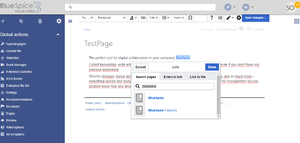
            Internal links connect related pages or other content that provides more information. Page names can exist multiple times in different namespaces. Therefore, under ''Search pages'', enter the namespace if the destination page is not in the same namespace as the current page.


            If you have selected some text on the page, you will find some page suggestions already listed in the ''Search pages'' tab. Here, you can adjust the search term accordingly or create a link to a new page.


            Then click on ''Done''.


            In the source text,  links are created with the following structure:


            *'''Link to a wiki page:''' <code><nowiki>[[landing page name|caption]]</nowiki></code>

            *'''Link to a wiki page in another namespace:''' <code><nowiki>[[namespace:landing page name|caption]]</nowiki></code>

            *'''Link to a category page:''' <code><nowiki>[[:Category:category name|caption]]</nowiki></code> To create a link to a category, the source code is preceded by a colon before the category name. In contrast, the link "Category: BlueSpice" would create a category called BlueSpice instead of linking to the category BlueSpice.

            *'''Interwiki link:''' <code><nowiki>[[Imdb:tt2709692]]</nowiki></code>If your wiki links to other wikis, you can use the tab ''Search pages'' also to directly link to a page in a related wiki. For example, if your administrator maintains an interwiki link for the IMDb movie database, it can be typed in as in the example above. Ask your administrator which interwiki links are available in your wiki.


            ==Link to an external website==

            To link to an external website, mark text on your page, e.g. the word "Wikipedia". Press Ctrl+K and switch to the tab ''External link''. There you enter the web address. Then click ''Insert''.


            [[File:External link.png|350x350px]]


            {{Box Note|boxtype=note|Note text=To easily maintain external links on your wiki, use the page [[Special:LinkSearch]]. This page allows you to search for external links in your entire wiki. The page also contains a link to the associated Mediawiki help page.}}


            ==Link to a file==

            To link a file (for example, a picture or a PDF file) in the current page, go to the ''Link to File'' tab. There, you can search for a file or upload a new file.


            <br />

            [[File:Links.png|alt=Insert link to a file|center|thumb|350x350px|Insert link to a file]]


            *'''Search for a file in the wiki and include it as a link:''' Enter the file name and select the desired file. Then click on "Paste". A link to the file has been added to the page. You can then change the displayed link text.

            *'''Link file to a network drive:''' If you want to connect to a file on your company network, enter the path under "Link to file" in the text field and activate "Network share path (URI)". The file path is entered using the following syntax - <code>[[:file:///Z:/myfolder/vacatio]<nowiki>]</nowiki></code>. this only works if your wiki has been configured to work with network files. This function also depends on your individual browser security settings.<br /><br />[[File:Linkk.png|alt=Link to a network file|center|thumb|300x300px|Link to a network file]]

            {{Box Links-en|Topic1=[[Reference:BlueSpiceInsertLink]] |Topic2 = [[Manual:VisualEditor]]}}


            [[en:{{FULLPAGENAME}}]]

            [[de:Links_einfügen]]

            [[Category:Editing]]

            [[Category:Content]]

            [[Category:Organization]]

            {{Translation}}
| Line 1: | Line 1: | ||
| + | Linking pages is an important feature of browser-based knowledge documentation. The links often differ in their function. Links connect wiki pages with: | ||
| + | *other wiki pages | ||
| + | *external websites | ||
| + | *files (images, PDF files, Word documents,...) | ||
| + | *files stored on other drives | ||
| − | + | ==How do I create links?== | |
| + | Use the ''Insert link'' menu item in [[Manual:VisualEditor|VisualEditor]] or use the shortcut ''Ctrl+K''. In both cases, a dialog box opens. | ||
| + | <br /> | ||
| + | [[File:Insert_link.png|alt=Insert link to a wiki page|center|thumb|351x351px|Insert link to a wiki page<br />]] | ||
| − | == | + | ==Link to a wiki page== |
| + | Internal links connect related pages or other content that provides more information. Page names can exist multiple times in different namespaces. Therefore, under ''Search pages'', enter the namespace if the destination page is not in the same namespace as the current page. | ||
| − | ''' | + | If you have selected some text on the page, you will find some page suggestions already listed in the ''Search pages'' tab. Here, you can adjust the search term accordingly or create a link to a new page. |
| − | + | Then click on ''Done''. | |
| − | |||
| − | |||
| − | |||
| − | |||
| − | |||
| − | |||
| − | |||
| − | + | In the source text, links are created with the following structure: | |
| − | |||
| − | |||
| − | : | + | *'''Link to a wiki page:''' <code><nowiki>[[landing page name|caption]]</nowiki></code> |
| + | *'''Link to a wiki page in another namespace:''' <code><nowiki>[[namespace:landing page name|caption]]</nowiki></code> | ||
| + | *'''Link to a category page:''' <code><nowiki>[[:Category:category name|caption]]</nowiki></code> To create a link to a category, the source code is preceded by a colon before the category name. In contrast, the link "Category: BlueSpice" would create a category called BlueSpice instead of linking to the category BlueSpice. | ||
| + | *'''Interwiki link:''' <code><nowiki>[[Imdb:tt2709692]]</nowiki></code>If your wiki links to other wikis, you can use the tab ''Search pages'' also to directly link to a page in a related wiki. For example, if your administrator maintains an interwiki link for the IMDb movie database, it can be typed in as in the example above. Ask your administrator which interwiki links are available in your wiki. | ||
| − | + | ==Link to an external website== | |
| − | + | To link to an external website, mark text on your page, e.g. the word "Wikipedia". Press Ctrl+K and switch to the tab ''External link''. There you enter the web address. Then click ''Insert''. | |
| − | + | [[File:External link.png|350x350px]] | |
| − | == | + | {{Box Note|boxtype=note|Note text=To easily maintain external links on your wiki, use the page [[Special:LinkSearch]]. This page allows you to search for external links in your entire wiki. The page also contains a link to the associated Mediawiki help page.}} |
| − | + | ==Link to a file== | |
| + | To link a file (for example, a picture or a PDF file) in the current page, go to the ''Link to File'' tab. There, you can search for a file or upload a new file. | ||
| + | <br /> | ||
| + | [[File:Links.png|alt=Insert link to a file|center|thumb|350x350px|Insert link to a file]] | ||
| − | * | + | *'''Search for a file in the wiki and include it as a link:''' Enter the file name and select the desired file. Then click on "Paste". A link to the file has been added to the page. You can then change the displayed link text. |
| − | + | *'''Link file to a network drive:''' If you want to connect to a file on your company network, enter the path under "Link to file" in the text field and activate "Network share path (URI)". The file path is entered using the following syntax - <code>[[:file:///Z:/myfolder/vacatio]<nowiki>]</nowiki></code>. this only works if your wiki has been configured to work with network files. This function also depends on your individual browser security settings.<br /><br />[[File:Linkk.png|alt=Link to a network file|center|thumb|300x300px|Link to a network file]] | |
| − | * | + | {{Box Links-en|Topic1=[[Reference:BlueSpiceInsertLink]] |Topic2 = [[Manual:VisualEditor]]}} |
| − | |||
| − | |||
| − | |||
| − | + | [[en:{{FULLPAGENAME}}]] | |
| − | + | [[de:Links_einfügen]] | |
| − | + | [[Category:Editing]] | |
| − | + | [[Category:Content]] | |
| − | + | [[Category:Organization]] | |
| − | + | {{Translation}} | |
| − | |||
| − | |||
| − | |||
| − | |||
| − | |||
| − | |||
| − | |||
| − | |||
| − | |||
| − | |||
| − | |||
| − | |||
| − | |||
| − | |||
| − | |||
| − | |||
| − | |||
| − | |||
| − | |||
| − | |||
| − | |||
| − | |||
| − | |||
| − | |||
| − | |||
| − | |||