Difference between revisions of "Manual:Extension/BlueSpiceConfigManager"
| [quality revision] | [quality revision] |
m (Tag: Visual edit) |
(Tag: Visual edit) |
Contents
- 1 About Config manager
- 2 Layout
-
3 Settings by extension
- 3.1 BlueSpiceFoundation
- 3.2 BlueSpiceAbout
- 3.3 BlueSpiceArticleInfo
- 3.4 BlueSpiceAuthors
- 3.5 BlueSpiceAvatars
- 3.6 BlueSpiceBookshelf
- 3.7 BlueSpiceChecklist
- 3.8 BlueSpiceExtendedSearch
- 3.9 BlueSpiceExtendedStatistics
- 3.10 BlueSpiceInsertCategory
- 3.11 BlueSpicensertLink
- 3.12 BlueSpicePageTemplates
- 3.13 BlueSpicePermissionManager
- 3.14 BlueSpiceReaders
- 3.15 BlueSpiceSaferEdit
- 3.16 BlueSpiceUEModuleBookPDF
- 3.17 BlueSpiceUEModuleHTML
- 3.18 BlueSpiceUEModulePDF
- 3.19 BlueSpiceUniversalExport
- 3.20 BlueSpiceVisualEditorConnector
- 3.21 BlueSpiceWhoIsOnline
- 3.22 BlueSpiceExpiry
- 3.23 BlueSpiceReview
- 3.24 BlueSpiceReviewExtended
- 3.25 BlueSpiceFlaggedRevsConnector
- 3.26 BlueSpiceSocialBlog
- 3.27 BlueSpiceSocialTopics
- 3.28 BlueSpiceMatomoConnector
- 4 Related info
About Config manager[edit | edit source]
With the Config manager, a wiki user with sysop rights can manage all BlueSpice wiki-wide settings in one place. In the navigation, it is located under Global navigations > Management > Config manager.This link loads the page Special:ConfigManager.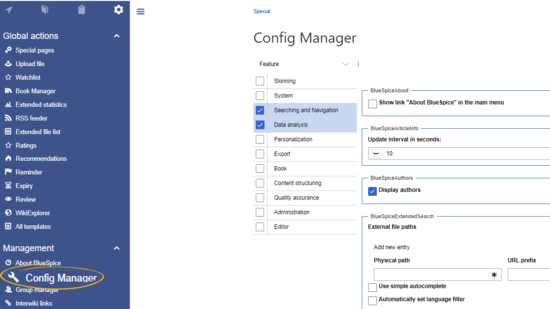
Layout[edit | edit source]
All settings can be accessed through the following filter options:
- Feature: group by type of functionality the setting belongs to (search, administration...)
- Extension: group by extension name
-
Package: group by BlueSpice edition and services (BlueSpice free, BlueSpice pro, Matomo)
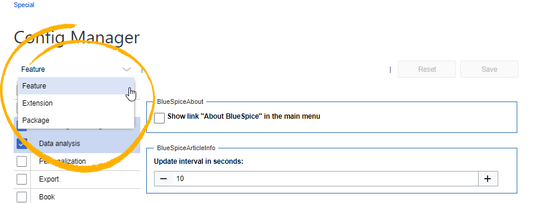
All settings are available in any type of grouping. Changing the grouping type does not add or remove setting options. It just groups them differently.
After settings are adjusted, they can be saved by clicking Save, or reset to the default settings by clicking Reset.
Searching for settings[edit | edit source]
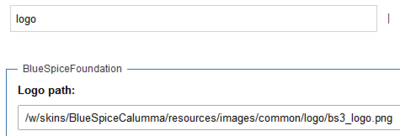
A search bar is located above the list of settings. Type in a keyword such as "logo" to find the corresponding setting. The search returns settings regardless of the currently selected group.Note: The search field has to be empty if you want to see the filter menu instead of the search.
Settings by extension[edit | edit source]
BlueSpiceFoundation[edit | edit source]
- Logo path: The logo image should be stored in the /images folder of your installation. If you store it in the /skins folder of your BlueSpice installation, it could be overwritten with an upgrade.
To upload the logo directly in the wiki:
- Upload the logo on the page Extended file list (Special:ExtendedFilelist). This is a link under the Global actions navigation.
- Search for the logo name in the extended file list.
-
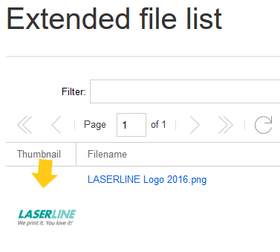
Click on the thumbnail image of the logo. This opens the logo on a separate page.
-
Copy the relative logo path from the address bar.In a typical Wiki configuration, this path starts with /w/.... .
-
Paste the logo path into the text field for the logo.
- Click Save.
- Refresh the page (Strg+F5).
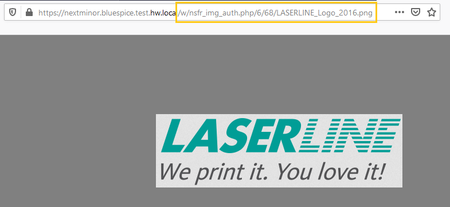
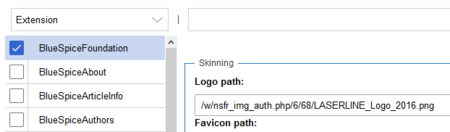
- Favicon path: The favicon image should be stored in the /images folder of your installation. If you store it in the /skins folder of your BlueSpice installation, it could be overwritten with an upgrade. Favicon images have the file extension .ico.
- Allowed file extensions: For security reasons, the types of files that users can upload are restricted. Here, you can allow additional file formats. If a file format is blacklisted in the server configuration, adding this file extension here will not allow this file type to be uploaded. See mediawiki.org/wiki/Manual:Configuring_file_uploads for more info.
- Allowed image extensions: The standard web image types are listed here. In general, you want to restrict image uploads to web images. See developer.mozilla.org/en-US/docs/Web/Media/Formats/Image_types for more on browser-supported image types.
BlueSpiceAbout[edit | edit source]
-
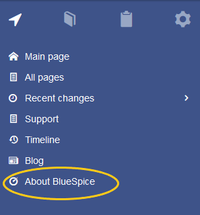
Show link "About BlueSpice" in the main menu: Shows or hides the link to the page AboutBlueSpice in the main navigation.
BlueSpiceArticleInfo[edit | edit source]
BlueSpiceArticleInfo, together with BlueSpiceAuthors, is part of the Page Information in the Quality management tools.
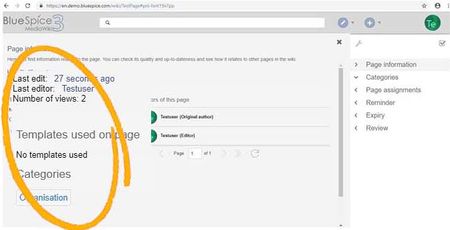
- Update interval in seconds: Sets the refresh rate for the "Last edit" value. By default, this date is updated every 10 seconds via JavaScript.
BlueSpiceAuthors[edit | edit source]
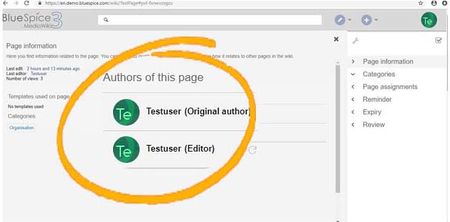
BlueSpiceAuthors together with BlueSpiceArticleInfo, is part of the Page Information in the quality management tools.
- Display authors: Show or hide authors on the page information page.
BlueSpiceAvatars[edit | edit source]

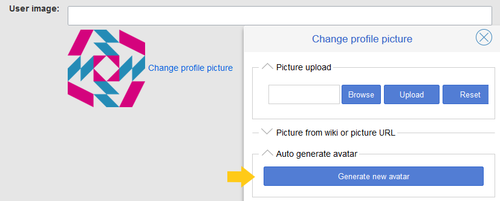
An avatar image is automatically generated if the user does not upload a profile picture or if the user decides to create an avatar image in the preferences.
-
Generator
- InstantAvatar: Generates an avatar image based on using the initials of the Real name or the Username
-
Identicon: Generates an avatar image based on parts of the user's IP address.
BlueSpiceBookshelf[edit | edit source]
-
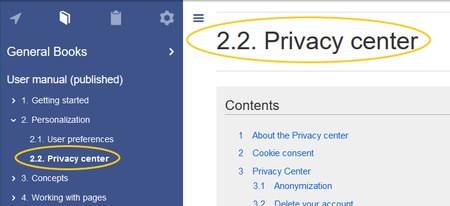
Use the display title from book source on article: Shows the title from the book navigation as page title instead of the page name.
Note: If the page additionally contains a
{{DISPLAYTITLE}} tag, the display title of the page is shown instead of the
book title
.
- Prepend article table of contents and headlines with book numberation
- Supress namespace prefix of book articles in output
BlueSpiceChecklist[edit | edit source]
-
Mark checklist changes as minor edit: If this setting is active, changes to a checklist (for example, checking a checkbox) in view mode are logged as minor edits. If this setting is inactive, a change to the checklist is not recorded in the page history.

BlueSpiceExtendedSearch[edit | edit source]
BlueSpiceExtendedStatistics[edit | edit source]
BlueSpiceInsertCategory[edit | edit source]
BlueSpicensertLink[edit | edit source]
BlueSpicePageTemplates[edit | edit source]
BlueSpicePermissionManager[edit | edit source]
- Backup limit: Sets the number of backups for the permissions manager. Each time the page Special:PermissionManager is saved, a backup is created. If the backup limit is set to 5, the last five versions of the permissions configuration are saved as backups.
BlueSpiceReaders[edit | edit source]
-
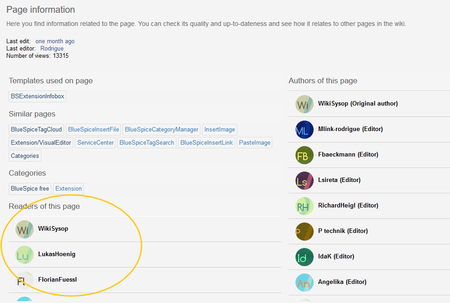
Number of readers to display: Sets the number of readers that are displayed on the Page information in the Quality management tools.
BlueSpiceSaferEdit[edit | edit source]
- Interval for lookup for concurrent editings: Sets the time in seconds for checking if another person is editing the page.
- Show name of current editor: Shows or hides the name of the user who is currently editing the page.
BlueSpiceUEModuleBookPDF[edit | edit source]
-
Table of Contents
- Only article titles (indent by grade):
- Embed article TOCs (No indent of article titles)
BlueSpiceUEModuleHTML[edit | edit source]
- Hide namespace prefix in PDF: If activated, the namespace is shown in the HTML main heading.
Note: If the page contains a "displaytitle" tag in the page source, the page display title is shown and this setting has no effect.
BlueSpiceUEModulePDF[edit | edit source]
- Hide namespace prefix in PDF: If activated, the namespace is shown in the PDF main heading for a page.
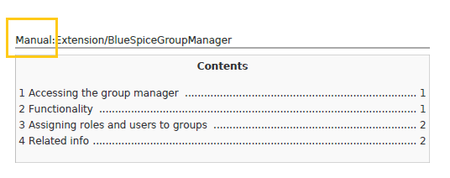
Note: If the page contains a "displaytitle" tag in the page source, the page display title is shown and this setting has no effect.
BlueSpiceUniversalExport[edit | edit source]
BlueSpiceVisualEditorConnector[edit | edit source]
Enable VisualEditor for BlueSpice extensionsConfiguration variable to use a simplified save process Upload type
Original
Simple
One click
BlueSpiceWhoIsOnline[edit | edit source]
- Time in seconds until a user is marked as offline: The system checks every x seconds if a user logged out and no longer displayed as online. This can be less frequent than the update inteval for newly logged-in users.
- Update interval in seconds: The system checks every x seconds for users.
BlueSpiceExpiry[edit | edit source]
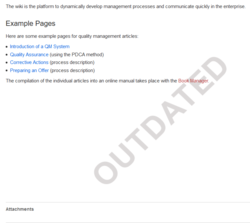
- Show watermark for expired pages in PDF: shows the watermark for expired pages in PDFs.
- Show watermark for expired pages in print version: shows the watermark for expired pages when a page is printed.
-
Show watermark for expired pages: shows a watermark on the page itself.
BlueSpiceReview[edit | edit source]
BlueSpiceReviewExtended[edit | edit source]
BlueSpiceFlaggedRevsConnector[edit | edit source]
-
Export: The export settings affect how the pages of a book are generated in the PDF export.
-
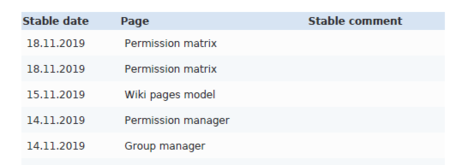
Bookshelf: List accepted revisions log: Shows a log of stable page versions and when these pages were put into accepted status. If editors did not provide a comment when accepting the page, the Stable comment field for a revision is empty.
- Bookshelf: List pages without stable revision
- Bookshelf: List pages without FlaggedRevs
-
UEModulePDF: Show FlaggedRevs info below main heading: Prints the latest revision dates below the heading.
- Automatically set the page to stable, when the workflow was finished successfully: The workflow ends with setting the page status to stable.
- Automatically delete the workflow, when a page was marked as stable: The workflow is deleted.
-
Bookshelf: List accepted revisions log: Shows a log of stable page versions and when these pages were put into accepted status. If editors did not provide a comment when accepting the page, the Stable comment field for a revision is empty.

-
Show unstable pages for following groups: If the group user is removed from the BlueSpiceFlaggedRevs configuration, users in this group will not be able to see draft versions when they are added as reviewers in a review process. When the group user is removed, only sysop and reviewer users can access drafts. If you want other groups, for example editor, to see draft versions, you need to add them to the configuration. If no user groups are specified in the configuration field, not even reviewers and sysops users will see a visual status indication of a page. They will have access to drafts through the revision history for the page instead.
Indexing only stable versions
BlueSpiceSocialBlog[edit | edit source]
-
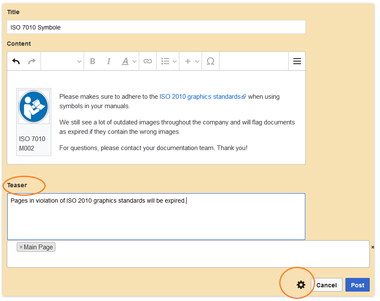
Use teaser text for blog entries in the timeline: When you create a blog entry, you can create a teaser text for it by clicking the cogwheel symbol in the blog entry form. If this setting is active, the teaser text will be shown on the page Special:Timeline instead of the first part of the content.
BlueSpiceSocialTopics[edit | edit source]
-
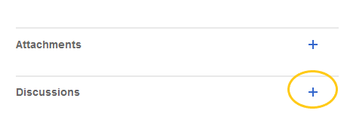
Automatically create all discussion pages. If a user creates the first discussion topic for a page using the link in the page footer of a wiki page, the needed discussion page is automatically created first.
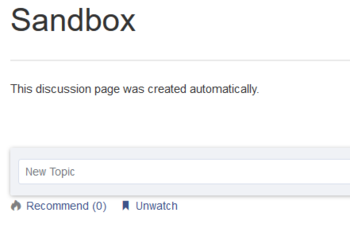
A message "This discussion page was created automatically" is inserted on the discussion page.
If this setting is deactivated, the user is directed to the "Create page" default page first
BlueSpiceMatomoConnector[edit | edit source]
- Site ID: Eingabe der Matomo ID für die Webseite. Diese findet man leicht als url parameter in of the wiki. You can find the site ID as a url parameter in the browser address bar when you are logged into Matomo.

- Base url: Die The url zu Ihrer Matomo Login-Seiteto your Matomo installation.
-
Show opt-out link in footer:
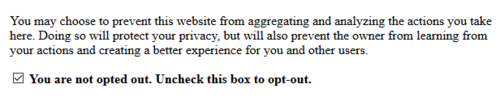
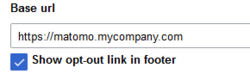 matomo url Displays a link in your wiki footer, usually named Analysis service.
On the Analysis service page, there is a checkbox that allows a user to opt-out from being tracked for analysis purposes.



Related info
{{DISPLAYTITLE:Config Manager}}

        __TOC__


        ==About Config manager==


        With the Config manager, a wiki user with ''sysop'' rights can manage all BlueSpice wiki-wide settings in one place. In the [[BlueSpice Layout|navigation]], it is located under ''Global navigations > Management > Config manager''.This link loads the page ''Special:ConfigManager.''<br />[[File:ConfigManager1a.png|alt=config manager in navigation item|center|550x550px|thumb|Config manager navigation item]]


        ==Layout==

        All settings can be accessed through the following filter options:


        *'''Feature:''' group by type of functionality the setting belongs to (search, administration...)

        *'''Extension:''' group by extension name

        *'''Package:''' group by BlueSpice edition and services (BlueSpice free, BlueSpice pro, Matomo)<br />


        [[File:ConfigManager2a.png|alt=config manager filter|center|550x550px|thumb|config manager filter]]


        All settings are available in any type of grouping. Changing the grouping type does not add or remove setting options. It just groups them differently.


        After settings are adjusted, they can be saved by clicking ''Save'', or reset to the default settings by clicking ''Reset''.


        ===Searching for settings===

        A search bar is located above the list of settings. Type in a keyword such as "logo" to find the corresponding setting.


        The search returns settings regardless of the currently selected group. {{Box Note|boxtype=note|Note text=The search field has to be empty if you want to see the filter menu instead of the search.}}<br />

        [[File:Manual:configmanager-search.png|alt=Config manager search box|center|thumb|400x400px|Config manager search box]]


        <br />


        ==Settings by extension==


        ===BlueSpiceFoundation===


        *'''Logo path:''' The logo image should be stored in the /images folder of your installation. If you store it in the /skins folder of your BlueSpice installation, it could be overwritten with an upgrade.


        '''To upload the logo directly in the wiki:'''


        #'''Upload''' the logo on the page ''Extended file list'' (''Special:ExtendedFilelist''). This is a link under the ''Global actions'' navigation.

        #'''Search''' for the logo name in the extended file list.

        #'''Click''' on the thumbnail image of the logo. This opens the logo on a separate page.<br />[[File:Manual:config-logo1.png|link=https://en.wiki.bluespice.com/wiki/File:Manual:config-logo1.png|alt=logo thumbnail image|center|thumb|280x280px|logo thumbnail image]]

        #'''Copy''' the relative logo path from the address bar.In a typical Wiki configuration, this path starts with ''/w/....'' .<br />[[File:Manual:config-logo2.png|alt=relative image path|center|thumb|450x450px|relative image path]]<br />

        #'''Paste''' the logo path into the text field for the logo.<br />[[File:Manual:config-logo3.png|link=https://en.wiki.bluespice.com/wiki/File:Manual:config-logo3.png|alt=logo path|center|thumb|450x450px|logo path]]

        #'''Click''' ''Save''.

        #'''Refresh''' the page (Strg+F5).


        *'''Favicon path:''' The favicon image should be stored in the ''/images'' folder of your installation. If you store it in the /skins folder of your BlueSpice installation, it could be overwritten with an upgrade. [https://de.wikipedia.org/wiki/Favicon Favicon images] have the file extension ''.ico''.

        *'''Allowed file extensions:''' For security reasons, the types of files that users can upload are restricted. Here, you can allow additional file formats. If a file format is blacklisted in the server configuration, adding this file extension here will not allow this file type to be uploaded. See [[mediawikiwiki:Manual:Configuring_file_uploads|mediawiki.org/wiki/Manual:Configuring_file_uploads]] for more info.


        *'''Allowed image extensions:''' The standard web image types are listed here. In general, you want to restrict image uploads to web images. See [https://developer.mozilla.org/en-US/docs/Web/Media/Formats/Image_types developer.mozilla.org/en-US/docs/Web/Media/Formats/Image_types] for more on browser-supported image types.


        ===BlueSpiceAbout===


        *'''Show link "About BlueSpice" in the main menu:''' Shows or hides the link to the page [[Extension/AboutBlueSpice|AboutBlueSpice]] in the main navigation.<br />


        [[File:Manual:config-aboutbluespice.png|alt=main navigation|center|thumb|215x215px|main navigation]]


        <br />

        ===BlueSpiceArticleInfo===

        ''BlueSpiceArticleInfo'', together with ''BlueSpiceAuthors'', is part of the ''Page Information'' in the Quality management tools.


        *'''Update interval in seconds:''' Sets the refresh rate for the "Last edit" value. By default, this date is updated every 10 seconds via JavaScript.


        [[File:ArticleInfo3.jpg|alt=article info|center|thumb|450x450px|article info]]


        <br />

            ===

            === BlueSpiceAuthors ===

        ''BlueSpiceAuthors'' together with ''BlueSpiceArticleInfo'', is part of the ''Page Information'' in the quality management tools.


        *'''Display authors:''' Show or hide authors on the page information page.


        [[File:Authors3.jpg|alt=page authors in page information|center|thumb|450x450px|page authors in page information]]


        <br />

            ===

            === BlueSpiceAvatars ===

        [[File:Manual:configmanager-instantavatar.png|alt=InstantAvatar|thumb|101x101px|InstantAvatar]]

        An avatar image is automatically generated if the user does not upload a profile picture or if the user decides to create an avatar image in the preferences.


        *'''Generator'''

        **'''InstantAvatar:''' Generates an avatar image based on using the initials of the Real name or the Username

        **'''[[wikipedia:Identicon|Identicon:]]''' Generates an avatar image based on parts of the user's IP address.<br />[[File:Manual:configmanager-identicon.png|alt=Identicon|center|thumb|500x500px|Identicon]]


        ===BlueSpiceBookshelf===


        * '''Use the display title from book source on article:''' Shows the title from the book navigation as page title instead of the page name. <br />


        [[File:Manual:configmanager-bookdisplaytitle.png|alt=book display title|center|thumb|450x450px|book display title]]


        {{Box Note|boxtype=note|Note text=If the page additionally contains a "displaytitle" tag in the page source, this display title<nowiki>{{DISPLAYTITLE}}</nowiki> tag, the display title of the page is shown instead of the displaybook title of the book.}}<br />.}}


        *<span class="col-red">Prepend article table of contents and headlines with book numberation</span>

        *<span class="col-red">Supress namespace prefix of book articles in output</span>


        ===BlueSpiceChecklist===


        *'''Mark checklist changes as minor edit:''' If this setting is active, changes to a checklist (for example, checking a checkbox) in view mode are logged as minor edits. If this setting is inactive, a change to the checklist is not recorded in the page history.<br />[[File:Manual:configmanager-checklistminoredit.png|alt=minor edit|center|thumb|550x550px|minor edit]]


        ===BlueSpiceExtendedSearch===


        ===BlueSpiceExtendedStatistics===


        <br />

        ===BlueSpiceInsertCategory===


        ===BlueSpicensertLink===


        ===BlueSpicePageTemplates===


        ===BlueSpicePermissionManager===


        *'''Backup limit:''' Sets the number of backups for the permissions manager. Each time the page ''Special:PermissionManager'' is saved, a backup is created. If the backup limit is set to 5, the last five versions of the permissions configuration are saved as backups.


        ===BlueSpiceReaders===


        *'''Number of readers to display:''' Sets the number of readers that are displayed on the Page information in the Quality management tools. <br />[[File:Manual:configmanager-readers.png|alt=page readers|center|thumb|450x450px|page readers]]<br />


        <br />

        ===BlueSpiceSaferEdit===


        *'''Interval for lookup for concurrent editings:''' Sets the time in seconds for checking if another person is editing the page.

        *'''Show name of current editor:''' Shows or hides the name of the user who is currently editing the page.


        ===BlueSpiceUEModuleBookPDF===


        *Table of Contents

        **''Only article titles (indent by grade)'':

        **Embed article TOCs (No indent of article titles)


        <br />

        ===BlueSpiceUEModuleHTML===


        *'''Hide namespace prefix in PDF:''' If activated, the namespace is shown in the HTML main heading.

        {{Box Note|boxtype=note|Note text=If the page contains a "displaytitle" tag in the page source, the page display title is shown and this setting has no effect.}}


        ===BlueSpiceUEModulePDF===


        *'''Hide namespace prefix in PDF:''' If activated, the namespace is shown in the PDF main heading for a page.


        [[File:Manual:configmanager-pdfhidenamespace.png|alt=namespace in heading|center|thumb|450x450px|namespace in heading]]

        {{Box Note|boxtype=note|Note text=If the page contains a "displaytitle" tag in the page source, the page display title is shown and this setting has no effect.}}


        ===BlueSpiceUniversalExport===


        ===BlueSpiceVisualEditorConnector===


        <span class="oo-ui-fieldLayout-header">Enable VisualEditor for BlueSpice extensions</span><span class="oo-ui-fieldLayout-header">Configuration variable to use a simplified save process</span>

            Upload type


            Original


            Simple


            One click


            <br />


        ===BlueSpiceWhoIsOnline===


        *<span class="oo-ui-fieldLayout-header">'''Time in seconds until a user is marked as offline:'''</span> The system checks every ''x'' seconds if a user logged out and no longer displayed as online. This can  be less frequent than the update inteval for newly logged-in users.

        *<span class="oo-ui-fieldLayout-header">'''Update interval in seconds:'''</span> The system checks every ''x'' seconds for users.


        ===BlueSpiceExpiry===


        *'''<span class="oo-ui-fieldLayout-header">Show watermark for expired pages in PDF</span>:'''  shows the watermark for expired pages in PDFs.

        *<span class="oo-ui-fieldLayout-header">'''Show watermark for expired pages in print version:''' shows the watermark for expired pages when a page is printed.</span>

        *<span class="oo-ui-fieldLayout-header">'''Show watermark for expired pages'''</span>: shows a watermark on the page itself.<br />[[File:Manual:configmanager-watermark.png|alt=watermark|center|thumb|250x250px|watermark]]<br />


        ===BlueSpiceReview===


        ===BlueSpiceReviewExtended===


        ===BlueSpiceFlaggedRevsConnector===


        * '''Export:''' The export settings affect how the pages of a book are generated in the PDF export.

        ** '''<span class="oo-ui-fieldLayout-header">Bookshelf: List accepted revisions log</span>:''' Shows a log of stable page versions and when these pages were put into accepted status. If editors did not provide a comment when accepting the page, the ''Stable comment'' field for a revision is empty. <br />[[File:Manual:configmanager-bookshelf-revisionslog.png|alt=accepted revisions log|center|thumb|450x450px|accepted revisions log]]<br />

        ** <span class="col-red">Bookshelf: List pages without stable revision</span>

        ** <span class="col-red">Bookshelf: List pages without FlaggedRevs</span>

        ** <span class="oo-ui-fieldLayout-header">'''UEModulePDF: Show FlaggedRevs info below main heading'''</span>: Prints the latest revision dates below the heading. <br />[[File:Manual:configmanager-bookshelf-flaggedrevsinfo.png|alt=FlaggedRevs info below heading|center|thumb|350x350px|FlaggedRevs info below heading]]<br />

        ** <span class="oo-ui-fieldLayout-header">'''Automatically set the page to stable, when the workflow was finished successfully:''' The workflow ends with setting the page status to stable.</span>

        ** <span class="oo-ui-fieldLayout-header">'''Automatically delete the workflow, when a page was marked as stable:''' The workflow is deleted.</span>


        <br />


        * <span class="oo-ui-fieldLayout-header">'''Show unstable pages for following groups:'''</span> If the group ''user'' is removed from the ''BlueSpiceFlaggedRevs'' configuration, users in this group will not be able to see draft versions when they are added as reviewers in a review process. When the group user is removed, only ''sysop'' and ''reviewer'' users can access drafts. If you want other groups, for example ''editor'', to see draft versions, you need to add them to the configuration. If no user groups are specified in the configuration field, not even reviewers and sysops users will see a visual status indication of a page. They will have access to drafts through the revision history for the page instead.  <br />


        <span class="oo-ui-fieldLayout-header">Indexing only stable versions</span>


        <span class="oo-ui-fieldLayout-field"><span id="bsgFlaggedRevsConnectorUEModulePDFShowFRTag" class="oo-ui-widget oo-ui-widget-enabled oo-ui-inputWidget oo-ui-checkboxInputWidget" aria-disabled="false" data-ooui=""><span class="oo-ui-checkboxInputWidget-checkIcon oo-ui-widget oo-ui-widget-enabled oo-ui-iconElement oo-ui-iconElement-icon oo-ui-icon-check oo-ui-iconWidget oo-ui-image-invert" aria-disabled="false"></span></span></span>


        <span class="oo-ui-fieldLayout-field"><span id="bsgFlaggedRevsConnectorUEModulePDFShowFRTag" class="oo-ui-widget oo-ui-widget-enabled oo-ui-inputWidget oo-ui-checkboxInputWidget" aria-disabled="false" data-ooui=""><span class="oo-ui-checkboxInputWidget-checkIcon oo-ui-widget oo-ui-widget-enabled oo-ui-iconElement oo-ui-iconElement-icon oo-ui-icon-check oo-ui-iconWidget oo-ui-image-invert" aria-disabled="false"></span></span></span>


        <br />

        ===BlueSpiceSocialBlog===


        *'''Use teaser text for blog entries in the timeline:''' When you create a blog entry, you can create a teaser text for it by clicking the cogwheel symbol in the blog entry form. If this setting is active, the teaser text will be shown on the page ''Special:Timeline'' instead of the first part of the content. <br />[[File:Manual:configmanager-blogteaser.png|alt=blog teaser text|center|thumb|380x380px|blog teaser text]]<br />


        ===BlueSpiceSocialTopics===


        *'''Automatically create all discussion pages.''' If a user creates the first discussion topic for a page using the link in the page footer of a wiki page, the needed discussion page is automatically created first.  <br />[[File:Manual:configmanager-socialtopics-create.png|alt=create discussion topic|center|thumb|350x350px|create discussion topic]]<br />A message "This discussion page was created automatically" is inserted on the discussion page.  <br />[[File:Manual:configmanager-socialtopics.png|alt=automatically created discussion page|center|thumb|350x350px|automatically created discussion page]]<br />


        If this setting is deactivated, the user is directed to the "Create page" default page first


        <br />

        ===BlueSpiceMatomoConnector===


        *'''Site ID:''' Eingabe der  Matomo ID für die Webseite. Diese findet man leicht als url parameter in of the wiki. You can find the site ID as a url parameter in the browser address bar when you are logged into Matomo.


        [[File:Manual:configmanager-matomo-idSite.png|alt=matomo site ID|center|thumb|250x250px|matomo site ID]]


        *'''Base url:''' DieThe url zu Ihrerto your Matomo Login-Seite.

            *<span class="col-red">installation.

            *'''Show opt-out link in footer:</span>''' Displays a link in your wiki footer, usually named ''Analysis service''.<br />[[File:Manual:configmanager-matomo-urloptout-footer.png|alt=matomo urlfooter links|center|thumb|250x250px|matomo url]]450x450px|footer links]]<br />On the Analysis service page, there is a checkbox that allows a user to opt-out from being tracked for analysis purposes.[[File:Manual:configmanager-matomo-optout-checkbox.png|alt=Matomo opt-out checkbox|center|thumb|500x500px|Matomo opt-out checkbox]]<br />


        {{Box Links-en|Topic1=[[Reference:ConfigManager]]}}


        [[de:Handbuch:Erweiterung/{{SUBPAGENAME}}]]

[[en:Manual:Extension/{{SUBPAGENAME}}]]| Line 21: | Line 21: | ||
===Searching for settings=== | ===Searching for settings=== | ||
| − | A search bar is located above the list of settings. Type in a keyword such as "logo" to find the corresponding setting. | + | A search bar is located above the list of settings. Type in a keyword such as "logo" to find the corresponding setting. The search returns settings regardless of the currently selected group. {{Box Note|boxtype=note|Note text=The search field has to be empty if you want to see the filter menu instead of the search.}}<br /> |
| − | |||
| − | The search returns settings regardless of the currently selected group.{{Box Note|boxtype=note|Note text=The search field has to be empty if you want to see the filter menu instead of the search.}}<br /> | ||
[[File:Manual:configmanager-search.png|alt=Config manager search box|center|thumb|400x400px|Config manager search box]] | [[File:Manual:configmanager-search.png|alt=Config manager search box|center|thumb|400x400px|Config manager search box]] | ||
<br /> | <br /> | ||
| Line 37: | Line 35: | ||
#'''Upload''' the logo on the page ''Extended file list'' (''Special:ExtendedFilelist''). This is a link under the ''Global actions'' navigation. | #'''Upload''' the logo on the page ''Extended file list'' (''Special:ExtendedFilelist''). This is a link under the ''Global actions'' navigation. | ||
#'''Search''' for the logo name in the extended file list. | #'''Search''' for the logo name in the extended file list. | ||
| − | #'''Click''' on the thumbnail image of the logo. This opens the logo on a separate page.[[File:Manual:config-logo1.png|link=https://en.wiki.bluespice.com/wiki/File:Manual:config-logo1.png|alt=logo thumbnail image|center|thumb|280x280px|logo thumbnail image]] | + | #'''Click''' on the thumbnail image of the logo. This opens the logo on a separate page.<br />[[File:Manual:config-logo1.png|link=https://en.wiki.bluespice.com/wiki/File:Manual:config-logo1.png|alt=logo thumbnail image|center|thumb|280x280px|logo thumbnail image]] |
| − | #'''Copy''' the relative logo path from the address bar.In a typical Wiki configuration, this path starts with ''/w/....'' .[[File:Manual:config-logo2.png|alt=relative image path|center|thumb|450x450px|relative image path]]<br /> | + | #'''Copy''' the relative logo path from the address bar.In a typical Wiki configuration, this path starts with ''/w/....'' .<br />[[File:Manual:config-logo2.png|alt=relative image path|center|thumb|450x450px|relative image path]]<br /> |
| − | #'''Paste''' the logo path into the text field for the logo.[[File:Manual:config-logo3.png|link=https://en.wiki.bluespice.com/wiki/File:Manual:config-logo3.png|alt=logo path|center|thumb|450x450px|logo path]] | + | #'''Paste''' the logo path into the text field for the logo.<br />[[File:Manual:config-logo3.png|link=https://en.wiki.bluespice.com/wiki/File:Manual:config-logo3.png|alt=logo path|center|thumb|450x450px|logo path]] |
#'''Click''' ''Save''. | #'''Click''' ''Save''. | ||
#'''Refresh''' the page (Strg+F5). | #'''Refresh''' the page (Strg+F5). | ||
| Line 50: | Line 48: | ||
===BlueSpiceAbout=== | ===BlueSpiceAbout=== | ||
| − | *'''Show link "About BlueSpice" in the main menu:''' Shows or hides the link to the page [[Extension/AboutBlueSpice|AboutBlueSpice]] in the main navigation. | + | *'''Show link "About BlueSpice" in the main menu:''' Shows or hides the link to the page [[Extension/AboutBlueSpice|AboutBlueSpice]] in the main navigation.<br /> |
[[File:Manual:config-aboutbluespice.png|alt=main navigation|center|thumb|215x215px|main navigation]] | [[File:Manual:config-aboutbluespice.png|alt=main navigation|center|thumb|215x215px|main navigation]] | ||
| Line 60: | Line 58: | ||
[[File:ArticleInfo3.jpg|alt=article info|center|thumb|450x450px|article info]] | [[File:ArticleInfo3.jpg|alt=article info|center|thumb|450x450px|article info]] | ||
| − | + | ||
| − | ===BlueSpiceAuthors=== | + | === BlueSpiceAuthors === |
''BlueSpiceAuthors'' together with ''BlueSpiceArticleInfo'', is part of the ''Page Information'' in the quality management tools. | ''BlueSpiceAuthors'' together with ''BlueSpiceArticleInfo'', is part of the ''Page Information'' in the quality management tools. | ||
| Line 67: | Line 65: | ||
[[File:Authors3.jpg|alt=page authors in page information|center|thumb|450x450px|page authors in page information]] | [[File:Authors3.jpg|alt=page authors in page information|center|thumb|450x450px|page authors in page information]] | ||
| − | + | ||
| − | ===BlueSpiceAvatars=== | + | === BlueSpiceAvatars === |
[[File:Manual:configmanager-instantavatar.png|alt=InstantAvatar|thumb|101x101px|InstantAvatar]] | [[File:Manual:configmanager-instantavatar.png|alt=InstantAvatar|thumb|101x101px|InstantAvatar]] | ||
An avatar image is automatically generated if the user does not upload a profile picture or if the user decides to create an avatar image in the preferences. | An avatar image is automatically generated if the user does not upload a profile picture or if the user decides to create an avatar image in the preferences. | ||
| Line 74: | Line 72: | ||
*'''Generator''' | *'''Generator''' | ||
**'''InstantAvatar:''' Generates an avatar image based on using the initials of the Real name or the Username | **'''InstantAvatar:''' Generates an avatar image based on using the initials of the Real name or the Username | ||
| − | **'''[[wikipedia:Identicon|Identicon:]]''' Generates an avatar image based on parts of the user's IP address.[[File:Manual:configmanager-identicon.png|alt=Identicon|center|thumb|500x500px|Identicon]] | + | **'''[[wikipedia:Identicon|Identicon:]]''' Generates an avatar image based on parts of the user's IP address.<br />[[File:Manual:configmanager-identicon.png|alt=Identicon|center|thumb|500x500px|Identicon]] |
===BlueSpiceBookshelf=== | ===BlueSpiceBookshelf=== | ||
| − | * Use display title from book source on article: Shows the title from the book navigation as page title instead of the page name. [[File:Manual:configmanager-bookdisplaytitle.png|alt=book display title|center|thumb|450x450px|book display title]]{{Box Note|boxtype=note|Note text=If the page contains a | + | * '''Use the display title from book source on article:''' Shows the title from the book navigation as page title instead of the page name. <br /> |
| + | |||
| + | [[File:Manual:configmanager-bookdisplaytitle.png|alt=book display title|center|thumb|450x450px|book display title]] | ||
| + | {{Box Note|boxtype=note|Note text=If the page additionally contains a <nowiki>{{DISPLAYTITLE}}</nowiki> tag, the display title of the page is shown instead of the book title.}} | ||
*<span class="col-red">Prepend article table of contents and headlines with book numberation</span> | *<span class="col-red">Prepend article table of contents and headlines with book numberation</span> | ||
| Line 133: | Line 134: | ||
===BlueSpiceVisualEditorConnector=== | ===BlueSpiceVisualEditorConnector=== | ||
| + | <span class="oo-ui-fieldLayout-header">Enable VisualEditor for BlueSpice extensions</span><span class="oo-ui-fieldLayout-header">Configuration variable to use a simplified save process</span> | ||
| + | Upload type | ||
| + | |||
| + | Original | ||
| + | |||
| + | Simple | ||
| + | One click | ||
| + | <br /> | ||
===BlueSpiceWhoIsOnline=== | ===BlueSpiceWhoIsOnline=== | ||
| Line 151: | Line 160: | ||
===BlueSpiceFlaggedRevsConnector=== | ===BlueSpiceFlaggedRevsConnector=== | ||
| − | * '''Export:''' The export settings affect how the pages of a book are generated in the PDF export. | + | *'''Export:''' The export settings affect how the pages of a book are generated in the PDF export. |
| − | ** '''<span class="oo-ui-fieldLayout-header">Bookshelf: List accepted revisions log</span>:''' Shows a log of stable page versions and when these pages were put into accepted status. If editors did not provide a comment when accepting the page, the ''Stable comment'' field for a revision is empty. <br />[[File:Manual:configmanager-bookshelf-revisionslog.png|alt=accepted revisions log|center|thumb|450x450px|accepted revisions log]]<br /> | + | **'''<span class="oo-ui-fieldLayout-header">Bookshelf: List accepted revisions log</span>:''' Shows a log of stable page versions and when these pages were put into accepted status. If editors did not provide a comment when accepting the page, the ''Stable comment'' field for a revision is empty. <br />[[File:Manual:configmanager-bookshelf-revisionslog.png|alt=accepted revisions log|center|thumb|450x450px|accepted revisions log]]<br /> |
| − | ** <span class="col-red">Bookshelf: List pages without stable revision</span> | + | **<span class="col-red">Bookshelf: List pages without stable revision</span> |
| − | ** <span class="col-red">Bookshelf: List pages without FlaggedRevs</span> | + | **<span class="col-red">Bookshelf: List pages without FlaggedRevs</span> |
| − | ** <span class="oo-ui-fieldLayout-header">'''UEModulePDF: Show FlaggedRevs info below main heading'''</span>: Prints the latest revision dates below the heading. <br />[[File:Manual:configmanager-bookshelf-flaggedrevsinfo.png|alt=FlaggedRevs info below heading|center|thumb|350x350px|FlaggedRevs info below heading]]<br /> | + | **<span class="oo-ui-fieldLayout-header">'''UEModulePDF: Show FlaggedRevs info below main heading'''</span>: Prints the latest revision dates below the heading. <br />[[File:Manual:configmanager-bookshelf-flaggedrevsinfo.png|alt=FlaggedRevs info below heading|center|thumb|350x350px|FlaggedRevs info below heading]]<br /> |
| − | ** <span class="oo-ui-fieldLayout-header">'''Automatically set the page to stable, when the workflow was finished successfully:''' The workflow ends with setting the page status to stable.</span> | + | **<span class="oo-ui-fieldLayout-header">'''Automatically set the page to stable, when the workflow was finished successfully:''' The workflow ends with setting the page status to stable.</span> |
| − | ** <span class="oo-ui-fieldLayout-header">'''Automatically delete the workflow, when a page was marked as stable:''' The workflow is deleted.</span> | + | **<span class="oo-ui-fieldLayout-header">'''Automatically delete the workflow, when a page was marked as stable:''' The workflow is deleted.</span> |
<br /> | <br /> | ||
| − | * <span class="oo-ui-fieldLayout-header">'''Show unstable pages for following groups:'''</span> If the group ''user'' is removed from the ''BlueSpiceFlaggedRevs'' configuration, users in this group will not be able to see draft versions when they are added as reviewers in a review process. When the group user is removed, only ''sysop'' and ''reviewer'' users can access drafts. If you want other groups, for example ''editor'', to see draft versions, you need to add them to the configuration. If no user groups are specified in the configuration field, not even reviewers and sysops users will see a visual status indication of a page. They will have access to drafts through the revision history for the page instead. <br /> | + | *<span class="oo-ui-fieldLayout-header">'''Show unstable pages for following groups:'''</span> If the group ''user'' is removed from the ''BlueSpiceFlaggedRevs'' configuration, users in this group will not be able to see draft versions when they are added as reviewers in a review process. When the group user is removed, only ''sysop'' and ''reviewer'' users can access drafts. If you want other groups, for example ''editor'', to see draft versions, you need to add them to the configuration. If no user groups are specified in the configuration field, not even reviewers and sysops users will see a visual status indication of a page. They will have access to drafts through the revision history for the page instead. <br /> |
<span class="oo-ui-fieldLayout-header">Indexing only stable versions</span> | <span class="oo-ui-fieldLayout-header">Indexing only stable versions</span> | ||
| Line 169: | Line 178: | ||
| − | <span class="oo-ui-fieldLayout-field"><span id="bsgFlaggedRevsConnectorUEModulePDFShowFRTag" class="oo-ui-widget oo-ui-widget-enabled oo-ui-inputWidget oo-ui-checkboxInputWidget" aria-disabled="false" data-ooui | + | <span class="oo-ui-fieldLayout-field"><span id="bsgFlaggedRevsConnectorUEModulePDFShowFRTag" class="oo-ui-widget oo-ui-widget-enabled oo-ui-inputWidget oo-ui-checkboxInputWidget" aria-disabled="false" data-ooui><span class="oo-ui-checkboxInputWidget-checkIcon oo-ui-widget oo-ui-widget-enabled oo-ui-iconElement oo-ui-iconElement-icon oo-ui-icon-check oo-ui-iconWidget oo-ui-image-invert" aria-disabled="false"></span></span></span> |
| − | <span class="oo-ui-fieldLayout-field"><span id="bsgFlaggedRevsConnectorUEModulePDFShowFRTag" class="oo-ui-widget oo-ui-widget-enabled oo-ui-inputWidget oo-ui-checkboxInputWidget" aria-disabled="false" data-ooui | + | <span class="oo-ui-fieldLayout-field"><span id="bsgFlaggedRevsConnectorUEModulePDFShowFRTag" class="oo-ui-widget oo-ui-widget-enabled oo-ui-inputWidget oo-ui-checkboxInputWidget" aria-disabled="false" data-ooui><span class="oo-ui-checkboxInputWidget-checkIcon oo-ui-widget oo-ui-widget-enabled oo-ui-iconElement oo-ui-iconElement-icon oo-ui-icon-check oo-ui-iconWidget oo-ui-image-invert" aria-disabled="false"></span></span></span> |
| Line 187: | Line 196: | ||
===BlueSpiceMatomoConnector=== | ===BlueSpiceMatomoConnector=== | ||
| − | *'''Site ID:''' | + | *'''Site ID:''' Matomo ID of the wiki. You can find the site ID as a url parameter in the browser address bar when you are logged into Matomo. |
[[File:Manual:configmanager-matomo-idSite.png|alt=matomo site ID|center|thumb|250x250px|matomo site ID]] | [[File:Manual:configmanager-matomo-idSite.png|alt=matomo site ID|center|thumb|250x250px|matomo site ID]] | ||
| − | *'''Base url:''' | + | *'''Base url:''' The url to your Matomo installation. |
| − | * | + | *'''Show opt-out link in footer:''' Displays a link in your wiki footer, usually named ''Analysis service''.<br />[[File:Manual:configmanager-matomo-optout-footer.png|alt=footer links|center|thumb|450x450px|footer links]]<br />On the Analysis service page, there is a checkbox that allows a user to opt-out from being tracked for analysis purposes.[[File:Manual:configmanager-matomo-optout-checkbox.png|alt=Matomo opt-out checkbox|center|thumb|500x500px|Matomo opt-out checkbox]]<br /> |
{{Box Links-en|Topic1=[[Reference:ConfigManager]]}} | {{Box Links-en|Topic1=[[Reference:ConfigManager]]}} | ||