You are viewing an old version of this page. Return to the latest version.
Version of 11:31, 21 December 2020 by MLR
Difference between revisions of "Manual:Semantic MediaWiki/Examples/Customer data/Template"
< Manual:Semantic MediaWiki | Examples | Customer dataReturn to history page
← Manual:Semantic MediaWiki/Examples/Customer data/Template
← Manual:Semantic MediaWiki/Examples/Customer data/Template
| [unchecked revision] | [quality revision] |
(Created page with "{{DISPLAYTITLE:Create a template}} <div class="steps"> ==Create the display template== To create the template, we go to the page ''Special:Create template''. On this page, we...") (Tag: 2017 source edit) |
(Tag: 2017 source edit) |
Contents
Create Creating the display template[edit | edit source]
To create the template, we go to the page Special:Create template. On this page, we have access to the properties that we have already created.
-
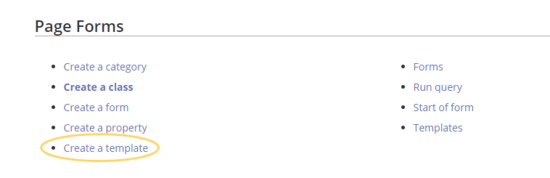
Like in the previous step (creating properties), switch to the Page Forms section on the page Special:SpecialPages.
-
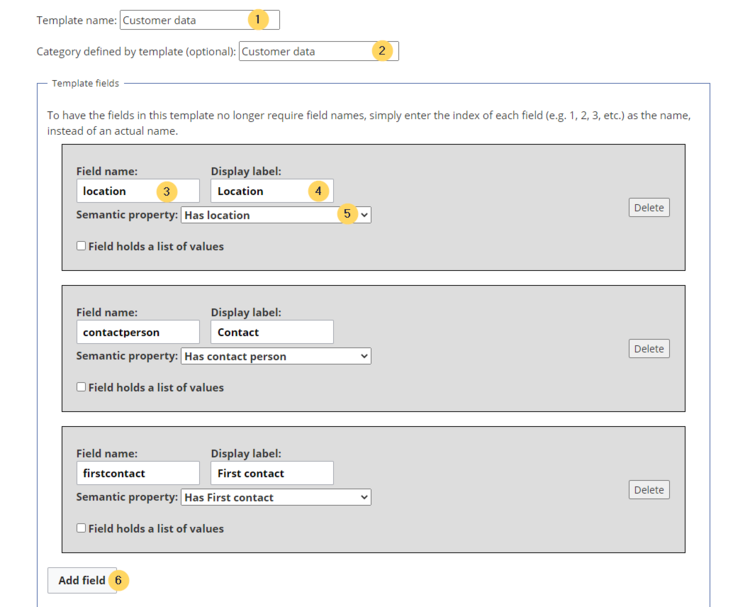
Define the data fields that you want to use in your template. For each property that you created, you need to have a field in the template.
- Template name (1): Enter Customer data as name for the template.
- Category (2): Define a category which will be assigned to all customer pages that use this template. It makes sense to also call this category Customer data.
- Field name (3): Create a field name for the property Has location. This field name will later be used to connect the template with the data entry form. The name should not contain spaces.
- Display label (4): This is the field label tha tis shown on the customer pages. It can contain spaces.
- Semantic property (5): Choose the property Has location that you created in the previous step.
- Add field (6): Click Add field to create the fields for the properties Has First contact and Has contact person.
- Click Save page at the end of the page Seite speichern.
The template is now available and can be viewed in the Template namespace. You do not have to edit the template any further at this point.
Include Including the template on a page[edit | edit source]
-
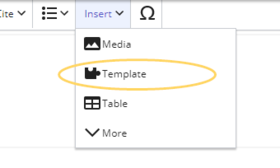
To include the template on a customer page, you simply add it from the Visual Editor Insert menu.
-
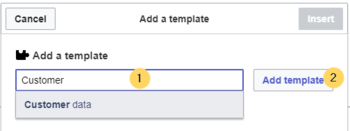
Start typing the name Customer data and select the template (1). Then, click Add template (2).
-
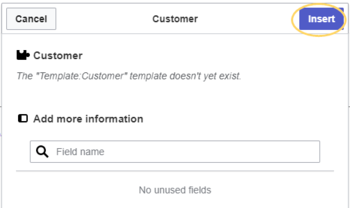
Click Insert.
-
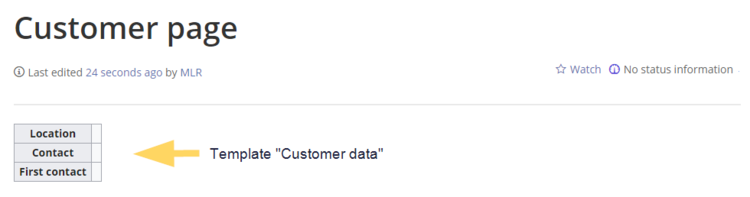
Save the page. The template is now included on the page.


Next step[edit | edit source]
Next, we create a form that makes it easy for users to enter the data.
Related info
{{DISPLAYTITLE:Create a template}}


        <div class="steps">

        ==CreateCreating the display template==

        To create the template, we go to the page ''Special:Create template''. On this page, we have access to the properties that we have already created.


        #Like in the previous step ([[Manual:Semantic MediaWiki/Examples/Customer data|creating properties]]), switch to the Page Forms section on the page  ''Special:SpecialPages''.<br /><br />[[File:Manual:Vorlage-erstellen-EN.png|link=https://en.wiki.bluespice.com/wiki/File:Manual:Vorlage-erstellen-EN.png|alt=Create a template|center|thumb|550x550px|Create a template]]

        #Define the data fields that you want to use in your template. For each property that you created, you need to have a  field in the template. <br />[[File:Manual:Vorlage-erstellen-spezialseite-EN.png|alt=Create the template|center|thumb|750x750px|Create the template]]<br />

        #*'''Template name (1):''' Enter ''Customer data'' as name for the template.

        #*'''Category (2):''' Define a category which will be assigned to all customer pages that use this template. It makes sense to also call this category Customer data.

        #*'''Field name (3):''' Create a field name for the property Has location. This field name will later be used to connect the template with the data entry form. The name should not contain spaces.

        #*'''Display label (4):''' This is the field label tha tis shown on the customer pages. It can contain spaces.

        #*<nowiki/>'''S'''<nowiki/>'''emantic property''' '''(5):''' Choose the property ''Has location'' that you created in the previous step.

        #*'''A'''<nowiki/>'''dd field (6):''' Click Add field to create the fields for the properties ''Has First contact'' and ''Has contact person''.

        #C<nowiki/>lick ''Save page'' at the end of the page ''Seite speichern''.


        The template is now available and can be viewed in the ''Template'' namespace. You do not have to edit the template any further at this point.


        ==IncludeIncluding the template on a page==


        #To include the template on a customer page, you simply add it from the Visual Editor ''Insert'' menu.  <br />[[File:Manual:Vorlage-einfügen-VE-EN.png|alt=Insert the template on a page|center|thumb|280x280px|Insert the template on a page]]

        #Start typing the name ''Customer data'' and select the template (1). Then, click ''Add template'' (2). <br />[[File:Manual:Vorlage-einfügen-VE2-EN.png|alt=Select template|center|thumb|350x350px|Select template]]

        #Click ''Insert.''<br />[[File:Manual:Vorlage-einfügen-VE3-EN.png|alt=Insert template|center|thumb|350x350px|Insert template]]

        #Save the page. The template is now included on the page. <br />[[File:Manual:Vorlage-eingebunden-EN.png|alt=Included template|center|thumb|750x750px|Included template]]


        </div>


        ==Next step==

        Next, we create a form that makes it easy for users to enter the data.


        <span class="nextstep">[[Manual:Semantic MediaWiki/Examples/Customer data/Form|Formular erstellen]]</span>


        {{Box Links-en|Topic1=https://www.semantic-mediawiki.org/wiki/Help:Semantic_templates Help page for semantic templates}}


            [[de:Handbuch:Semantic_MediaWiki/Beispiele/Kundendaten/Vorlage]]

[[en:{{FULLPAGENAME}}]]| Line 1: | Line 1: | ||
{{DISPLAYTITLE:Create a template}} | {{DISPLAYTITLE:Create a template}} | ||
<div class="steps"> | <div class="steps"> | ||
| − | == | + | ==Creating the display template== |
To create the template, we go to the page ''Special:Create template''. On this page, we have access to the properties that we have already created. | To create the template, we go to the page ''Special:Create template''. On this page, we have access to the properties that we have already created. | ||
| Line 17: | Line 17: | ||
The template is now available and can be viewed in the ''Template'' namespace. You do not have to edit the template any further at this point. | The template is now available and can be viewed in the ''Template'' namespace. You do not have to edit the template any further at this point. | ||
| − | == | + | ==Including the template on a page== |
#To include the template on a customer page, you simply add it from the Visual Editor ''Insert'' menu. <br />[[File:Manual:Vorlage-einfügen-VE-EN.png|alt=Insert the template on a page|center|thumb|280x280px|Insert the template on a page]] | #To include the template on a customer page, you simply add it from the Visual Editor ''Insert'' menu. <br />[[File:Manual:Vorlage-einfügen-VE-EN.png|alt=Insert the template on a page|center|thumb|280x280px|Insert the template on a page]] | ||
| Line 33: | Line 33: | ||
{{Box Links-en|Topic1=https://www.semantic-mediawiki.org/wiki/Help:Semantic_templates Help page for semantic templates}} | {{Box Links-en|Topic1=https://www.semantic-mediawiki.org/wiki/Help:Semantic_templates Help page for semantic templates}} | ||
| + | |||
| + | [[de:Handbuch:Semantic_MediaWiki/Beispiele/Kundendaten/Vorlage]] | ||
| + | [[en:{{FULLPAGENAME}}]] | ||