Difference between revisions of "Manual:Extension/BlueSpiceUniversalExport"
| [unchecked revision] | [unchecked revision] |
(→Settings) |
(→PDF single page export (UEModulePDF)) |
Contents
- 1 What is UniversalExport?
- 2 Where to find UniversalExport?
-
3 The functionality of UniversalExport
- 3.1 Information on the special page
- 3.2 Settings
- 3.3 Universal Export
-
3.4 PDF single page export (UEModulePDF) UniversalExport PDF module
- 3.4.1 Create PDFs
- 3.4.2 Preferences in WikiAdmin 3.4.3
- PDF font
- 3.4. 4
- 2 PDF/A
- 3.4. 5
- 3 DOCX export(charged)
- 4 Tips for working with UniversalExport
- 5 Classical export with MediaWiki
- 6 See also
What is UniversalExport?[edit | edit source]
UniversalExport enables the single page export to PDF.
Where to find UniversalExport?[edit | edit source]
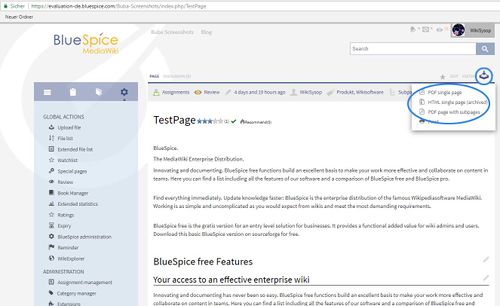
To export a single article as PDF please click on the this symbol  at the top right corner of the content area.
UniversalExport provides also a widget (UNIVERSALEXPORT ) called "Export" for the Widgetbar. This includes links to various export modules. Which modules are displayed depends on the settings of the respective modules and on the permissions of universalexport-export. Access to an export module can also be granted and withheld depending on namespaces.
The functionality of UniversalExport[edit | edit source]
Information on the special page[edit | edit source]
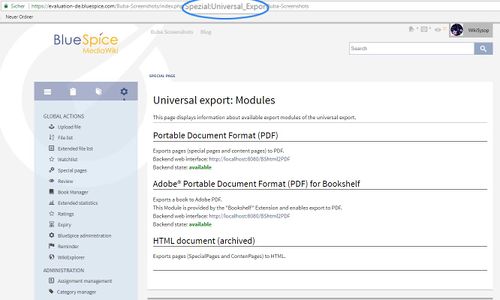
The export modules installed and their status can be viewed at Special:UniversalExport. The information displayed depends on the individual modules.
Settings[edit | edit source]
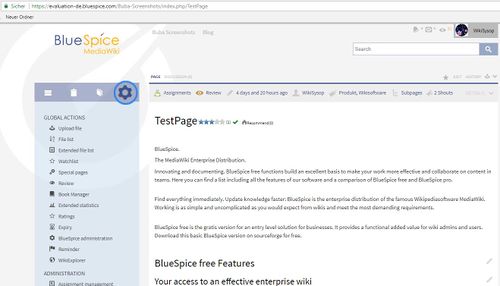
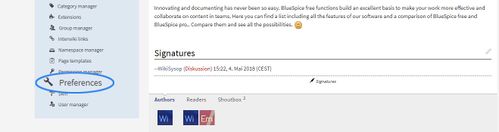
UniversalExport and the individual modules can be configured under "WikiAdmi > Preferences".
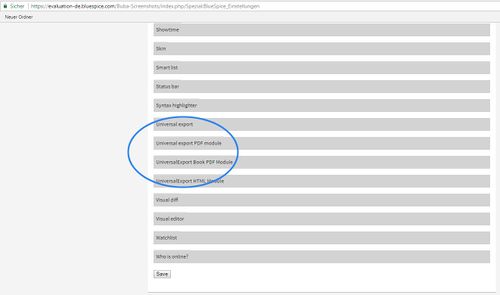
Universal Export[edit | edit source]
| Setting | Description |
|---|---|
|
Metadata (standard, JSON format) |
{"creator":"Hallo Welt! Medienwerkstatt GmbH"} |
|
Metadaten (overriding, JSON format) |
{"producer":"UniversalExport 2.23.2 (BlueSpice for MediaWiki)"} |
|
Activated for namespaces |
This setting allows the activation and deactivation of exporting for particular namespaces. Access to export can, however, also be determined using |
Create PDFs[edit | edit source]
Clicking on "PDF single page" in the
UniversalExport
widget creates a PDF of the current page. If the extension Bookshelf is installed, you will also have the chance to include files that are linked to on the page as attachments to the PDF. Preferences in WikiAdminPDF module[edit | edit source]
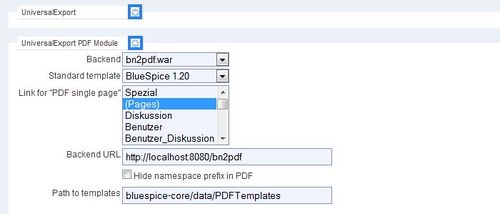
The module can be configured in the section UniversalExport PDF module in "WikiAdmin > Preferences":
| Setting | Description |
|---|---|
|
Backend |
Depending on the backened of the Java applications server installed, this must be either "PDFServlet" |
|
Standard template |
The templates for the PDF module are stored on the server and are mainly written in HTML and CSS. The "BlueSpice" template is included by default. Where needed, this template can be customised. The settings available in this field depend on the values in "Path to the templates". |
|
Link to "PDF single page" |
This setting activates or deactivates the PDF export module for particular namespaces. It corresponds to the UniversalExport setting 'Activated for namespaces'. |
|
PdfService (BN2PDF) URL |
The URL of the backend of the Java application server installed needs to be entered here. |
|
Hide namespaces in PDFs |
Allows namespace prefixes to be removed from page titles. |
|
Path to the templates |
This setting gives you the choice of a standard template for exporting to PDF. |
PDF font[edit | edit source]
The font used when exporting in PDFs depends on the template chosen. The template "BlueSpice", available by default, uses the sans serif font DejaVu. The font can be changed and Hallo Welt! Medienwerstatt can do this for you.
PDF/A[edit | edit source]
Export does not (yet) support PDF/A. PDF/A differes from PDF principally by embedding fonts rather than linking them. UniversalExport already does this. So the technical development towards PDF/A has already started.
DOCX export(charged)[edit | edit source]
Since 2013 is a DOCX export available. It is based on PHPDocX and you have to buy a license for each subdomain. (Pro+ or higher). The Docx export is part of the charged package BlueSpice Bookmaker.
Tips for working with UniversalExport[edit | edit source]
- Shoutbox comments are not included when a page is exported.
Classical export with MediaWiki[edit | edit source]
MediaWiki itself only offers the export of content pages in a proprietary XML format. There are, however, extensions which make the creation of ODF, PDF or DocBook files possible.
See also[edit | edit source]
Our reference page.

<bs:bookshelf src="Book:User manual" />


        __TOC__


        ==What is UniversalExport?==


        '''UniversalExport''' enables the single page export to PDF.


        ==Where to find UniversalExport?==


        To export a single article as PDF please click on the this symbol [[File:Btn-Pdf-Export-Einzelseite.png]] at the top right corner of the content area.<br />

        UniversalExport provides also a widget (<code>UNIVERSALEXPORT</code>

        ) called "Export" for the [[Archive:Widgetbar|Widgetbar]]. This includes links to various export modules. Which modules are displayed depends on the settings of the respective modules and on the permissions of


        <code>universalexport-export</code>. Access to an export module can also be granted and withheld depending on namespaces.


        ::: [[File:UniEx1.jpg|500x306px]]


        ==The functionality of UniversalExport==


        ===Information on the special page===


        The export modules installed and their status can be viewed at <code>Special:UniversalExport</code>. The information displayed depends on the individual modules.

        ::: [[File:UniEx2.jpg|500x300px]]


        ===Settings===

        UniversalExport and the individual modules can be configured under "WikiAdmi > Preferences".


        ::: [[File:UniEx3.jpg|500x286px]]

        ::: [[File:UniEx4.jpg|500x132px]]


        ::: [[File:UniEx5.jpg|500x295px]]


        ===Universal Export===


        {| class="contenttable"

        |-

        !|'''Setting'''

        !|'''Description'''

        |-

        ||

        Metadata (standard, JSON format)


        ||{"creator":"Hallo Welt! Medienwerkstatt GmbH"}

        |-

        ||

        Metadaten (overriding, JSON format)


        ||

        {"producer":"UniversalExport 2.23.2 (BlueSpice for MediaWiki)"}


        |-

        ||

        Activated for namespaces


        ||

        This setting allows the activation and deactivation of exporting for particular namespaces. Access to export can, however, also be determined using<code>universalexport-export</code>

        permissions. '''Note:''' For some export modules, this setting has to be done separately.


        |}


        ===PDF single page export (UEModulePDF)===


            ====Create PDFs====


            Clicking on "PDF single page" in the UniversalExport widget creates a PDF of the current page. If the extension [[Bookshelf]] is installed, you will also have the chance to include files that are linked to on the page as attachments to the PDF.


            ====Preferences in WikiAdmin====


            ===UniversalExport PDF module===


        The module can be configured in the section UniversalExport PDF module in "WikiAdmin > [[Preferences]]":


        {| class="contenttable"

        |-

        !|'''Setting'''

        !|'''Description'''

        |-

        ||

        Backend


        ||

        Depending on the backened of the Java applications server installed, this must be either "PDFServlet"<code>BShtml2PDF.war</code>

        ) of "PDFWebService" (


        <code>bn2pdf.war</code>

        ).


        |-

        ||

        Standard template


        ||

        The templates for the PDF module are stored on the server and are mainly written in HTML and CSS. The "BlueSpice" template is included by default. Where needed, this template can be customised. The settings available in this field depend on the values in "Path to the templates".


        |-

        ||

        Link to "PDF single page"


        ||

        This setting activates or deactivates the PDF export module for particular namespaces. It corresponds to the UniversalExport setting 'Activated for namespaces'.


        |-

        ||

        PdfService (BN2PDF) URL


        ||

        The URL of the backend of the Java application server installed needs to be entered here.


        |-

        ||

        Hide namespaces in PDFs


        ||

        Allows namespace prefixes to be removed from page titles.


        |-

        ||

        Path to the templates


        ||

        This setting gives you the choice of a standard template for exporting to PDF.


        |}


        ::: [[File:UnEX2.jpg|500x214px]]


        ====PDF font====


        The font used when exporting in PDFs depends on the template chosen. The template "BlueSpice", available by default, uses the sans serif font DejaVu. The font can be changed and Hallo Welt! Medienwerstatt can do this for you.


        ====PDF/A====


        Export does not (yet) support PDF/A. PDF/A differes from PDF principally by embedding fonts rather than linking them. UniversalExport already does this. So the technical development towards PDF/A has already started.


        ====DOCX export(charged)====


        Since 2013 is a DOCX export available. It is based on PHPDocX and you have to [http://www.phpdocx.com/download buy a license] for each subdomain. (Pro+ or higher). The Docx export is part of the charged package BlueSpice [[Bookmaker]].


        ==Tips for working with UniversalExport==


        * [[Shoutbox]] comments are not included when a page is exported.


        ==Classical export with MediaWiki==


        MediaWiki itself only offers the export of content pages in a proprietary XML format. There are, however, extensions which make the creation of ODF, PDF or DocBook files possible.


        ==See also==


        Our [[UniversalExport|reference page.]]


        <div id="box-info" style="width: 98%; margin: 20px 0; border: solid 2px #99bbe8; padding: 8px; background-color: #d6e3f2;">

        [[Image:Icon-link.png|left]]<div style="text-transform: uppercase; color: #99bbe8; font-size: 16px; font-weight: bold; margin: 0;">Related topics</div>


        <div color:="" 000="">

        * [[Bookshelf|PDF book of several articles]]

        * [[RSSStandards|RSS Export]]

        * [[Preferences|Admin Preferences]]


        </div>


        </div>
| Line 60: | Line 60: | ||
|} | |} | ||
| − | |||
| − | === | + | ===UniversalExport PDF module=== |
| − | |||
| − | |||
| − | |||
| − | |||
The module can be configured in the section UniversalExport PDF module in "WikiAdmin > [[Preferences]]": | The module can be configured in the section UniversalExport PDF module in "WikiAdmin > [[Preferences]]": | ||