Difference between revisions of "Setup:Installation Guide/System Preparation/Windows/Node.js"
← Setup:Installation Guide/System Preparation/Windows/Node.js
| [quality revision] | [quality revision] |
m (Tag: 2017 source edit) |
Fbaeckmann (talk | contribs) (Tag: 2017 source edit) |
Contents

|
Node.js is required for the operation of the rendering service "Parsoid" for the Visual Editor. The steps listed here are optional and only required if you plan to use them in your BlueSpice installation. |
Downloading Node.js[edit | edit source]
In Internet Explorer, open the official website of Node.js (1). Download the latest LTS version 10.x (2).
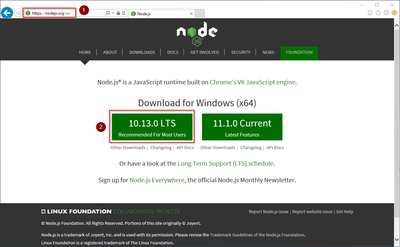
Follow the further download instructions and download the installation package to your hard drive.

|
Please note that the download on your Windows Server with Internet Explorer only works if you have configured the Internet Explorer Advanced Security Settings in the Server Manager. Please refer to the technical documentation from Microsoft. |
|
|
Tis guide uses the Node.js version 10.13.0 as an example. You can download the latest Nodee.js version tat the time of installation. |
Installing Node.js[edit | edit source]
Open the downloaded file "node-v10.13.0-x64.msi".
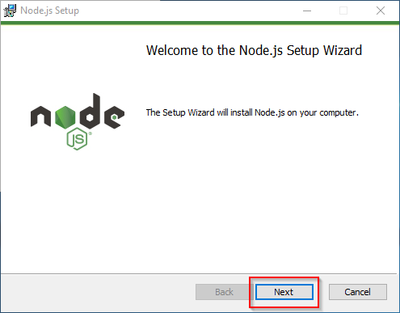
Start the installation by clicking "Next>":
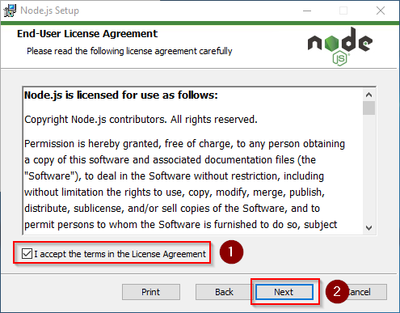
Confirm the license (1) and click "Next >" (2):
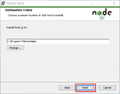
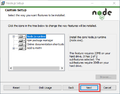
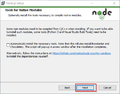
Confirm the further installation steps by clicking "Next >":
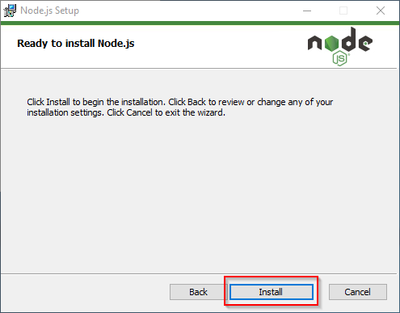
Start the installation by clicking "Install":
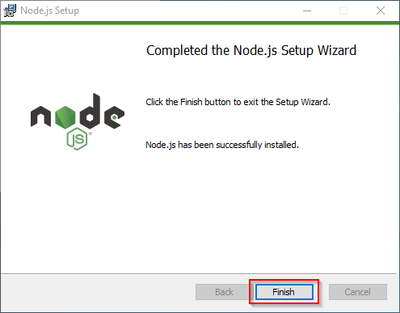
You can close the setup program after finishing the installation:
Adjusting the Installation path of the Node.js packages[edit | edit source]
By default, Node.js installs its packages in the profile directory of the logged-in user. Since Node.js is intended solely to operate as a user-independent server application under BlueSpice, it is strongly recommended that you change the default path for these packages:
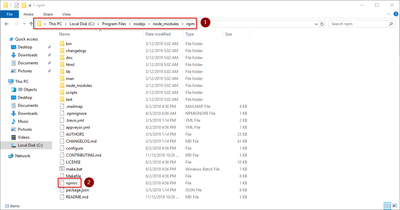
In the Node.js installation folder, open the file node_modules\npm\npmrcin a text editor:
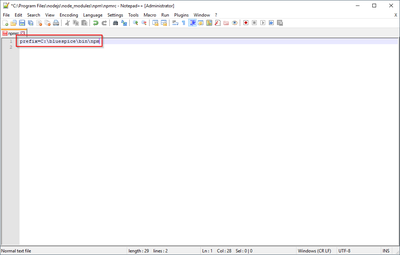
Edit this file and enter the new default path for your Node.js packages:
Save the file and close the editor.
{{Template:Hint|text=This documentation is based on the [[Setup:Installation Guide/Advanced/Windows_Folder_Structure | folder structure recommended by us ]. For this reason, the default path for the Node.js packages is set to the folder C:\bluespice\bin\npm. If you have different requirements, you must adapt these paths accordingly.}}
Installing the Windows Build Tools[edit | edit source]
The Node.js package windows-build-tools is required for installing the relevant BlueSpice applications.
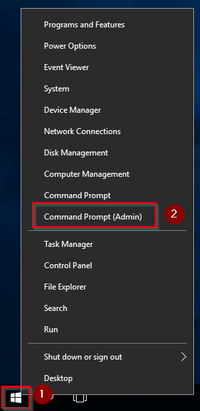
To install, first open the Windows command prompt as administrator. To do this, right-click "Start" (1) and select "Command Prompt (Administrator)" (2):
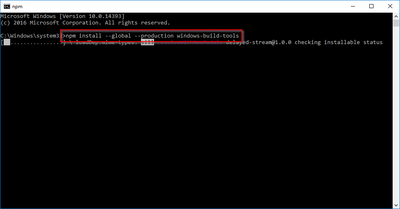
Execute the command "npm install --global --production windows-build-tools":
|
|
This command may take a long time and not show any activity for a long time. However, it is still active and must not be canceled! Additionally, Windows Server may restart during the process without warning. In this case, restart the installation as described above. |
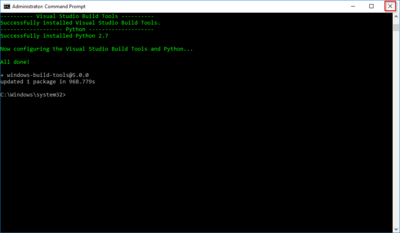
After successful installation, you can close the command prompt:
Next step[edit | edit source]
If you have completed all steps successfully, you can delete the previously downloaded file "node-v10.13.0-x64.msi" from your hard disk and continue to the next step " Parsoid".
{{DISPLAYTITLE:Node.js}}

        __TOC__


        {{Template:Optional|text=Node.js is required for the operation of the rendering service "Parsoid" for the Visual Editor. The steps listed here are optional and only required if you plan to use them in your BlueSpice installation.}}<br />

        ==Downloading Node.js==

        In Internet Explorer, open the [https://nodejs.org/en/ official website of Node.js] (1). Download the latest LTS version 10.x (2).


        [[File:Setup:Nodejs_Download_01.png|center|400px|Node.js Download 01]]


        Follow the further download instructions and download the installation package to your hard drive.


        {{Template:Hint|text=Please note that the download on your Windows Server with Internet Explorer only works if you have configured the Internet Explorer Advanced Security Settings in the Server Manager. Please refer to the technical documentation from Microsoft.}}

        {{Template:Hint|text=Tis guide uses the Node.js version 10.13.0 as an example. You can download the latest Nodee.js version tat the time of installation.}}<br />

        ==Installing Node.js==

        Open the downloaded file "node-v10.13.0-x64.msi".


        Start the installation by clicking "Next>":


        [[File:Setup:Nodejs_Install_01.png|center|400px|Node.js Installation 01]]


        Confirm the license (1) and click "Next >" (2):


        [[File:Setup:Nodejs_Install_02.png|center|400px|Node.js Installation 02]]


        Confirm the further installation steps by clicking "Next >":


        <gallery>

        File:Setup:Nodejs_Install_03.png

        File:Setup:Nodejs_Install_04.png

        File:Setup:Nodejs_Install_05.png


        </gallery>


        Start the installation by clicking "Install":


        [[File:Setup:Nodejs_Install_06.png|center|400px|Node.js Installation 06]]


        You can close the setup program after finishing the installation:


        [[File:Setup:Nodejs_Install_07.png|center|400px|Node.js Installation 07]]<br />

        ==Adjusting the Installation path of the  Node.js packages==

        By default, Node.js installs its packages in the profile directory of the logged-in user. Since Node.js is intended solely to operate as a user-independent server application under BlueSpice, it is strongly recommended that you change the default path for these packages:


        In the Node.js installation folder, open the file node_modules\npm\npmrcin a text editor:


        [[File:Setup:Nodejs_ChangePath_01.png|center|400px|Node.js Standardpfad ändern 01]]


        Edit this file and enter the new default path for your Node.js packages:


        [[File:Setup:Nodejs_ChangePath_02.png|center|400px|Node.js Standardpfad ändern 02]]


        Save the file and close the editor.


        <nowiki>{{Template:Hint|text=This documentation is based on the [[Setup:Installation Guide/Advanced/Windows_Folder_Structure | folder structure recommended by us ]. For this reason, the default path for the Node.js packages is set to the folder C:\bluespice\bin\npm. If you have different requirements, you must adapt these paths accordingly.}}</nowiki>


        ==Installing the  Windows Build Tools==

        The Node.js package windows-build-tools is required for installing the relevant BlueSpice applications.


        To install, first open the Windows command prompt as administrator. To do this, right-click "Start" (1) and select "Command Prompt (Administrator)" (2):

        [[File:Setup:Nodejs_InstallWindowsBuildTools_01.png|center|200px|Node.js Installation Windows Build Tools 01]]


        Execute the command "npm install --global --production windows-build-tools":


        [[File:Setup:Nodejs_InstallWindowsBuildTools_02.png|center|400px|Node.js Installation Windows Build Tools 02]]


        {{Template:Hint|text=This command may take a long time and not show any activity for a long time. However, it is still active and must not be canceled! Additionally, Windows Server may restart during the process without warning. In this case, restart the installation as described above.}}


        After successful installation, you can close the command prompt:


        [[File:Setup:Nodejs_InstallWindowsBuildTools_03.png|center|400px|Node.js Installation Windows Build Tools 03]]


        ==Next step==

        If you have completed all steps successfully, you can delete the previously downloaded file "node-v10.13.0-x64.msi" from your hard disk and continue to the next step "[[Setup:Installation Guide/System Preparation/Windows/Parsoid | Parsoid]]".


        [[en:{{PAGENAME}}]]

[[de:Setup:Installationsanleitung/Systemvorbereitung/Windows/Node.js]]| Line 51: | Line 51: | ||
Save the file and close the editor. | Save the file and close the editor. | ||
| − | + | {{Template:Hint|text=This documentation is based on the [[Setup:Installation Guide/Advanced/Windows_Folder_Structure | folder structure recommended by us ]. For this reason, the default path for the Node.js packages is set to the folder C:\bluespice\bin\npm. If you have different requirements, you must adapt these paths accordingly.}} | |
==Installing the Windows Build Tools== | ==Installing the Windows Build Tools== | ||