Difference between revisions of "Univention"
RichardHeigl (talk | contribs) (Created page with "BlueSpice is available as App for the [https://www.univention.com/products/ucs/ Univention Corporate Server]. It is delivered via the [https://www.univention.com/products/univ...") |
(Tag: Visual edit) |
BlueSpice is available as App an app for the Univention Corporate Server. It is delivered via the Univention App Center and can be easily installed.
BlueSpice is also available as appliance: It can be used in a virtual environment with the Univention Corporate Server as operating system.
Contents
Administration of the app[edit | edit source]
Assign user[edit | edit source]
To login at your BlueSpice MediaWiki, users must be assigned in the UCS system and domain settings.
- Open System and Domain Settings
- Select Users, open -> Users - Management of domain users and select user.
- Open Apps and select the check mark at "Activate user for BlueSpice MediaWiki".
Add more users[edit | edit source]
Adding more users does not work via the BlueSpice User Manager but via the UCS user management.
- Open System and Domain Settings.
- Select Users, open -> Users - Management of domain users and Add new user.
- Do not forget to open Apps and select the check mark at "Activate user for BlueSpice MediaWiki".
Note: Some rights are defined in ../settings.d/099-Univention.php which cannot be overwritten in the BlueSpice permission manager, (e.g. anonymous users have no read rights). These rights have to be updated directly in the 099-Univention.php file.
LDAP Group Synchronization: With LDAP, group assignments are accomplished within the Univention LDAP interface and not within the wiki.
Install appliance[edit | edit source]
The steps to install the BlueSpice appliance
-

Start of the appliance
-
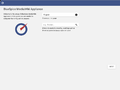
Select languages
-
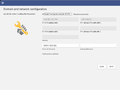
Domain and network configuration
-
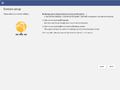
Domain setup
-
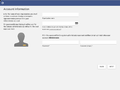
Set account information and Administrator password (important!)
-
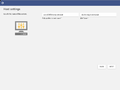
Host settings
-
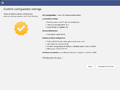
Confirm configuration settings
-
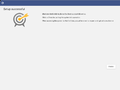
Setup success confirmation
-
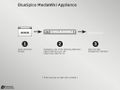
Get IP to open the Univention Corporate Server in your browser
-
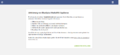
Upload license key, which you get via e-mail
-
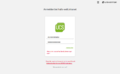
Login as Administrator and with your administrator password
-

Your applications: open first the system and domain configuration
-
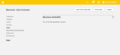
Assign user (Administrator) in the central authentication system for BlueSpice. Now you can start the wiki and login as Administrator
Trouble shooting[edit | edit source]
It a known issue, that UCS under specific conditions changes the IP and users cannot authenticate at the BlueSpice MediaWiki. Univention is working on that.
To fix that problem:
- Open System and Domain Settings.
- Select Domain, open -> LDAP - Browsing and managing the LDAP tree.
- Select in the tree in the left navigation bar under your Domain name. for instance: computers - dc - ucs-xxx
- Check and change IP adress (3 times) and Save.
Related info
BlueSpice is available as App an app for the [https://www.univention.com/products/ucs/ Univention Corporate Server]. It is delivered via the [https://www.univention.com/products/univention-app-center/app-catalog/bluespice/ Univention App Center] and can be easily installed.


            ==Assign user==BlueSpice is also available as appliance: It can be used in a virtual environment with the Univention Corporate Server as operating system.


            ==Administration of the app==

            ===Assign user===

        To login at your BlueSpice MediaWiki, users must be assigned in the UCS system and domain settings.


        # Open #Open System and Domain Settings


        # Select #Select '''Users''', open  -> '''Users - '''Management of domain users''' and select user.

            #Open '''Apps''' and select the check mark at "Activate user for BlueSpice MediaWiki".


            ===Add more users===

            Adding more users does not work via the BlueSpice User Manager but via the UCS user management.


            #Open System and Domain Settings.

            #Select '''Users''', open -> '''Users - Management of domain users''' and select user.

            # Open '''Add''' new user.

            #Do not forget to open '''Apps''' and select the check mark at "Activate user for BlueSpice MediaWiki".


            <br />{{Box Note|boxtype=note|Note text=Some rights are defined in ''../settings.d/099-Univention.php'' which cannot be overwritten in the BlueSpice permission manager, (e.g. anonymous users have no read rights). These rights have to be updated directly in the ''099-Univention.php'' file.


            '''LDAP Group Synchronization''': With LDAP, group assignments are accomplished within the Univention LDAP interface and not within the wiki.}}<br />

            ==Install appliance==

            The steps to install the BlueSpice appliance


            <gallery>

            File:UCS_Appliance_Setup_1_bootsplash.jpg|Start of the appliance

            File:UCS_Appliance_Setup_2_language-setup.png|Select languages

            File:UCS_Appliance_Setup_3_network-setup.png|Domain and network configuration

            File:UCS_Appliance_Setup_4_domain-setup.png|Domain setup

            File:UCS_Appliance_Setup_5_organisation-setup.png|Set account information and Administrator password (important!)

            File:UCS_Appliance_Setup_6_hostname-setup.png|Host settings

            File:UCS_Appliance_Setup_7_start-setup.png|Confirm configuration settings

            File:UCS_Appliance_Setup_8_finished-setup.png|Setup success confirmation

            File:UCS_Appliance_Setup_9_welcome-screen.jpg|Get IP to open the Univention Corporate Server in your browser

            File:UCS_Appliance_Setup_10_Activation_of_Univention_Corporate_Server.png|Upload license key, which you get via e-mail

            File:UCS_Appliance_Setup_11_Univention_Login.png|Login as Administrator and with your administrator password

            File:UCS_Appliance_Setup_12_Univention_Portal.jpg|Your applications: open first the system and domain configuration

            File:UCS_Appliance_Setup_13_Univention_Management_Console.png|Assign user (Administrator) in the central authentication system for BlueSpice. Now you can start the wiki and login as Administrator


            </gallery>


            ==Trouble shooting==

            It a known issue, that UCS under specific conditions changes the IP and users cannot authenticate at the BlueSpice MediaWiki. Univention is working on that.


            To fix that problem:


            #'''Open System and Domain Settings'''.

            #Select '''Domain''', open -> '''LDAP - Browsing and managing the LDAP tree'''.

            #Select in the tree in the left navigation bar under your Domain name. for instance: '''computers''' - '''dc''' - '''ucs-xxx'''

            #Check and change IP adress (3 times) and '''Save'''.


            {{Box Links-en

            |Topic1=[https://www.univention.de/produkte/univention-app-center/app-katalog/bluespice/ Univention App Center]

            |Topic2=[https://wiki.univention.de/index.php/Main_Page Univention Wiki]}}


            [[en:{{FULLPAGENAME}}]]

            [[de:Univention]]

            [[Category:Setup]]
| (15 intermediate revisions by 2 users not shown) | |||
| Line 1: | Line 1: | ||
| − | BlueSpice is available as | + | BlueSpice is available as an app for the [https://www.univention.com/products/ucs/ Univention Corporate Server]. It is delivered via the [https://www.univention.com/products/univention-app-center/app-catalog/bluespice/ Univention App Center] and can be easily installed. |
| + | BlueSpice is also available as appliance: It can be used in a virtual environment with the Univention Corporate Server as operating system. | ||
| − | ==Assign user== | + | ==Administration of the app== |
| − | To login at your BlueSpice MediaWiki users must be assigned in the UCS system and domain settings. | + | ===Assign user=== |
| + | To login at your BlueSpice MediaWiki, users must be assigned in the UCS system and domain settings. | ||
| − | # Open System and Domain Settings | + | #Open System and Domain Settings |
| − | # Select '''Users''', open | + | #Select '''Users''', open -> '''Users - Management of domain users''' and select user. |
| − | # | + | #Open '''Apps''' and select the check mark at "Activate user for BlueSpice MediaWiki". |
| + | |||
| + | ===Add more users=== | ||
| + | Adding more users does not work via the BlueSpice User Manager but via the UCS user management. | ||
| + | |||
| + | #Open System and Domain Settings. | ||
| + | #Select '''Users''', open -> '''Users - Management of domain users''' and '''Add''' new user. | ||
| + | #Do not forget to open '''Apps''' and select the check mark at "Activate user for BlueSpice MediaWiki". | ||
| + | |||
| + | <br />{{Box Note|boxtype=note|Note text=Some rights are defined in ''../settings.d/099-Univention.php'' which cannot be overwritten in the BlueSpice permission manager, (e.g. anonymous users have no read rights). These rights have to be updated directly in the ''099-Univention.php'' file. | ||
| + | |||
| + | |||
| + | '''LDAP Group Synchronization''': With LDAP, group assignments are accomplished within the Univention LDAP interface and not within the wiki.}}<br /> | ||
| + | ==Install appliance== | ||
| + | The steps to install the BlueSpice appliance | ||
| + | |||
| + | <gallery> | ||
| + | File:UCS_Appliance_Setup_1_bootsplash.jpg|Start of the appliance | ||
| + | File:UCS_Appliance_Setup_2_language-setup.png|Select languages | ||
| + | File:UCS_Appliance_Setup_3_network-setup.png|Domain and network configuration | ||
| + | File:UCS_Appliance_Setup_4_domain-setup.png|Domain setup | ||
| + | File:UCS_Appliance_Setup_5_organisation-setup.png|Set account information and Administrator password (important!) | ||
| + | File:UCS_Appliance_Setup_6_hostname-setup.png|Host settings | ||
| + | File:UCS_Appliance_Setup_7_start-setup.png|Confirm configuration settings | ||
| + | File:UCS_Appliance_Setup_8_finished-setup.png|Setup success confirmation | ||
| + | File:UCS_Appliance_Setup_9_welcome-screen.jpg|Get IP to open the Univention Corporate Server in your browser | ||
| + | File:UCS_Appliance_Setup_10_Activation_of_Univention_Corporate_Server.png|Upload license key, which you get via e-mail | ||
| + | File:UCS_Appliance_Setup_11_Univention_Login.png|Login as Administrator and with your administrator password | ||
| + | File:UCS_Appliance_Setup_12_Univention_Portal.jpg|Your applications: open first the system and domain configuration | ||
| + | File:UCS_Appliance_Setup_13_Univention_Management_Console.png|Assign user (Administrator) in the central authentication system for BlueSpice. Now you can start the wiki and login as Administrator | ||
| + | </gallery> | ||
| + | |||
| + | ==Trouble shooting== | ||
| + | It a known issue, that UCS under specific conditions changes the IP and users cannot authenticate at the BlueSpice MediaWiki. Univention is working on that. | ||
| + | |||
| + | To fix that problem: | ||
| + | |||
| + | #'''Open System and Domain Settings'''. | ||
| + | #Select '''Domain''', open -> '''LDAP - Browsing and managing the LDAP tree'''. | ||
| + | #Select in the tree in the left navigation bar under your Domain name. for instance: '''computers''' - '''dc''' - '''ucs-xxx''' | ||
| + | #Check and change IP adress (3 times) and '''Save'''. | ||
| + | |||
| + | {{Box Links-en | ||
| + | |Topic1=[https://www.univention.de/produkte/univention-app-center/app-katalog/bluespice/ Univention App Center] | ||
| + | |Topic2=[https://wiki.univention.de/index.php/Main_Page Univention Wiki]}} | ||
| + | |||
| + | [[en:{{FULLPAGENAME}}]] | ||
| + | [[de:Univention]] | ||
| + | [[Category:Setup]] | ||