Difference between revisions of "Reference:BlueSpiceChecklist"
(Tag: 2017 source edit) |
Extension: BlueSpiceChecklist
| Overview | |||
|---|---|---|---|
| Description: | Allows inserting checkboxes and checklists for task management Provides checklist functionality | ||
| State: | stable | Dependency: | MediaWiki, BlueSpice |
| Developer: | HalloWelt | License: |
GPL-3.0-onlyProperty "BSExtensionInfoLicense" (as page type) with input value "</br>GPL-3.0-only" contains invalid characters or is incomplete and therefore can cause unexpected results during a query or annotation process. |
| Type: | BlueSpice | Category: | Rich articles"Rich articles" is not in the list (Administration, Editor, Export, Mobile, Reporting, Skinning, Book, Communication, Infrastructure, Personalization, ...) of allowed values for the "BSExtensionInfoCategory" property.Articles |
| Edition: | BlueSpiceFree"BlueSpiceFree" is not in the list (BlueSpice pro, BlueSpice free, BlueSpice Farm, BlueSpice Cloud, BlueSpice free (deactivated), BlueSpice pro (deactivated), BlueSpice Farm (deactivated), BlueSpice Cloud (deactivated)) of allowed values for the "BSExtensionInfoEdition" property., BlueSpicePro"BlueSpicePro" is not in the list (BlueSpice pro, BlueSpice free, BlueSpice Farm, BlueSpice Cloud, BlueSpice free (deactivated), BlueSpice pro (deactivated), BlueSpice Farm (deactivated), BlueSpice Cloud (deactivated)) of allowed values for the "BSExtensionInfoEdition" property. | ||
Features
The extension Checklist allows inserting checklists and checkboxes for to-do lists
Background[edit | edit source]
Checklist inserts wiki code elements which, depending on the mode chosen, appear as check or combo boxes.
Where can I find Checklist?[edit | edit source] Checklist is a page editor menu item. Edit opens the page editor and
CheckList Functions[edit | edit source]
The checklist dropdown inserts
- Recently used lists
- Single checkbox elements
- Newly created lists
Multiple checkboxes and/or checklists can be inserted into an article.
Create Checkboxes[edit | edit source]
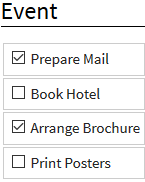
 or the 'Checklist elements' dropdown item. Ticking the checkbox in view mode alternates the checkbox hook between false and checked and updates the article's version history, edit mode doesn't update the history. Wikicode: The Code Editor (i.e. not the WYSIWYG Editor) edits checklist tags. i.e. the
 value="" unchecked states table below or the color hex codes further below. Clicking the inserts only. You need to add the Prepare Mail identifier.
                        <bs:checklist value="checked" /> Prepare Mail
<bs:checklist value="false" /> Book Hotel
Creating Lists[edit | edit source]
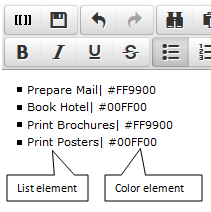
Screenshot : Prepare article list in seperate template
|
Prepare Checklist : In order to insert a checklist in an article, you must first create a checklist template that contains the necessary check list elements. This is done by creating a new article in the Template namespace. For example create a new article named 'Template:Status'. Then in the Code Editor (i.e. not the WYSIWYG Editor) ad the check list items as exampled above, as a list. Save the Template and remember the Template's name as you need to add this name to Insert list dialogue below.
Assign colors : To facilitate visibility, you can assign list element colors. This is done by entering the pipe symbol ( straight line ) after the item identifier followed by a HEX color code. |
                            * Prepare Mail| #FF9900
* Book Hotel| #00FF00
|
|
Assign colors[edit | edit source]
To support element status visibility color codes can be linked to the list elements. This is done by adding the pipe symbol (straight line) after the list element name followed by the HEX color Code.Typical colors;
| Colour | Name | HEX-Code |
|---|---|---|
| black | #000000 | |
| grey | #888888 | |
| red | #FF0000 | |
| orange | #FF8800 | |
| green | #00FF00 | |
| blue | #0000FF | |
| magenta | #FF00FF |
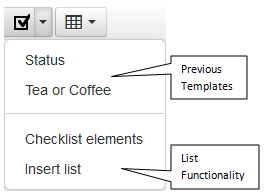
Screenshot Checklist WYSIWYG
|
Insert checklist : The WYSIWYG Editor checklist dropdown arrow
To insert a new checklist, select the Insert list item in the dropdown. Then in the popup click on the + sign to add a new template. You must now enter the exact template title created above. Clicking " Ok " inserts the template's checklist items into your current article. |
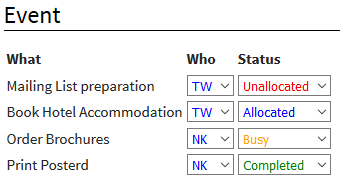
Example of Checklist being used for employee and status allocations.
|
As and example, you can add in multiple table row lists to show a tasks status of tasks , this might look like this. |
Authorisation[edit | edit source]
- Anyone who has write permissions can use the Checklist tag.
- Anyone who has the checklistmodify permission can modify a checklist.
| Designation | Description | Standard group |
|---|---|---|
| checklistmodify | Allows you to change a checklist item | user |
CheckList-Tag Paramaters[edit | edit source]
You can off course also use Wikicode to insert check boxes and checklists. A Checklist-Tag creates a single form field, which depending on the mode is a checkbox or select box. It has the following parameters:| Name | Description | Type / Value range | Default value |
|---|---|---|---|
| type | Modus: If the checklist item as a list or as | check, list | check |
| value | Current value | str | - |
| list | Contains the name of the page in the MediaWiki namespace of the list entries. Mandatory when type is 'list' | str | - |
| id | Optional indication of ID that can be used to identify the items | str | - |
Classic MediaWiki[edit | edit source]
Classic MediaWiki does not provide checklist functionality.with responsibilities and status settings.
The checklist extension inserts:
- single checkbox elements
- checklists based on templates with an unordered list
It is possible to add multiple checkboxes and/or checklists to a page.
Checklist changes are automatically marked as minor changes. This setting can be changed in the Config manager.
Technical Information[edit source]
This information applies to BlueSpice 3 . Technical details for BlueSpice cloud can differ in some cases.
Requirements[edit source]
- MediaWiki: 1.31
- BlueSpiceFoundation: 3.2
Integrates into[edit source]
- BlueSpiceSMWConnector
- BlueSpiceVisualEditorConnector
Special pages[edit source]
Permissions[edit source]
| Name | Description | Role |
|---|---|---|
| checklistmodify | Modify the values of checklist items without editing the wiki page | author, bot, editor, maintenanceadmin |
Configuration[edit source]
| Name | Value |
|---|---|
| ChecklistMarkAsMinorEdit | true |
API Modules[edit source]
- bs-checklist-available-options-store
- bs-checklist-tasks
- bs-checklist-template-store
Hooks[edit source]
{{BSExtensionInfoboxBSExtensionInfo

        |desc=Allows inserting checkboxes and checklists for task management.

        |status=stable

        |developer=HalloWelt

        |type=BlueSpice

        |edition=BlueSpiceFree, BlueSpicePro

            |active=Yes

            |compatible=MediaWiki, BlueSpice

            |category=Rich articles

            |docu=https://www.mediawiki.org/wiki/Extension:Checklist

            }}

            __NOTOC__

            Checklist inserts checkboxes and checklists. e.g. to-do lists.


            ==Background==

            Checklist inserts wiki code elements which, depending on the mode chosen, appear as check or combo boxes.


            ==Where can I find Checklist?==

            Checklist is a page editor menu item. ''Edit'' opens the page editor and [[File:Btn-WYSIWYG-Checklist.png|none|none]] opens the checklist dropdown.


            ==CheckList Functions==

            The checklist dropdown inserts


            * Recently used lists

            * Single checkbox elements

            * Newly created lists


            Multiple checkboxes and/or checklists can be inserted into an article.


            ==Create Checkboxes==

            {|

            |-

            ||

            [[File:BlueSpice-CheckList-Example_Checkbox.png|left|frame|alt=With checkboxes you can create simple to-do lists|With checkboxes you can create simple to-do lists]]


            ||'''Insert Checkbox''' : A checkbox is a single checkbox element. You insert a checkbox by clicking the Menu Icon [[File:Btn-Wikicode-Checkbox.png]] or the 'Checklist elements' dropdown item. Ticking the checkbox in view mode alternates the checkbox hook between false and checked and updates the article's version history, edit mode doesn't update the history.


            '''Wikicode:''' The Code Editor (i.e. not the WYSIWYG Editor) edits checklist tags. i.e. the <code>value=""</code> unchecked states table below or the color hex codes further below. Clicking the [[File:Btn-Wikicode-Checkbox.png]]inserts <bs:checklist value="false" /> only. You need to add the Prepare Mail identifier.


            |-

            | colspan="2"|


            <pre><bs:checklist value="checked" /> Prepare Mail


            <bs:checklist value="false" /> Book Hotel


            </pre>

            |}

            ==Creating Lists==

            {|

            |-

            ||[[File:BlueSpice-CheckList-List_creation.png|left|frame|alt=Screenshot : Prepare article list in seperate template|Screenshot : Prepare article list in seperate template]]

            ||'''Prepare Checklist''' : In order to insert a checklist in an article, you must first create a checklist template that contains the necessary check list elements. This is done by creating a new article in the Template namespace. For example create a new article named 'Template:Status'. Then in the Code Editor (i.e. not the WYSIWYG Editor) ad the check list items as exampled above, ''as a list''. Save the Template and remember the Template's name as you need to add this name to Insert list dialogue below.


            '''Assign colors''' : To facilitate visibility, you can assign list element colors. This is done by entering the pipe symbol ( straight line ) after the item identifier followed by a HEX color code.


            |-

            | colspan="2"|


            <pre>* Prepare Mail| #FF9900

            * Book Hotel| #00FF00


            </pre>

            |}

            ===Assign colors===

            To support element status visibility color codes can be linked to the list elements. This is done by adding the pipe symbol (straight line) after the list element name followed by the HEX color Code. <br data-attributes="%20/"><br data-attributes="%20/">


            '''Typical colors;'''


            {| class="contenttable" style="width: 700px;"

            |-

            !|'''Colour'''

            !|'''Name'''

            !|'''HEX-Code'''

            |-

            | style="background-color: #000000;"|

            ||black

            ||#000000

            |-

            | style="background-color: #888888;"|

            ||grey

            ||#888888

            |-

            | style="background-color: #ff0000;"|

            ||red

            ||#FF0000

            |-

            | style="background-color: #ff8800;"|

            ||orange

            ||#FF8800

            |-

            | style="background-color: #00ff00;"|

            ||green

            ||#00FF00

            |-

            | style="background-color: #0000ff;"|

            ||blue

            ||#0000FF

            |-

            | style="background-color: #ff00ff;"|

            ||magenta

            ||#FF00FF

            |}


            {|

            |-

            ||[[File:BlueSpice-Check-List-WYSIWYG.png|none|frame|alt=Screenshot Checklist WYSIWYG|Screenshot Checklist WYSIWYG]]

            ||

            '''Insert checklist''' : The WYSIWYG Editor checklist dropdown arrow[[File:Btn-WYSIWYG-Checklist.png|none|none]]enables you to insert checklists into your articles. You simply click a previously used template or as in this case add a new checklist.


            To insert a new checklist, select the Insert list item in the dropdown. Then in the popup click on the + sign to add a new template. You must now enter the exact template title created above. Clicking " Ok " inserts the template's checklist items into your current article.


            |}


            {|

            |-

            ||

            [[File:BlueSpice-CheckList-Example.png|left|frame|Example of Checklist being used for employee and status allocations.]]


            ||As and example, you can add in multiple table row lists to show a tasks status of tasks , this might look like this.

            |}


            ==Authorisation==

            * Anyone who has write permissions can use the Checklist tag.

            * Anyone who has the checklistmodify permission can modify a checklist.


            {| class="contenttable sortable"

            |-

            !|Designation

            !|Description

            !|Standard group

            |-

            ||''checklistmodify''

            ||Allows you to change a checklist item

            ||user

            |}


            ==CheckList-Tag Paramaters==

            You can off course also use Wikicode to insert check boxes and checklists. A Checklist-Tag <bs:checklist/> creates a single form field, which depending on the mode is a checkbox or select box. It has the following parameters:<br /><br />


            {| class="contenttable sortable"

            |-

            !|Name

            !|Description

            !|Type / Value range

            !|Default value

            |-

            ||''type''

            ||Modus: If the checklist item as a list or as

            ||check, list

            ||check

            |-

            ||''value''

            ||Current value

            ||str

            ||-

            |-

            ||''list''

            ||Contains the name of the page in the MediaWiki namespace of the list entries. Mandatory when type is 'list'

            ||str

            ||-

            |-

            ||''id''

            ||Optional indication of ID that can be used to identify the items

            ||str

            ||-

            |}


            ==Classic MediaWiki==

            Classic MediaWiki does not provide checklist functionality.<br data-attributes="%20/"><br data-attributes="%20/"><br data-attributes="%20/"><br data-attributes="%20/"><br data-attributes="%20/">

            [[en:{{FULLPAGENAME}}]][[de:CheckList]]

            [[Category:Extension]]BlueSpice free, BlueSpice pro, BlueSpice Farm, BlueSpice Cloud

            |compatible=BlueSpice

            |category=Rich Articles

            |license=GPL v3 only

            |features=The extension '''Checklist''' allows inserting checklists and checkboxes for to-do lists with responsibilities and status settings.


            The checklist extension inserts:


            *single checkbox elements

            *checklists based on templates with an unordered list


            It is possible to add multiple checkboxes and/or checklists to a page.


            Checklist changes are automatically marked as minor changes. This setting can be changed in the [[Manual:Extension/BlueSpiceConfigManager{{!}}Config manager.]]

}}| (44 intermediate revisions by 7 users not shown) | |||
| Line 1: | Line 1: | ||
| − | {{ | + | {{BSExtensionInfo |
| − | |desc=Allows inserting checkboxes and checklists for task management | + | |desc=Allows inserting checkboxes and checklists for task management. |
|status=stable | |status=stable | ||
|developer=HalloWelt | |developer=HalloWelt | ||
|type=BlueSpice | |type=BlueSpice | ||
| − | |edition= | + | |edition=BlueSpice free, BlueSpice pro, BlueSpice Farm, BlueSpice Cloud |
| − | + | |compatible=BlueSpice | |
| − | |compatible= | + | |category=Rich Articles |
| − | |category=Rich | + | |license=GPL v3 only |
| − | | | + | |features=The extension '''Checklist''' allows inserting checklists and checkboxes for to-do lists with responsibilities and status settings. |
| − | |||
| − | |||
| − | Checklist | ||
| − | + | The checklist extension inserts: | |
| − | |||
| − | + | *single checkbox elements | |
| − | + | *checklists based on templates with an unordered list | |
| − | + | It is possible to add multiple checkboxes and/or checklists to a page. | |
| − | |||
| − | + | Checklist changes are automatically marked as minor changes. This setting can be changed in the [[Manual:Extension/BlueSpiceConfigManager{{!}}Config manager.]] | |
| − | + | }} | |
| − | |||
| − | |||
| − | |||
| − | |||
| − | |||
| − | |||
| − | |||
| − | |||
| − | |||
| − | |||
| − | |||
| − | |||
| − | |||
| − | |||
| − | |||
| − | |||
| − | |||
| − | |||
| − | |||
| − | |||
| − | |||
| − | { | ||
| − | |||
| − | |||
| − | |||
| − | |||
| − | |||
| − | |||
| − | |||
| − | |||
| − | |||
| − | |||
| − | |||
| − | |||
| − | |||
| − | |||
| − | |||
| − | |||
| − | |||
| − | { | ||
| − | |||
| − | |||
| − | |||
| − | ! | ||
| − | |||
| − | |||
| − | |||
| − | |||
| − | |||
| − | |||
| − | |||
| − | |||
| − | |||
| − | |||
| − | |||
| − | |||
| − | |||
| − | |||
| − | |||
| − | |||
| − | |||
| − | |||
| − | |||
| − | |||
| − | |||
| − | |||
| − | |||
| − | |||
| − | |||
| − | |||
| − | |||
| − | |||
| − | |||
| − | |||
| − | |||
| − | |||
| − | |||
| − | |||
| − | |||
| − | |||
| − | |||
| − | |||
| − | |||
| − | |||
| − | |||
| − | |||
| − | |||
| − | |||
| − | |||
| − | |||
| − | |||
| − | |||
| − | |||
| − | |||
| − | |||
| − | |||
| − | |||
| − | |||
| − | |||
| − | |||
| − | |||
| − | |||
| − | |||
| − | |||
| − | |||
| − | |||
| − | |||
| − | |||
| − | |||
| − | |||
| − | |||
| − | |||
| − | |||
| − | |||
| − | |||
| − | |||
| − | |||
| − | |||
| − | |||
| − | |||
| − | |||
| − | |||
| − | |||
| − | |||
| − | |||
| − | |||
| − | |||
| − | |||
| − | |||
| − | |||
| − | |||
| − | |||
| − | |||
| − | |||
| − | |||
| − | |||
| − | |||
| − | |||
| − | |||
| − | |||
| − | |||
| − | |||
| − | |||
| − | |||
| − | |||
| − | |||