Difference between revisions of "Manual:Extension/BlueSpiceChecklist"
| [unchecked revision] | [quality revision] |
(Tag: 2017 source edit) |
(Changed categories.) |
BlueSpiceChecklist allows inserting checklists and checkboxes for to-do lists with responsibilities and status settings.
Contents
Magic word "checklist"[edit | edit source]
BlueSpiceChecklist enabled inserting checkboxes and comboboxes to the page. These can be changed without the need to edit the page.
Using BlueSpiceChecklist[edit | edit source]
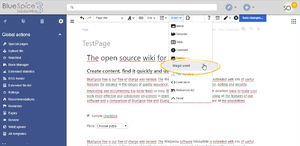
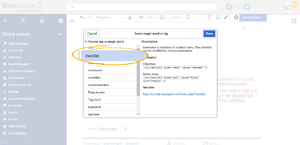
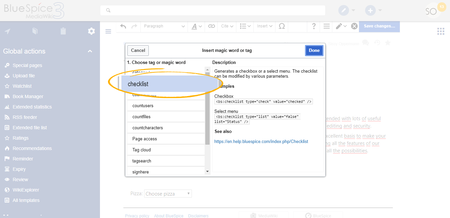
Checklist items can be inserted from "Insert" menu, by clicking on "Insert magic" button, while editing the page. In the list of tags available, choose "checklist" and click "Done".
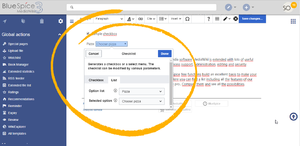
Checkbox will be inserted to page and, below it, a configuration panel will appear.
Here user can choose one of two tabs:
- Checkbox - only configuration for checkbox is marking it as selected or not selected
- List - for lists (combobox), a predefined list of options as well as current status can be selected.

Multiple checkboxes/comboboxes can be added to a page.
Defining lists[edit | edit source]
Lists that can be selected when adding a checklist tag to the page are defined as pages in Template namespace.
For example to create a list of pizzas that can be selected one would It is easy to insert simple checklists into any wiki page. When a wiki page has a checklist, any user with checklistmodify rights can update the checklist values without switching into edit mode. These are by default users in the role editor, author, maintenanceadmin and bot.
Note: If a user with read permissions changes the value of a checkbox or drop-down list, the value will not be saved. Refreshing the page will show the last value that has been saved before.
To create a checklist item:
-
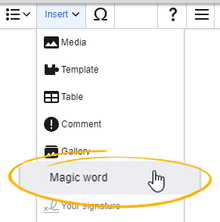
Click Insert > More > Magic word in the visual editor.
-
Click checklist in the dialog window.
- Click Done. Another dialog window appears.
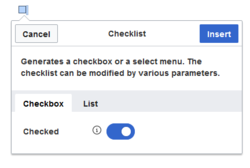
Now select the tab to select your checklist type:
- Checkbox: creates an individual checkbox.
- List: creates a drop-down menu.
A page can contain multiple checkboxes and lists.
Creating a checkbox[edit | edit source]
- Toggle the switch in the dialog window on the checkbox tab to create an unselected checkbox. When this toggle is blue, the checkbox is pre-selected.
- Select insert. The checkbox is now visible on the page. Write the text for a label or for an instruction next to the checkbox
After the page has been saved, all users can activate and deactivate the checkbox.
Creating a drop-down list[edit | edit source]
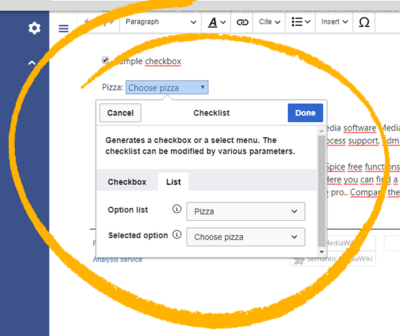
- Select an existing option list in the List tab.
- Under Selected option, choose the default value.
- Click Done.
After saving the page, all users can change the selected list value in read mode.
Defining an option list[edit | edit source]
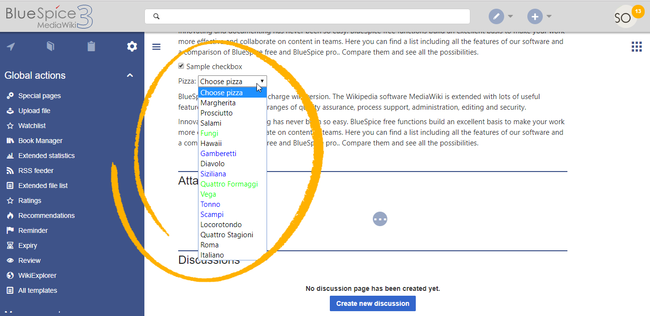
Before a combobox can be created, a template for the list items needs to be available. For example, to create a list of pizzas, you need to create a page Template:Pizza with the following content:
                * Choose pizza|#000000
* Margherita|#000000
* Prosciutto|#000000
* Salami|#000000
* Fungi|#00FF00
* Hawaii|#000000
* Gamberetti|#0000FF
* Diavolo|#000000
* Siziliana|#0000FF
* Quattro Formaggi|#00FF00
Upon After saving this page, the list "Pizza" would appear in "appears in the select menu Option list" when inserting checklist.
Colors can be assigned to options each option using the color's HEX code: . The color value #00FF00 shows green text.
* Quattro Formaggi|#FF8800#00FF00
would show orange text. Without specifying the color text would remain default black. Manually adding BlueSpiceChecklist tags, text inherits the text color of the wiki page.
Adding checklists in source editing mode[edit | edit source]
In addition to using UI to add and edit checklist tag, it Checklists can also be added to a page using wikitext. Syntax The syntax for adding the tag is:
for checkboxes Checkbox:
<bs:checklist type="check" checked="true" />
- for lists
<bs:checklist type="list" list="Template:Pizza" value="Choose pizza" />
Parameter "list" sets the page where predefined list is located, "value" sets current value selected.
BlueSpiceChecklist when viewing pagesThe parameter list defines the template page that contains the list, value defines the initial selection.Once a checklist tag has been saved on a page, users can change its value in read mode.
Configuration[edit | edit source]
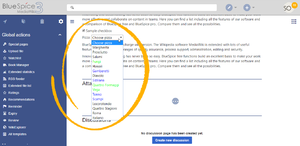
Once checklist tag is inserted on page, users, while reading the page, without entering the edit mode, would be able to change values of check- and combo boxes.
Every user with edit permission can change value of comboboxes, while only users with "checklistmodify" permission would be able to modify value of a combobox.
See also[edit | edit source]
Reference page for this extension. The following configuration can be changed in the Config manager:
-
Mark checklist changes as minor edit: If this setting is active, changes to a checklist (for example, checking a checkbox) in view mode are logged as minor edits. If this setting is inactive, a change to the checklist is recorded as a regular version in the page history.



Related info
            <bs:bookshelf src="Book:User manual" />

            __TOC__


            ==What is BlueSpiceChecklist?==


            '''BlueSpiceChecklist''' enabled inserting checkboxes and comboboxes to the page. These can be changed without the need to edit the page.

            ==Using BlueSpiceChecklist==


            Checklist items can be inserted from "Insert" menu, by clicking on "Insert magic" button, while editing the page.

            In the list of tags available, choose "checklist" and click "Done".

            {|

            |[[File:Checklist1.png|thumb]]

            |{{DISPLAYTITLE:Checklists}}


            '''BlueSpiceChecklist''' allows inserting checklists and checkboxes for to-do lists with responsibilities and status settings.


            ==Magic word "checklist"==


            It is easy to insert simple checklists into any wiki page. When a wiki page has a checklist, any user with ''checklistmodify'' rights can update the checklist values without switching into edit mode. These are by default users in the role ''editor'', ''author,'' ''maintenanceadmin'' and ''bot''.

            {{Box Note|boxtype=note|Note text=If a user with read permissions changes the value of a checkbox or drop-down list, the value will not be saved. Refreshing the page will show the last value that has been saved before.}}


            To create a checklist item:


            *'''Click''' ''Insert > More > Magic word'' in the visual editor.[[File:Manual:ve-magicword.png|alt=The visual editor|center|thumb|222x222px|The visual editor]]<br />

            *'''Click''' c''hecklist'' in the dialog window.<br />[[File:Checklist2.png|thumb]]

            |}


            Checkbox will be inserted to page and, below it, a configuration panel will appear.


            Here user can choose one of two tabs:


            *Checkbox - only configuration for checkbox is marking it as selected or not selected


            *List - for lists (combobox), a predefined list of options as well as current status can be selected.


            {|

            |[[File:Checklist3.png|thumb]]

            |[[File:Checklist4.png|thumb]]

            |}


            Multiple checkboxes/comboboxes can be added to a page.


            ===Defining lists===

            Lists that can be selected when adding a checklist tag to the page are defined as pages in Template namespace.


            For example|link=https://en.wiki.bluespice.com/wiki/File:Checklist2.png|alt=Magic word checklist|center|450x450px|Magic word ''checklist'']]

            *'''Click''' ''Done''. Another dialog window appears.[[File:Manual:magicword-dialog-EN.png|alt=Dialog window for checklists|center|thumb|250x250px|Dialog window for checklists]]


            Now select the tab to select your checklist type:


            *''Checkbox:'' creates an individual checkbox.

            *''List:'' creates a drop-down menu.


            A page can contain multiple checkboxes and lists.


            ===Creating a checkbox===


            #'''Toggle''' the switch in the dialog window on the checkbox tab to create an unselected checkbox. When this toggle is blue, the checkbox is pre-selected.

            #'''Select''' ''insert.'' The checkbox is now visible on the page. Write the text for a label or for an instruction next to the checkbox


            After the page has been saved, all users can activate and deactivate the checkbox.


            === Creating a drop-down list ===

            [[File:Manual:Checklist4-EN.png|alt=Selecting a checklist template|center|thumb|400x400px|Selecting a checklist template]]


            <br />


            # '''Select''' an [[#Defining an option list|existing option list]] in the ''List'' tab.

            # Under Selected option, choose the default value.

            # '''Click''' Done.


            After saving the page, all users can change the selected list value in read mode.


            ===Defining an option list===

            Before a combobox can be created, a template for the list items needs to be available. For example, to create a list of pizzas that can be selected one would create a page Template:Pizza with following content:


            <pre>

            * Choose pizza|#000000

            * Margherita|#000000

            * Prosciutto|#000000

            * Salami|#000000

            * Fungi|#00FF00

            * Hawaii|#000000

            * Gamberetti|#0000FF

            * Diavolo|#000000, you need to create a page ''Template:Pizza'' with the following content:


            <pre>

            * Choose pizza

            * Margherita

            * Prosciutto

            * Salami

            * Fungi|#00FF00

            * Hawaii

            * Gamberetti|#0000FF

            * Diavolo

        * Siziliana|#0000FF

        * Quattro Formaggi|#00FF00


        </pre>


        UponAfter saving this page, the list "Pizza" would appear appears in "Option list" when inserting checklistthe select menu ''Option list''.


        Colors can be assigned to options each option using the color's HEX code:


            <pre>* Quattro Formaggi|#FF8800</pre>

            would show orange text.


        [[wikipedia:Web_colors|HEX code]]. The color value #00FF00 shows green text.


            <pre>* Quattro Formaggi|#00FF00</pre>


        Without specifying the color, text would remain default black.


            ==Manually adding BlueSpiceChecklist tags==

            In addition to using UI to add and edit checklist tag, itinherits the text color of the wiki page.[[File:Checklist5.png|alt=Checklist examples (checkbox and select menu)|center|650x650px|link=https://en.wiki.bluespice.com/wiki/File:Checklist5.png|thumb|Checklist examples (checkbox and select menu)]]

            ==Adding checklists in source editing mode==

            Checklists can also be added to a page using wikitext.


        Syntax The syntax for adding the tag is:


        *for checkboxes


            <pre><bs:checklist type="check" checked="true" /></pre>

            Value of "checked" parameter can be "true" or "false", depending on whether checkbox is checked or not.


            *for lists


            <pre><bs:checklist type="list" list="Template:Pizza" value="Choose pizza" /></pre>

            Parameter "list" sets the page where predefined list is located, "value" sets current value selected.


            ==BlueSpiceChecklist when viewing pages==

            [[File:Checklist5.png|thumb]]

            Once checklist tag is inserted on page, users, while reading the page, without entering the edit mode, would be able to change values of check- and combo boxes.


            Every user with edit permission can change value of comboboxes, while only users with "checklistmodify" permission would be able to modify value of a combobox.


            ==See also==

            [[Reference:Checklist|Reference page]] for this extension.Checkbox: <syntaxhighlight lang="text">


            <bs:checklist type="check" checked="true" />


            </syntaxhighlight>The value of the paramter ''checked'' can be ''true'' or ''false'', depending on whether the checkbox should initially be selected (true) or deselected (false).


            List:<syntaxhighlight lang="text">


            <bs:checklist type="list" list="Template:Pizza" value="Choose pizza" />


            </syntaxhighlight>The parameter ''list'' defines the template page that contains the list, ''value'' defines the initial selection.


            Once a checklist tag has been saved on a page, users can change its value in read mode.


            ==Configuration==


            The following configuration can be changed in the [[Manual:Extension/BlueSpiceConfigManager|Config manager]]:


            {{#dpl:title=Manual:Extension/BlueSpiceConfigManager|include=#BlueSpiceChecklist}}


            {{Box Links-en|Topic1=[[Reference:BlueSpiceChecklist]]}}


            [[en:{{FULLPAGENAME}}]]

            [[de:Handbuch:Erweiterung/BlueSpiceCheckList]]

            [[Category:Content]]
| (15 intermediate revisions by 4 users not shown) | |||
| Line 1: | Line 1: | ||
| + | {{DISPLAYTITLE:Checklists}} | ||
| − | + | '''BlueSpiceChecklist''' allows inserting checklists and checkboxes for to-do lists with responsibilities and status settings. | |
| − | |||
| − | == | + | ==Magic word "checklist"== |
| − | ''' | + | It is easy to insert simple checklists into any wiki page. When a wiki page has a checklist, any user with ''checklistmodify'' rights can update the checklist values without switching into edit mode. These are by default users in the role ''editor'', ''author,'' ''maintenanceadmin'' and ''bot''. |
| − | + | {{Box Note|boxtype=note|Note text=If a user with read permissions changes the value of a checkbox or drop-down list, the value will not be saved. Refreshing the page will show the last value that has been saved before.}} | |
| − | + | To create a checklist item: | |
| − | |||
| − | |||
| − | |||
| − | |||
| − | |||
| − | + | *'''Click''' ''Insert > More > Magic word'' in the visual editor.[[File:Manual:ve-magicword.png|alt=The visual editor|center|thumb|222x222px|The visual editor]]<br /> | |
| + | *'''Click''' c''hecklist'' in the dialog window.<br />[[File:Checklist2.png|thumb|link=https://en.wiki.bluespice.com/wiki/File:Checklist2.png|alt=Magic word checklist|center|450x450px|Magic word ''checklist'']] | ||
| + | *'''Click''' ''Done''. Another dialog window appears.[[File:Manual:magicword-dialog-EN.png|alt=Dialog window for checklists|center|thumb|250x250px|Dialog window for checklists]] | ||
| − | + | Now select the tab to select your checklist type: | |
| − | *Checkbox - | + | *''Checkbox:'' creates an individual checkbox. |
| + | *''List:'' creates a drop-down menu. | ||
| − | + | A page can contain multiple checkboxes and lists. | |
| − | + | ===Creating a checkbox=== | |
| − | |||
| − | |||
| − | |||
| − | + | #'''Toggle''' the switch in the dialog window on the checkbox tab to create an unselected checkbox. When this toggle is blue, the checkbox is pre-selected. | |
| + | #'''Select''' ''insert.'' The checkbox is now visible on the page. Write the text for a label or for an instruction next to the checkbox | ||
| − | + | After the page has been saved, all users can activate and deactivate the checkbox. | |
| − | |||
| − | For example to create a list of pizzas | + | === Creating a drop-down list === |
| + | [[File:Manual:Checklist4-EN.png|alt=Selecting a checklist template|center|thumb|400x400px|Selecting a checklist template]] | ||
| + | <br /> | ||
| + | |||
| + | # '''Select''' an [[#Defining an option list|existing option list]] in the ''List'' tab. | ||
| + | # Under Selected option, choose the default value. | ||
| + | # '''Click''' Done. | ||
| + | |||
| + | After saving the page, all users can change the selected list value in read mode. | ||
| + | |||
| + | ===Defining an option list=== | ||
| + | Before a combobox can be created, a template for the list items needs to be available. For example, to create a list of pizzas, you need to create a page ''Template:Pizza'' with the following content: | ||
<pre> | <pre> | ||
| − | * Choose pizza | + | * Choose pizza |
| − | * Margherita | + | * Margherita |
| − | * Prosciutto | + | * Prosciutto |
| − | * Salami | + | * Salami |
* Fungi|#00FF00 | * Fungi|#00FF00 | ||
| − | * Hawaii | + | * Hawaii |
* Gamberetti|#0000FF | * Gamberetti|#0000FF | ||
| − | * Diavolo | + | * Diavolo |
* Siziliana|#0000FF | * Siziliana|#0000FF | ||
* Quattro Formaggi|#00FF00 | * Quattro Formaggi|#00FF00 | ||
</pre> | </pre> | ||
| − | + | After saving this page, the list "Pizza" appears in the select menu ''Option list''. | |
| − | Colors can be assigned to | + | Colors can be assigned to each option using the color's [[wikipedia:Web_colors|HEX code]]. The color value #00FF00 shows green text. |
| − | <pre>* Quattro Formaggi|# | + | <pre>* Quattro Formaggi|#00FF00</pre> |
| − | + | Without specifying the color, text inherits the text color of the wiki page.[[File:Checklist5.png|alt=Checklist examples (checkbox and select menu)|center|650x650px|link=https://en.wiki.bluespice.com/wiki/File:Checklist5.png|thumb|Checklist examples (checkbox and select menu)]] | |
| − | Without specifying the color text | + | ==Adding checklists in source editing mode== |
| + | Checklists can also be added to a page using wikitext. | ||
| + | The syntax for adding the tag is: | ||
| + | Checkbox: <syntaxhighlight lang="text"> | ||
| + | <bs:checklist type="check" checked="true" /> | ||
| + | </syntaxhighlight>The value of the paramter ''checked'' can be ''true'' or ''false'', depending on whether the checkbox should initially be selected (true) or deselected (false). | ||
| − | == | + | List:<syntaxhighlight lang="text"> |
| − | + | <bs:checklist type="list" list="Template:Pizza" value="Choose pizza" /> | |
| − | + | </syntaxhighlight>The parameter ''list'' defines the template page that contains the list, ''value'' defines the initial selection. | |
| − | + | Once a checklist tag has been saved on a page, users can change its value in read mode. | |
| − | |||
| − | |||
| − | + | ==Configuration== | |
| − | |||
| − | |||
| − | + | The following configuration can be changed in the [[Manual:Extension/BlueSpiceConfigManager|Config manager]]: | |
| − | [[ | ||
| − | |||
| − | + | {{#dpl:title=Manual:Extension/BlueSpiceConfigManager|include=#BlueSpiceChecklist}} | |
| + | {{Box Links-en|Topic1=[[Reference:BlueSpiceChecklist]]}} | ||
| − | + | [[en:{{FULLPAGENAME}}]] | |
| − | [[ | + | [[de:Handbuch:Erweiterung/BlueSpiceCheckList]] |
| + | [[Category:Content]] | ||