Difference between revisions of "Manual:Extension/BlueSpiceContextMenu"
| [unchecked revision] | [quality revision] |
(Changed categories.) |
Contents
ContextMenu
?ContextMenu replaces the default browser context menu with wiki functions - depending on the context and user permissions. Context dialogues will open by clicking on the right mouse button at an internal link. You will see article tools like “delete“. Intermediate steps are obsolete. This is just an example – the developer Hallo Welt! can now integrate different functionalities for different links – just let us know your idea – we will customize it for you.
Where do I find ContextMenu?[edit | edit source]
Click on the right mouse button at an internal link. In this case related actions like "edit" this page will be offered.
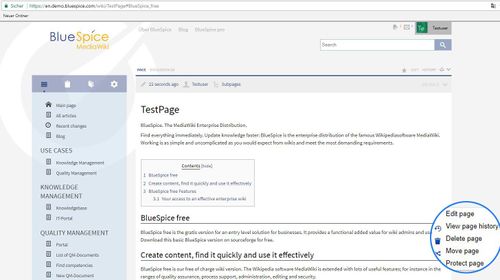
Context menu opens when right clicking components that support ContextMenu functionitly, namely, internal links and file links.
The context menu opens when you right-click on a component, such as a link or an image.
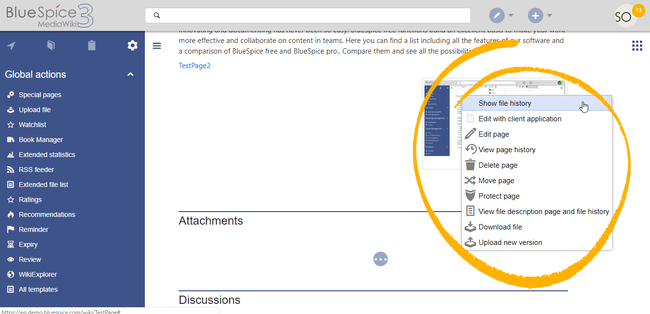
On internal links, the context menu display quick links for basic page actions, like:
- Editing page
- Viewing page history
- Moving page
- Deleting page...
On file links, some additional options are shown, like:
- Opening file page
- Downloading file
- Uploading new version of the file
- Opening files using client application (when available)
Exact content of ContextMenu menu depends on the wiki configuration
Settings[edit | edit source]
You can also decide if you want those context dialogues to pop up by clicking on the right mouse button or “CTRL and right-click”. With the last named combination your browser functionalities will open.
Go to user menu, click on Preferences:
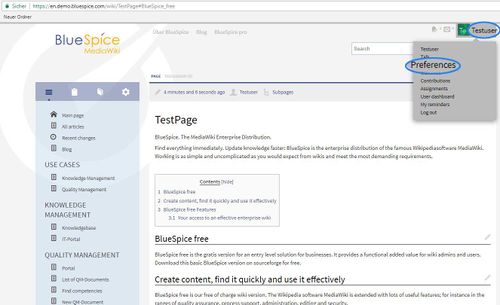
you will find BlueSpice:
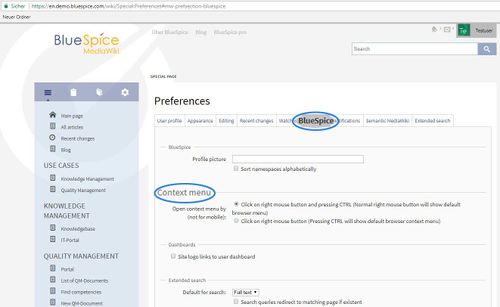
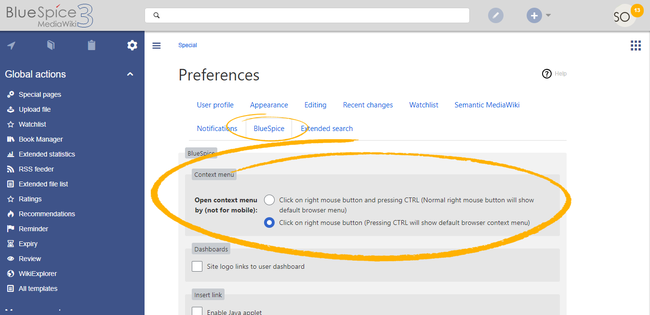
Settings for the context menu are located in the user preferences (page Special:Preferences), under the "Appearance" tab. The setting is applied separate for each user.
The context menu has two modes:
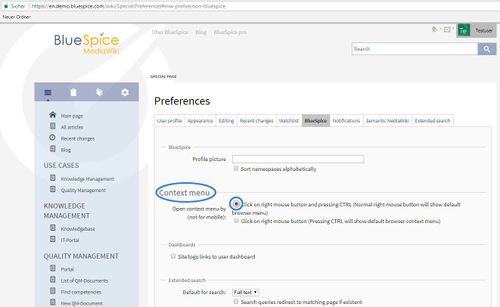
or: Click on- Click using the right mouse button and pressing CTRL (Normal right mouse button will show default browser menu)
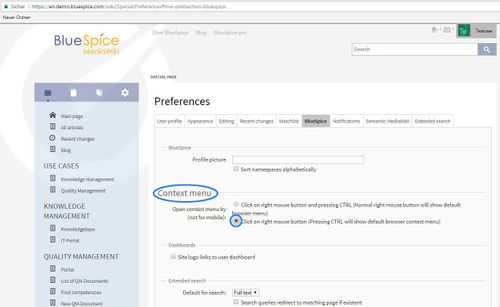
- Click using the right mouse button (Pressing CTRL will show default browser context menu)
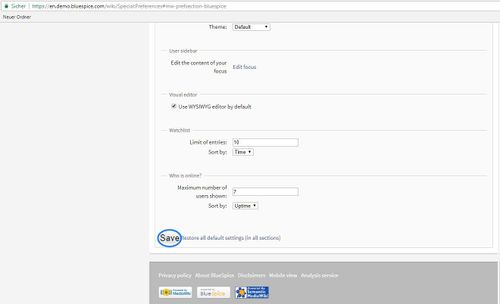
And Save it:


Administration[edit | edit source]
If you want to use context dialogues they have to be activated by an administrator first (deactivated by default).
Related info
__HIDETITLE__


            <bs:bookshelf src="Book:User manual" />


            __TOC__


            ==What is ContextMenu?==


        {{DISPLAYTITLE:Context menu}}


        '''ContextMenu''' replaces the default browser context menu with wiki functions - depending on the context and user permissions.


            Context dialogues will open by clicking on the right mouse button at an internal link. You will see article tools like “delete“. Intermediate steps are obsolete. This is just an example – the developer Hallo Welt! can now integrate different functionalities for different links – just let us know your idea – we will customize it for you.


            ==Where do I find ContextMenu?==

            Click on the right mouse button at an internal link. In this case related actions like "edit" this page will be offered.


            ::: [[File:CnxMenu1.jpg|500x280px]]

            ==Settings for ContextMenu==

            You can also decide if you want those context dialogues to pop up by clicking on the right mouse button or “CTRL and right-click”. With the last named combination your browser functionalities will open.


            Go to user menu, click on Preferences:


            ::: [[File:CnxMenu2.jpg|500x305px]]

            you will find BlueSpice:


            ::: [[File:CnxMenu3.jpg|500x307px]]

            There you can choose will you use: Click on ==Using the context menu==

            Context menu opens when right clicking components that support ContextMenu functionitly, namely, internal links and file links.


            The context menu opens when you right-click on a component, such as a link or an image.


            <br />


            [[File:ContextMenu3.png|thumb|Context menu on  a file (image)|alt=Context menu on a file (image)|center|650x650px]]


            On internal links, the context menu display quick links for basic page actions, like:


            *Editing page

            *Viewing page history

            *Moving page

            *Deleting page...


            On file links, some additional options are shown, like:


            *Opening file page

            *Downloading file

            *Uploading new version of the file

            *Opening files using client application (when available)


            Exact content of ContextMenu menu depends on the wiki configuration


            ==Settings==

            [[File:ContextMenu1.png|User preference settings|alt=User preference settings|center|650x650px|thumb]]


            Settings for the context menu are located in the user preferences (page ''Special:Preferences''), under the "Appearance" tab. The setting is applied  separate for each user.


            The context menu has two modes:


            *Click  using the right mouse button and pressing CTRL (Normal right mouse button will show default browser menu)


            ::: [[File:CnxMenu4.jpg|500x307px]]

            or: Click on *Click using the right mouse button (Pressing CTRL will show default browser context menu)


        ::: [[File:CnxMenu5.jpg|500x307px]]

            And Save it:


            ::: [[File:CnxMenu6.jpg|500x304px]]

            ==Administration==

            If you want to use context dialogues they have to be activated by an administrator first (deactivated by default).{{Box Links-en|Topic1=[[Reference:BlueSpiceContextMenu]]}}


            {{Translation}}

            __FORCETOC__

            [[Category:Editing]]
| (21 intermediate revisions by 4 users not shown) | |||
| Line 1: | Line 1: | ||
| − | + | {{DISPLAYTITLE:Context menu}} | |
| − | |||
| − | + | '''ContextMenu''' replaces the default browser context menu with wiki functions - depending on the context and user permissions. | |
| + | |||
| + | ==Using the context menu== | ||
| + | Context menu opens when right clicking components that support ContextMenu functionitly, namely, internal links and file links. | ||
| + | |||
| + | The context menu opens when you right-click on a component, such as a link or an image. | ||
| + | |||
| + | <br /> | ||
| − | = | + | [[File:ContextMenu3.png|thumb|Context menu on a file (image)|alt=Context menu on a file (image)|center|650x650px]] |
| − | + | On internal links, the context menu display quick links for basic page actions, like: | |
| + | |||
| + | *Editing page | ||
| + | *Viewing page history | ||
| + | *Moving page | ||
| + | *Deleting page... | ||
| + | On file links, some additional options are shown, like: | ||
| − | + | *Opening file page | |
| + | *Downloading file | ||
| + | *Uploading new version of the file | ||
| + | *Opening files using client application (when available) | ||
| − | + | Exact content of ContextMenu menu depends on the wiki configuration | |
| − | |||
| − | + | ==Settings== | |
| − | + | [[File:ContextMenu1.png|User preference settings|alt=User preference settings|center|650x650px|thumb]] | |
| − | |||
| − | |||
| − | : | + | Settings for the context menu are located in the user preferences (page ''Special:Preferences''), under the "Appearance" tab. The setting is applied separate for each user. |
| − | |||
| − | : | + | The context menu has two modes: |
| − | |||
| − | + | *Click using the right mouse button and pressing CTRL (Normal right mouse button will show default browser menu) | |
| − | + | *Click using the right mouse button (Pressing CTRL will show default browser context menu) | |
| − | + | {{Box Links-en|Topic1=[[Reference:BlueSpiceContextMenu]]}} | |
| − | |||
| − | + | {{Translation}} | |
| − | + | __FORCETOC__ | |
| − | + | [[Category:Editing]] | |