Difference between revisions of "Setup:Installation Guide/Webservices/PDF-Export"
| [quality revision] | [quality revision] |
(→Activating the PDF Export in BlueSpice) |
Contents
This document describes the installation of BlueSpice - PDF export. Please make sure that the Apache Tomcat server is completely installed and configured at the BlueSpice server.
Tips for this Document[edit | edit source]
- Please, read this manual completely and work through the single installation steps one after another.
- For editing the configuration files with a text editor, the files must be saved in UTF-8 coding without BOM (Byte Order Mark).
-
The placeholder
<installpath-bluespice>stands for the path to your BlueSpice installation, e.gC:\inetpub\wwwroot\bluespice(Windows) or/var/www/bluespice(Linux). -
The placeholder
<tomcat-webapps>stands for the path to the Webapps directory of your Tomcat server, e.g.C:\Program Files\Apache Software Foundation\Tomcat 8.5\webapps(Windows) or/var/lib/tomcat8/webapps(Linux).
Copying the BShtml2PDF Application[edit | edit source]
Move the file "BShtml2PDF.war" from the directory <installpath-bluespice>/extensions/BlueSpiceExtensions/UEModulePDF/webservices to <tomcat-webapps>
Restart Tomcat[edit | edit source]
Restart the Tomcat Webserver like described here.
Activating the PDF Export in BlueSpice[edit | edit source]
Go to the directory <installpath-bluespice>/settings.d. Open the file 020-BlueSpiceUEModulePDF.php in a text editor.
In the second line is a code to activate the extension:
return; // Disabled. Needs Tomcat
You can either add a comment character (#) to the beginning of this line or delete the line completely, save the file and exit it.
Open a command line and change to the <installpath-bluespice> folder. Execute the following command:
                php maintenance/update.php (Linux)
php maintenance\update.php (Windows))

|
| {{{text}}} |
|
|
{{{text}}} |
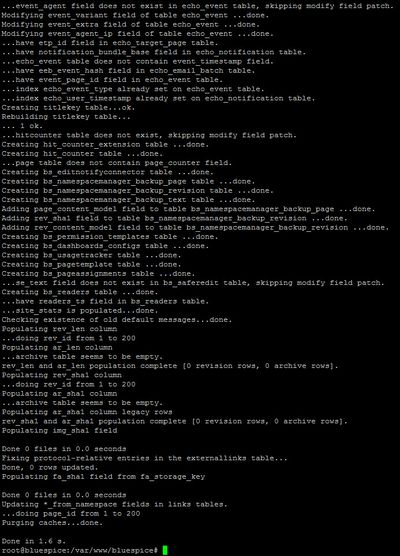
When the script is finished with the "Done" message, the web service is successfully installed.
Troubleshooting[edit | edit source]
If there is a problem with PDF export in BlueSpice, first check the file system permissions.
{{DISPLAYTITLE:Webservice: PDF-Export}}
__TOC__
This document describes the installation of BlueSpice - PDF export. Please make sure that the [[Setup:Installation_Manual/System_Configuration/Apache_Tomcat|Apache Tomcat server]] is completely installed and configured at the BlueSpice server.
==Tips for this Document==
*Please, read this manual completely and work through the single installation steps one after another.
*For editing the configuration files with a text editor, the files must be saved in UTF-8 coding without BOM (Byte Order Mark).
*The placeholder <code><installpath-bluespice></code> stands for the path to your BlueSpice installation, e.g <code>C:\inetpub\wwwroot\bluespice</code> (Windows) or <code>/var/www/bluespice</code> (Linux).
*The placeholder <code><tomcat-webapps></code> stands for the path to the Webapps directory of your Tomcat server, e.g. <code>C:\Program Files\Apache Software Foundation\Tomcat 8.5\webapps</code> (Windows) or <code>/var/lib/tomcat8/webapps</code> (Linux).
==Copying the BShtml2PDF Application==
Move the file "BShtml2PDF.war" from the directory <code><installpath-bluespice>/extensions/BlueSpiceExtensions/UEModulePDF/webservices</code> to <code><tomcat-webapps></code>
==Restart Tomcat==
Restart the Tomcat Webserver like described [[Setup:Installation_Manual/System_Configuration/Apache_Tomcat#Restart_Tomcat|here]].
==Activating the PDF Export in BlueSpice==
Go to the directory <code><installpath-bluespice>/settings.d</code>. Open the file '''020-BlueSpiceUEModulePDF.php''' in a text editor.
In the second line is a code to activate the extension:
return; // Disabled. Needs Tomcat
You can either add a comment character (#) to the beginning of this line or delete the line completely, save the file and exit it.
Open a command line and change to the <code><installpath-bluespice></code> folder. Execute the following command:
php maintenance/update.php ''(Linux)''
php maintenance\update.php ''(Windows))''
[[File:{{Hint.jpg|left]] '''|Hint=In Windows, make sure that the [[Setup:Installation Manual/System Configuration/Environment Variables|environment variables]] areenvironment variables are set correctly to access the php command.'''
[[File:Hint.jpg|left]]
'''}}
{{Hint|Hint=Note that you must update the [[Setup:Installation Manual/Security Settings/File System Permissions#Assignment_of_Permissions_with_Linux|file system permissions]] after running update.php.'''}}
When the script is finished with the "Done" message, the web service is successfully installed.<br /><br />
[[File:Setup:Setup_bluespice_maintenance_update.jpg|center|400x556px]]
==Troubleshooting==
If there is a problem with PDF export in BlueSpice, first check the [[Setup:Installation Manual/Security Settings/File System Permissions|file system permissions]].
[[en:{{FULLPAGENAME}}]]
[[de:Setup:Installationsanleitung/Webservices/PDF-Export]]| Line 1: | Line 1: | ||
{{DISPLAYTITLE:Webservice: PDF-Export}} | {{DISPLAYTITLE:Webservice: PDF-Export}} | ||
__TOC__ | __TOC__ | ||
| − | |||
This document describes the installation of BlueSpice - PDF export. Please make sure that the [[Setup:Installation_Manual/System_Configuration/Apache_Tomcat|Apache Tomcat server]] is completely installed and configured at the BlueSpice server. | This document describes the installation of BlueSpice - PDF export. Please make sure that the [[Setup:Installation_Manual/System_Configuration/Apache_Tomcat|Apache Tomcat server]] is completely installed and configured at the BlueSpice server. | ||
| Line 31: | Line 30: | ||
php maintenance/update.php ''(Linux)'' | php maintenance/update.php ''(Linux)'' | ||
php maintenance\update.php ''(Windows))'' | php maintenance\update.php ''(Windows))'' | ||
| − | + | {{Hint|Hint=In Windows, make sure that the environment variables are set correctly to access the php command.}} | |
| − | + | {{Hint|Hint=Note that you must update the [[Setup:Installation Manual/Security Settings/File System Permissions#Assignment_of_Permissions_with_Linux|file system permissions]] after running update.php.}} | |
| − | |||
| − | |||
| − | |||
| − | |||
When the script is finished with the "Done" message, the web service is successfully installed.<br /><br /> | When the script is finished with the "Done" message, the web service is successfully installed.<br /><br /> | ||