Difference between revisions of "Univention"
(Changed categories.) |
(Tag: Visual edit) |
BlueSpice is available as an app for the Univention Corporate Server. It is delivered via the Univention App Center and can be easily installed.
BlueSpice is also available as appliance: It can be used in a virtual environment with the Univention Corporate Server as operating system.
Contents
Administration of the app[edit | edit source]
Assign user[edit | edit source]
To login at your BlueSpice MediaWiki, users must be assigned in the UCS system and domain settings.
- Open System and Domain Settings
- Select Users, open -> Users - Management of domain users and select user.
- Open Apps and select the check mark at "Activate user for BlueSpice MediaWiki".
Add more users[edit | edit source]
Adding more users does not work via the BlueSpice User Manager but via the UCS user management.
- Open System and Domain Settings.
- Select Users, open -> Users - Management of domain users and Add new user.
- Do not forget to open Apps and select the check mark at "Activate user for BlueSpice MediaWiki".
Note: Some rights are defined in ../settings.d/099-Univention.php which cannot be overwritten in the BlueSpice permission manager, (e.g. anonymous users have no read rights). These rights have to be updated directly in the 099-Univention.php file.
LDAP: With LDAP, group assignments are accomplished with the Univation LDAP interface and not within the wiki.
Install appliance[edit | edit source]
The steps to install the BlueSpice appliance
-

Start of the appliance
-
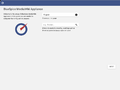
Select languages
-
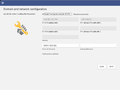
Domain and network configuration
-
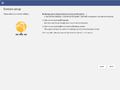
Domain setup
-
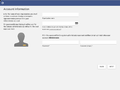
Set account information and Administrator password (important!)
-
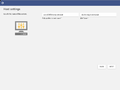
Host settings
-
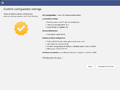
Confirm configuration settings
-

Setup success confirmation
-
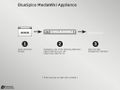
Get IP to open the Univention Corporate Server in your browser
-
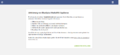
Upload license key, which you get via e-mail
-
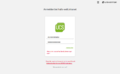
Login as Administrator and with your administrator password
-

Your applications: open first the system and domain configuration
-
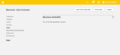
Assign user (Administrator) in the central authentication system for BlueSpice. Now you can start the wiki and login as Administrator
Trouble shooting[edit | edit source]
It a known issue, that UCS under specific conditions changes the IP and users cannot authenticate at the BlueSpice MediaWiki. Univention is working on that.
To fix that problem:
- Open System and Domain Settings.
- Select Domain, open -> LDAP - Browsing and managing the LDAP tree.
- Select in the tree in the left navigation bar under your Domain name. for instance: computers - dc - ucs-xxx
- Check and change IP adress (3 times) and Save.
Related info
BlueSpice is available as an app for the [https://www.univention.com/products/ucs/ Univention Corporate Server]. It is delivered via the [https://www.univention.com/products/univention-app-center/app-catalog/bluespice/ Univention App Center] and can be easily installed.


        BlueSpice is also available as appliance: It can be used in a virtual environment with the Univention Corporate Server as operating system.


        ==Administration of the app==

        ===Assign user===

        To login at your BlueSpice MediaWiki, users must be assigned in the UCS system and domain settings.


        #Open System and Domain Settings

        #Select '''Users''', open -> '''Users - Management of domain users''' and select user.

        #Open '''Apps''' and select the check mark at "Activate user for BlueSpice MediaWiki".


        ===Add more users===

        Adding more users does not work via the BlueSpice User Manager but via the UCS user management.


        #Open System and Domain Settings.

        #Select '''Users''', open -> '''Users - Management of domain users''' and '''Add''' new user.

        #Do not forget to open '''Apps''' and select the check mark at "Activate user for BlueSpice MediaWiki".


        ==<br />{{Box Note|boxtype=note|Note text=Some rights are defined in ''../settings.d/099-Univention.php'' which cannot be overwritten in the BlueSpice permission manager, (e.g. anonymous users have no read rights). These rights have to be updated directly in the ''099-Univention.php'' file.


            '''LDAP''': With LDAP, group assignments are accomplished with the Univation LDAP interface and not within the wiki.}}<br />

            ==Install appliance==

        The steps to install the BlueSpice appliance


        <gallery>

        File:UCS_Appliance_Setup_1_bootsplash.jpg|Start of the appliance

        File:UCS_Appliance_Setup_2_language-setup.png|Select languages

        File:UCS_Appliance_Setup_3_network-setup.png|Domain and network configuration

        File:UCS_Appliance_Setup_4_domain-setup.png|Domain setup

        File:UCS_Appliance_Setup_5_organisation-setup.png|Set account information and Administrator password (important!)

        File:UCS_Appliance_Setup_6_hostname-setup.png|Host settings

        File:UCS_Appliance_Setup_7_start-setup.png|Confirm configuration settings

        File:UCS_Appliance_Setup_8_finished-setup.png|Setup success confirmation

        File:UCS_Appliance_Setup_9_welcome-screen.jpg|Get IP to open the Univention Corporate Server in your browser

        File:UCS_Appliance_Setup_10_Activation_of_Univention_Corporate_Server.png|Upload license key, which you get via e-mail

        File:UCS_Appliance_Setup_11_Univention_Login.png|Login as Administrator and with your administrator password

        File:UCS_Appliance_Setup_12_Univention_Portal.jpg|Your applications: open first the system and domain configuration

        File:UCS_Appliance_Setup_13_Univention_Management_Console.png|Assign user (Administrator) in the central authentication system for BlueSpice. Now you can start the wiki and login as Administrator


        </gallery>


        ==Trouble shooting==

        It a known issue, that UCS under specific conditions changes the IP and users cannot authenticate at the BlueSpice MediaWiki. Univention is working on that.


        To fix that problem:


        #'''Open System and Domain Settings'''.

        #Select '''Domain''', open -> '''LDAP - Browsing and managing the LDAP tree'''.

        #Select in the tree in the left navigation bar under your Domain name. for instance: '''computers''' - '''dc''' - '''ucs-xxx'''

        #Check and change IP adress (3 times) and '''Save'''.


        {{Box Links-en

        |Topic1=[https://www.univention.de/produkte/univention-app-center/app-katalog/bluespice/ Univention App Center]

        |Topic2=[https://wiki.univention.de/index.php/Main_Page Univention Wiki]}}


        [[en:{{FULLPAGENAME}}]]

        [[de:Univention]]

[[Category:Setup]]| Line 18: | Line 18: | ||
#Do not forget to open '''Apps''' and select the check mark at "Activate user for BlueSpice MediaWiki". | #Do not forget to open '''Apps''' and select the check mark at "Activate user for BlueSpice MediaWiki". | ||
| + | <br />{{Box Note|boxtype=note|Note text=Some rights are defined in ''../settings.d/099-Univention.php'' which cannot be overwritten in the BlueSpice permission manager, (e.g. anonymous users have no read rights). These rights have to be updated directly in the ''099-Univention.php'' file. | ||
| + | |||
| + | |||
| + | '''LDAP''': With LDAP, group assignments are accomplished with the Univation LDAP interface and not within the wiki.}}<br /> | ||
==Install appliance== | ==Install appliance== | ||
The steps to install the BlueSpice appliance | The steps to install the BlueSpice appliance | ||