Difference between revisions of "Setup:Installation Guide/Webservices/PDF-Export"
| [pending revision] | [pending revision] |
(Tag: Visual edit) |
m (Tag: Visual edit) |
Contents
Make sure that the Apache Tomcat server is completely installed and configured on the BlueSpice server before setting up PDF-Export.
Moving the BShtml2PDF Application[edit | edit source]
Download the file "BShtml2PDF.war" from https://sourceforge.net/projects/bluespice/files/webservices/BShtml2PDF.war/download and copy it to <tomcat-webapps>
The default paths are as follows:
- C:\Program Files\Apache Software Foundation\Tomcat 10.0\webapps (Apache Tomcat on Windows)
- /var/lib/jetty9/webapps (Jetty on Debian)
Or run the command sudo mv /var/www/bluespice/w/extensions/BlueSpiceUEModulePDF/webservices/BShtml2PDF.war /var/lib/jetty9/webapps in the terminal. (Linux)
The application usually starts automatically without the need for rebooting the application server.
Checking the functionality[edit | edit source]
The correct functionality of the BShtml2PDF service can be checked as follows:
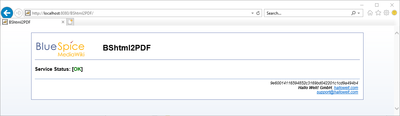
On Windows, open Internet Explorer using the URL http://localhost:8080/BShtml2PDF. With correct functionality, you should see the following website:
Enable PDF Export in BlueSpice[edit | edit source]
Go to the directory <installpath-bluespice>/settings.d. Open the file 020-BlueSpiceUEModulePDF.php in a text editor.
Or open the 020-BlueSpiceUEModulePDF.php in the terminal using the command sudo nano /var/www/bluespice/w/settings.d/020-BlueSpiceUEModulePDF.php. (Linux)
In the second line is the code to activate the extension:
return; // Disabled. Needs Tomcat
You can either add a comment character (#) to the beginning of this line or delete the line completely, save the file and exit it.

|
Give the user "Everyone" full access to the Temp folder under C:\Widows. |
Installing BlueSpice 3 with installer[edit | edit source]
-
Open
localhost/win your Browser and follow the instructions.
Open a command line and change into the folder <installpath-bluespice>. Execute the following command:
                php maintenance/update.php (Linux)
php maintenance\update.php (Windows))
|
|
In Windows, make sure that the environment variables are set correctly to access the "php" command. |
|
|
Note that you must update the file system permissions after running update.php. |
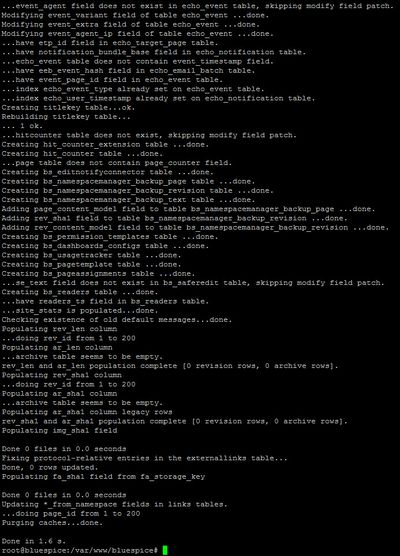
When the script is finished with the "Done" message, you have successfully isntalled the web service .
Troubleshooting[edit | edit source]
If there is a problem with the PDF export in BlueSpice, first check the file system permissions.
Download Web services[edit | edit source]
If the required war-file is missing in your installation package, you can download it here: Webservices.
{{DISPLAYTITLE:Webservice: PDF-Export}}
__TOC__
Make sure that the [[Setup:Installation_Manual/System_Configuration/Apache_Tomcat|Apache Tomcat server]] is completely installed and configured on the BlueSpice server before setting up PDF-Export.
==Moving the BShtml2PDF Application==
Download the file "BShtml2PDF.war" from https://sourceforge.net/projects/bluespice/files/webservices/BShtml2PDF.war/download and copy it to <code><tomcat-webapps></code>
The default paths are as follows:
*C:\Program Files\Apache Software Foundation\Tomcat 10.0\webapps '''(Apache Tomcat on Windows)'''
*/var/lib/jetty9/webapps '''(Jetty on Debian)'''
Or run the command <code>sudo mv /var/www/bluespice/w/extensions/BlueSpiceUEModulePDF/webservices/BShtml2PDF.war /var/lib/jetty9/webapps</code> in the terminal.
'''(Linux)'''
The application usually starts automatically without the need for rebooting the application server.
==Checking the functionality==
The correct functionality of the BShtml2PDF service can be checked as follows:
On Windows, open Internet Explorer using the URL <nowiki>http://localhost:8080/BShtml2PDF</nowiki>. With correct functionality, you should see the following website:
[[File:Setup:Tomcat_Check_03.png|center|400px|Tomcat Check 03]]
==Enable PDF Export in BlueSpice==
Go to the directory <code><installpath-bluespice>/settings.d</code>. Open the file '''020-BlueSpiceUEModulePDF.php''' in a text editor.
Or open the 020-BlueSpiceUEModulePDF.php in the terminal using the command <code>sudo nano /var/www/bluespice/w/settings.d/020-BlueSpiceUEModulePDF.php</code>.
'''(Linux)'''
In the second line is the code to activate the extension:
return; // Disabled. Needs Tomcat
You can either add a comment character (#) to the beginning of this line or delete the line completely, save the file and exit it.
=={{Hint|text=Give the user "Everyone" full access to the Temp folder under C:\Widows.}}
==Installing BlueSpice 3 with installer==
#Open <code>localhost/w</code> in your Browser and follow the [[:en:Setup:Installation_Guide/With_Installer|instructions]].
Open a command line and change into the folder <code><installpath-bluespice></code>. Execute the following command:
php maintenance/update.php ''(Linux)''
php maintenance\update.php ''(Windows))''
{{Hint
|text=In Windows, make sure that the environment variables are set correctly to access the "php" command.}}
{{Hint
|text=Note that you must update the [[Setup:Installation Guide/Security Settings/File System Permissions#Assignment_of_Permissions_with_Linux|file system permissions]] after running update.php.}}
When the script is finished with the "Done" message, you have successfully isntalled the web service .
[[File:Setup:Setup_bluespice_maintenance_update.jpg|center|400x556px]]
==Troubleshooting==
If there is a problem with the PDF export in BlueSpice, first check the [[Setup:Installation Guide/Security Settings/File System Permissions|file system permissions]].
==Download Web services==
If the required war-file is missing in your installation package, you can download it here: [https://buildservice.bluespice.com/webservices3.tar.gz Webservices].
[[en:{{FULLPAGENAME}}]]
[[de:Setup:Installationsanleitung/Webservices/PDF-Export]]| Line 12: | Line 12: | ||
*/var/lib/jetty9/webapps '''(Jetty on Debian)''' | */var/lib/jetty9/webapps '''(Jetty on Debian)''' | ||
| − | Or run the command <code>sudo mv /var/www/bluespice/w/extensions/BlueSpiceUEModulePDF/webservices/BShtml2PDF.war /var/lib/jetty9/webapps</code> in the terminal. | + | Or run the command <code>sudo mv /var/www/bluespice/w/extensions/BlueSpiceUEModulePDF/webservices/BShtml2PDF.war /var/lib/jetty9/webapps</code> in the terminal. '''(Linux)''' |
The application usually starts automatically without the need for rebooting the application server. | The application usually starts automatically without the need for rebooting the application server. | ||
| Line 25: | Line 25: | ||
Go to the directory <code><installpath-bluespice>/settings.d</code>. Open the file '''020-BlueSpiceUEModulePDF.php''' in a text editor. | Go to the directory <code><installpath-bluespice>/settings.d</code>. Open the file '''020-BlueSpiceUEModulePDF.php''' in a text editor. | ||
| − | Or open the 020-BlueSpiceUEModulePDF.php in the terminal using the command <code>sudo nano /var/www/bluespice/w/settings.d/020-BlueSpiceUEModulePDF.php</code>. | + | Or open the 020-BlueSpiceUEModulePDF.php in the terminal using the command <code>sudo nano /var/www/bluespice/w/settings.d/020-BlueSpiceUEModulePDF.php</code>. '''(Linux)''' |
In the second line is the code to activate the extension: | In the second line is the code to activate the extension: | ||
| Line 32: | Line 32: | ||
You can either add a comment character (#) to the beginning of this line or delete the line completely, save the file and exit it. | You can either add a comment character (#) to the beginning of this line or delete the line completely, save the file and exit it. | ||
| + | |||
| + | {{Hint|text=Give the user "Everyone" full access to the Temp folder under C:\Widows.}} | ||
==Installing BlueSpice 3 with installer== | ==Installing BlueSpice 3 with installer== | ||