Difference between revisions of "Archive:Preferences"
(→The functionality of Preferences) |
Contents
Preferences or Settings is a function on the Wiki-admin page.
It makes it easy to make and change the basic settings for the whole wiki, without having to resort to using scripts. These global settings and be changed by individual users in their UserPreferences.
Technical background[edit | edit source]
Preferences lets you control the behaviour of extensions and set default values.
Where can I find the Preferences function?[edit | edit source]
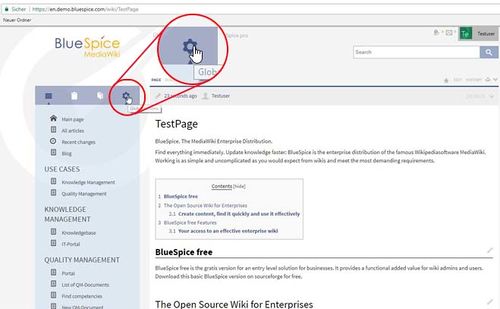
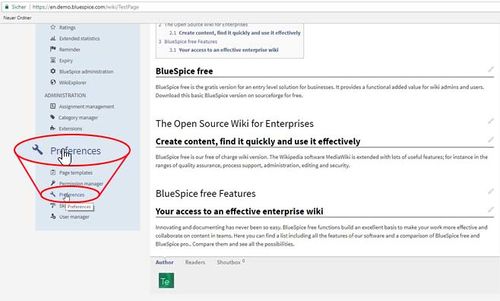
Firstly, you need to have administration permissions in order to call up Preferences. If you have the correct permissions, you will be able to see the link "Preferences" in the "Global settings" and then on "Preferences" as you see on the image below. Click on the link and you will be taken to the administration page.
The functionality of Preferences[edit | edit source]
The display shows different areas for the individual extensions.
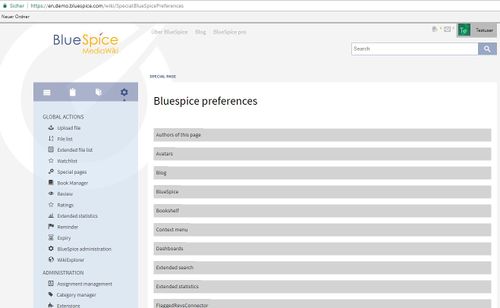
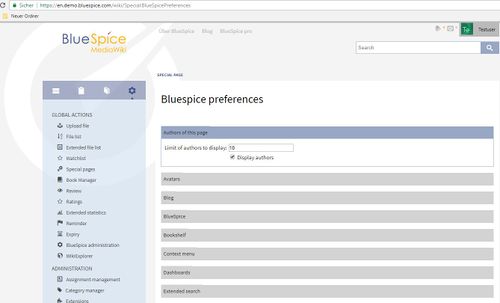
These areas can be fully displayed or collapsed. By default they will be collapsed. The different options for configuring the different extensions are described on the pages detailing the relevant extensions.
For example:
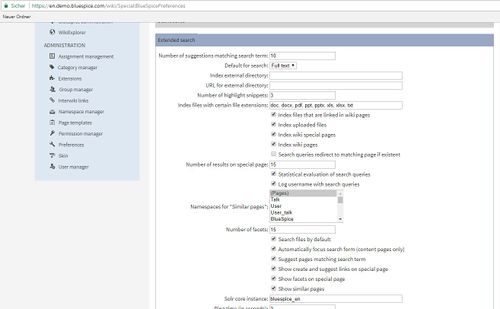
BlueSpice - basic preferences[edit | edit source]
| Setting | Description |
|---|---|
| Basic setting | MinifyPath: Where the Minification scripts are saved. |
| Search | Display of search results, indexed data formats etc. |
BlueSpice - MediaWiki preferences[edit | edit source]
| Setting | Description |
|---|---|
| ArticleInfo | Update intervall |
| The articles authors | Preferences for profile pictures. |
| Avatars | Size and defaults |
| Blog | Display of blog entries |
| BlueSpice | Special preferences for BlueSpice. You can also set which data formats allowed here (by default: png, gif, jpg, jpeg, doc, docx, pdf, xls). |
| BlueSpice Project Feedback Helper | Activation |
| DashBoards | Link the site logo to the dashboards |
| ExtendedStatistics | Settings for BlueSpice statistics e.g. exclude certain users |
| FlexiSkin | Activated skin and logo path. |
| InsertCategory | Insert categories include its parents |
| InsertLink | Enable links to local files |
| Notifications | Only notify for changes in special namespaces |
| PageTemplates | Above all for combining page templates with namespaces. |
| PermissionManager | Activate lockmode.... |
| Quality assurance | Configure the easy review processes. |
| Readers of this article | Activation and settings. |
| ResponsibleEditors | Enabled namespaces and assigning rights. |
| Safer Editing | Organise autosaving while editing. |
| SecureFileStore | Settings for files. |
| Shoutbox | Setings for the comment box. |
| SmartList | Configure the latest changes function (previously called "Infobox") |
| Status bar | Display statbar and shows the order. |
| Syntax Highlighter | e.g. link URLs |
| TopMenubarCustomizer | Settings for the top MenuBar. |
| UserManager | This is, above all, to permit changing passwords. |
| User navigation (Focus) | Individual navigation bar. |
| VisitedPages | Limit of entries, namespaces, ... |
| VisualEditor | Settings for the WYSIWYG editor. |
| WantedArticles | |
| WatchList | |
| Who is online? | |
| Widgets |
The wiki is closed by default, permissions being assigned by administrators. If you have questions or problems, please contact Hallo Welt! - Medienwerkstatt.
 __TOC__


        '''Preferences''' or '''Settings''' is a function on the Wiki-admin page. <br />It makes it easy to make and change the basic settings for the whole wiki, without having to resort to using scripts. These global settings and be changed by individual users in their [[UserPreferences]].


        ==Technical background==

        Preferences lets you control the behaviour of extensions and set default values.


        ==Where can I find the Preferences function?==


        Firstly, you need to have administration permissions in order to call up Preferences. If you have the correct permissions, you will be able to see the link "Preferences" in the "Global settings" and then on "Preferences" as you see on the image below. Click on the link and you will be taken to the administration page.


        ::: [[File:PreferencesHD1.jpg|500x309px]]


        ::: [[File:PreferencesHD2.jpg|500x301px]]


        ==The functionality of Preferences==

        The display shows different areas for the individual extensions.


        ::: [[File:PreferencesHD3.jpg|500x308px]]


        These areas can be fully displayed or collapsed. By default they will be collapsed.  The different options for configuring the different extensions are described on the pages detailing the relevant extensions.


        For example:


        ::: [[File:PreferencesHD4.jpg|500x303px]]


        ::: [[File:PreferencesHD5.jpg|500x309px]]


        ===BlueSpice - basic preferences===

        {| class="wikitable" border="0"

        |-

        ! style="width: 200px; height: 40px;"|Setting

        ! style="width: 1100px; height: 40px;"|Description


        |-

        | style="width: 200px; height: 40px;"|'''Basic setting'''

        ||MinifyPath: Where the Minification scripts are saved.

        |-

        | style="width: 200px; height: 40px;"|'''[[ExtendedSearch|Search]]'''

        ||Display of search results, indexed data formats etc.

        |}


        ===BlueSpice - MediaWiki preferences===

        {| class="wikitable" border="0"

        |-

        ! style="width: 200px; height: 40px;"|Setting

        ! style="width: 1100px; height: 40px;"|Description

        |-

        | style="width: 200px; height: 40px;"|'''[[ArticleInfo]]'''

        ||Update intervall

        |-

        | style="width: 200px; height: 40px;"|'''[[Authors|The articles authors]]'''

        ||Preferences for profile pictures.

        |-

        | style="width: 200px; height: 40px;"|'''[[Avatars]]'''

        ||Size and defaults

        |-

        | style="width: 200px; height: 40px;"|'''[[Blog]]'''

        ||Display of blog entries

        |-

        | style="width: 200px; height: 40px;"|'''BlueSpice'''

        ||Special preferences for BlueSpice. You can also set which data formats allowed here (by default: png, gif, jpg, jpeg, doc, docx, pdf, xls).

        |-

        | style="width: 200px; height: 40px;"|'''BlueSpice Project Feedback Helper'''

        ||Activation

        |-

        | style="width: 200px; height: 40px;"|'''[[DashBoards]]'''

        ||Link the site logo to the dashboards

        |-

        | style="width: 200px; height: 40px;"|'''[[ExtendedStatistics]]'''

        ||Settings for BlueSpice statistics e.g. exclude certain users

        |-

        | style="width: 200px; height: 40px;"|'''[[FlexiSkin]]'''

        ||Activated skin and logo path.

        |-

        | style="width: 200px; height: 40px;"|'''[[InsertCategory]]'''

        ||Insert categories include its parents

        |-

        | style="width: 200px; height: 40px;"|'''[[InsertLink]]'''

        ||Enable links to local files

        |-

        | style="width: 200px; height: 40px;"|'''[[Notifications]]'''

        ||Only notify for changes in special namespaces

        |-

        | style="width: 200px; height: 40px;"|'''[[PageTemplates]]'''

        ||Above all for combining page templates with namespaces.

        |-

        | style="width: 200px; height: 40px;"|'''[[PermissionManager]]'''

        ||Activate lockmode....

        |-

        | style="width: 200px; height: 40px;"|'''[[ReviewExtended|Quality assurance]]'''

        ||Configure the easy review processes.

        |-

        | style="width: 200px; height: 40px;"|'''[[Readers|Readers of this article]]'''

        ||Activation and settings.

        |-

        | style="width: 200px; height: 40px;"|'''[[ResponsibleEditors]]'''

        ||Enabled namespaces and assigning rights.

        |-

        | style="width: 200px; height: 40px;"|'''[[SaferEdit|Safer Editing]]'''

        ||Organise autosaving while editing.

        |-

        | style="width: 200px; height: 40px;"|'''[[SecureFileStore]]'''

        ||Settings for files.

        |-

        | style="width: 200px; height: 40px;"|'''[[Shoutbox]]'''

        ||Setings for the comment box.

        |-

        | style="width: 200px; height: 40px;"|'''[[SmartList]]'''

        ||Configure the latest changes function (previously called "Infobox")

        |-

        | style="width: 200px; height: 40px;"|'''[[StateBar|Status bar]]'''

        ||Display statbar and shows the order.

        |-

        | style="width: 200px; height: 40px;"|'''[[CSyntaxHighlight|Syntax Highlighter]]'''

        ||e.g. link URLs

        |-

        | style="width: 200px; height: 40px;"|'''[[TopBarMenuCustomizer|TopMenubarCustomizer]]'''

        ||Settings for the top MenuBar.

        |-

        | style="width: 200px; height: 40px;"|'''[[UserManager]]'''

        ||This is, above all, to permit changing passwords.

        |-

        | style="width: 200px; height: 40px;"|'''[[UserSideBar|User navigation (Focus)]]'''

        ||Individual navigation bar.

        |-

        | style="width: 200px; height: 40px;"|'''[[PagesVisited|VisitedPages]]'''

        ||Limit of entries, namespaces, ...

        |-

        | style="width: 200px; height: 40px;"|'''[[VisualEditor]]'''

        ||Settings for the WYSIWYG editor.

        |-

        | style="width: 200px; height: 40px;"|'''[[WantedArticles]]'''

        ||

        |-

        | style="width: 200px; height: 40px;"|'''[[WatchList]]'''

        ||

        |-

        | style="width: 200px; height: 40px;"|'''[[WhoIsOnline|Who is online?]]'''

        ||

        |-

        | style="width: 200px; height: 40px;"|'''[[Widgetbar|Widgets]]'''

        ||

        |}


        The wiki is closed by default, permissions being assigned by administrators. If you have questions or problems, please contact [http://www.hallowelt.biz Hallo Welt! - Medienwerkstatt].


        {{Box_Links-en | Thema1 =[[UserPreferences|User Preferences]] | Thema2 =[[ExtensionInfo|Information on installed extensions]] | Thema3 =[[Special_pages|Special Pages]] | Thema4 = }}


        [[Category:Extension]]

        [[Category:BlueSpice free]]

        [[en:{{FULLPAGENAME}}]][[de:Einstellungen]]
| Line 1: | Line 1: | ||
| − | + | __TOC__ | |
| − | '''Preferences''' or '''Settings''' is a function on the Wiki-admin page. | + | '''Preferences''' or '''Settings''' is a function on the Wiki-admin page. It makes it easy to make and change the basic settings for the whole wiki, without having to resort to using scripts. These global settings and be changed by individual users in their [[UserPreferences]]. |
==Technical background== | ==Technical background== | ||
| Line 7: | Line 7: | ||
==Where can I find the Preferences function?== | ==Where can I find the Preferences function?== | ||
| − | |||
Firstly, you need to have administration permissions in order to call up Preferences. If you have the correct permissions, you will be able to see the link "Preferences" in the "Global settings" and then on "Preferences" as you see on the image below. Click on the link and you will be taken to the administration page. | Firstly, you need to have administration permissions in order to call up Preferences. If you have the correct permissions, you will be able to see the link "Preferences" in the "Global settings" and then on "Preferences" as you see on the image below. Click on the link and you will be taken to the administration page. | ||
| − | [[File:PreferencesHD1.jpg|500x309px]] | + | ::: [[File:PreferencesHD1.jpg|500x309px]] |
| − | [[File:PreferencesHD2.jpg|500x301px]] | + | ::: [[File:PreferencesHD2.jpg|500x301px]] |
| Line 18: | Line 17: | ||
The display shows different areas for the individual extensions. | The display shows different areas for the individual extensions. | ||
| − | [[File:PreferencesHD3.jpg|500x308px]] | + | ::: [[File:PreferencesHD3.jpg|500x308px]] |
These areas can be fully displayed or collapsed. By default they will be collapsed. The different options for configuring the different extensions are described on the pages detailing the relevant extensions. | These areas can be fully displayed or collapsed. By default they will be collapsed. The different options for configuring the different extensions are described on the pages detailing the relevant extensions. | ||
| Line 26: | Line 25: | ||
| − | [[File:PreferencesHD4.jpg|500x303px]] | + | ::: [[File:PreferencesHD4.jpg|500x303px]] |
| − | [[File:PreferencesHD5.jpg|500x309px]] | + | ::: [[File:PreferencesHD5.jpg|500x309px]] |
===BlueSpice - basic preferences=== | ===BlueSpice - basic preferences=== | ||