Difference between revisions of "Manual:BlueSpice Layout"
| [quality revision] | [quality revision] |
m (Text replacement - "[[en:{{PAGENAME}}]]" to "[[en:{{FULLPAGENAME}}]]") |
m (Tag: Visual edit) |
BlueSpice Layout[edit | edit source]
Your wiki is divided into several unique areas that group the features of the wiki in a meaningful way. . Here we give you an overview so that you can easily find the functionality that you are looking for. Please note that some
Note: Some features are disabled by default in your wiki or only visible to specific user groups such as administrators.
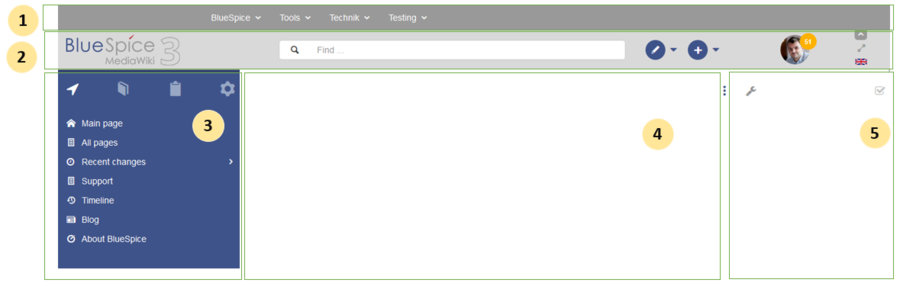
| Layout area | Description |
|---|---|
| 1-Custom menu | A wiki administrator can create custom navigation to pages inside and outside the wiki. |
| 2-Main toolbar | Contains important elements such as the logo area, the search field and access to the user profile. |
| 3-Navigation | The "heart" of the page organization. From here, users can access all pages,
depending on their permissions. Many navigation elements can be customized. |
| 4-Content area | Here you create and edit all wiki content. Discussions are also located in this space. |
| 5-Page tools | Powerful page management features. This includes important tools for the
quality management of a page. |
[edit | edit source]

| Layout area | Description |
|---|---|
| 1-Custom menu | With the extension BlueSpiceCustomMenu, a wiki administrator can create individual navigation to pages inside and outside the wiki. |
Main toolbar[edit | edit source]

| Layout area | Description |
|---|---|
| 1-Logo area | The BlueSpice logo can be exchanged via the Config Manager with a company logo. |
| 2-Search field | You will search pages and files with a full-text and title search, as well as a fuzzy search. With search filter and search in the metadata. |
| 3-Edit page | A button that switches a page into edit mode. Only active for users with write access. |
| 4-Create page | A button for creating a new page or uploading a file. Only active for users with write access. |
| 5-User menu | Users manage their own settings and notifications here.
The avatar icon indicates when unread notifications are waiting for the user. |
| 6-Language selector | In multilingual wikis, you can switch between the language versions of a page. |
| 7-Fullscreen toggle | Hides the navigation and page tools at the same time. |
| 8-Custom menu toggle | Here you can hide and show the top menu. |
[edit | edit source]
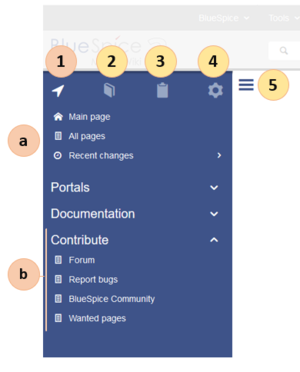
| Layout area | Description |
|---|---|
| 1-Main navigation | This is the general navigation. It can be customized by the administrator for the whole wiki. |
| 2-Books | (optional): If you use the bookshelf extension, users can go to all general and individual books to which they have access. |
| 3-My pages | This is your custom navigation bar. They can be adapted to your needs. |
| 4-Global actions | Direct links to many special pages and administration pages (for administrators). |
| 5-Navgation toggle | Shows and hides the navigation. |
Content[edit | edit source]
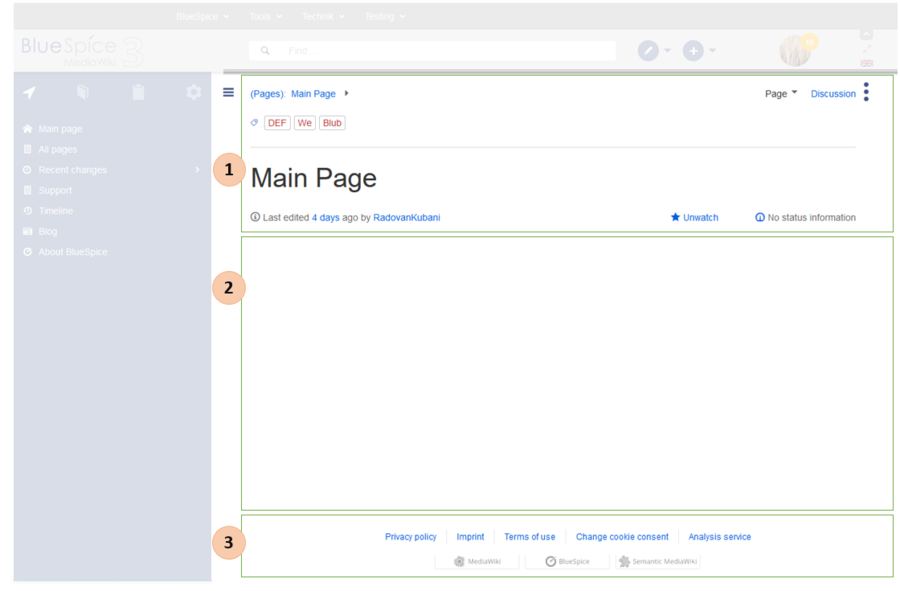
| Layout area | Description |
|---|
| 1-Title section |
In the title section of a page, the most important page information and page functions are put together in a
user-friendly way.
|
| 2-Work area | In the workspace, users create and edit all page content. VisualEditor simplifies the editing process. |
| 3-Footer | The footer contains links to legal information as well as to external MediaWiki websites. |
Page tools[edit | edit source]
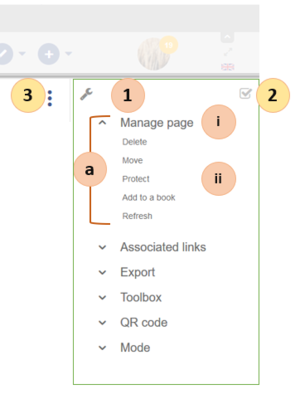
| Layout area | Description |
|---|
|
1-Page tools
(a) Menu (i) Menu header (ii) Menu link |
Lots of page actions and information related to this page can be found here.
|
| 2-QM tools | Lists all the important tools to manage the life cycle of a page, such as reminders and page reviews. |
| 3-Tools toggle | A switch to hide and show the page tools. |
==BlueSpice Layout==
Your wiki is divided into several unique areas that group the features of the wiki in a meaningful way. <span class="ve-pasteProtect" style="color: rgb(51, 51, 51)" data-ve-attributes="{"style":"color: rgb(51, 51, 51)"}">. Here we give you an overview so that you can easily find the functionality that you are looking for.
<span class="ve-pasteProtect" style="color: rgb (51, 51, 51)" data-ve-attributes="{"style":"color: rgb(51, 51, 51)"}">Please note that some {{Box Note|boxtype=note|Note text=Some features are disabled by default in your wiki or only visible to specific user groups.
such as administrators.}}
[[File:Manual:layout1-en.png|center|900x900px]]
<span class="ve-pasteProtect" style="color: rgb (51, 51, 51)" data-ve-attributes="{"style":"color: rgb(51, 51, 51)"}"><br />
{| class="contenttable-blue tablefullwidth"
|+
!Layout area
!Description
|-
|1-[[Manual:BlueSpice Layout#Custom menu|Custom menu]]
|A wiki administrator can create custom navigation to pages inside and outside the wiki.
|-
|2-[[Manual:BlueSpice Layout#Main toolbar|Main toolbar]]
|Contains important elements such as the logo area, the search field and access to the user profile.
|-
|3-[[Manual:BlueSpice Layout#Navigation|Navigation]]
|The "heart" of the page organization. From here, users can access all pages,
depending on their permissions. Many navigation elements can be customized.
|-
|4-[[Manual:BlueSpice Layout#Content area|Content area]]
|Here you create and edit all wiki content. Discussions are also located in this space.
|-
|5-[[Manual:BlueSpice Layout#Page tools|Page tools]]
|Powerful page management features. This includes important tools for the
quality management of a page.
|}
==Custom menu==
[[File:Manual:layout-custommenu.png|935x935px]]<br />
{| class="contenttable-blue content table-blue"
!Layout area
!Description
|-
|1-[[Reference:BlueSpiceCustomMenu|Custom menu]]
|With the extension BlueSpiceCustomMenu, a wiki administrator can create individual navigation to pages inside and outside the wiki.
|}
==Main toolbar==
[[File:Manual:layout2-en.png]]
{| class="contenttable-blue"
!Layout area
!Description
|-
|1-Logo area
|The BlueSpice logo can be exchanged via the [[Manual:Extension/BlueSpiceConfigManager|Config Manager]] with a company logo.
|-
|2-Search field
|You will [[Reference:BlueSpiceExtendedSearch|search pages and files]] with a full-text and title search, as well as a fuzzy search. With search filter and search in the metadata.
|-
|3-Edit page
|A button that switches a page into edit mode. Only active for users with write access.
|-
|4-[[Manual:Create pages|Create page]]
|<span style="color: rgb(51, 51, 51)">A button for creating a new page or uploading a file. Only active for users with write access.</span>
|-
|5-User menu
|Users manage their own settings and notifications here.
<span style="color: rgb(51, 51, 51)">The avatar icon indicates when unread notifications are waiting for the user.</span>
|-
|6-[[Managing translations|Language selector]]
|In multilingual wikis, you can switch between the language versions of a page.
|-
|7-Fullscreen toggle
|Hides the navigation and page tools at the same time.
|-
|8-Custom menu toggle
|Here you can hide and show the top menu.
|}
==Navigation==
[[File:Manual:layout3-en.png|372x372px]]
{| class="contenttable-blue"
|+
!Layout area
!Description
|-
|1-[[Navigation|Main navigation]]
|<span style="color: rgb(51, 51, 51)">This is the general navigation. It can be customized by the administrator for the whole wiki.</span>
|-
|2-[[Manual:Extension/BlueSpiceBookshelf|Books]]
|<span style="color: rgb(51, 51, 51)">(optional): If you use the [[Manual:Extension/BlueSpiceBookshelf|bookshelf extension]]</span><span style="color: rgb (51, 51, 51)">, users can go to all general and individual books to which they have access.</span>
|-
|3-[[Manual:Extension/Readers|My pages]]
|<span style="color: rgb(51, 51, 51)">This is your custom navigation bar. They can be adapted to your needs.</span>
|-
|4-Global actions
|Direct links to many special pages <span style="color: rgb(51, 51, 51)">and administration pages (for administrators).</span>
|-
|5-Navgation toggle
|Shows and hides the navigation.
|}
==Content==
[[File:Manual:layout4-en.png|900x900px]]
{| class="contenttable-blue tablefullwidth"
|+
!Layout area
!Description
!Extension
|-
|1-[[Layout:Titelarea|Title section]]
|In the title section of a page, the most important page information and page functions are put together in a
user-friendly way.<br />
|
|-
|2-Work area
|In the workspace, users create and edit all page content. [[Manual:VisualEditor|VisualEditor]] simplifies the editing process.
|
|-
|3-Footer
|The footer contains links to legal information as well as to external MediaWiki websites.
|
|}
==Page tools==
[[File:Manual:layout5-en.png|399x399px]]
{| class="contenttable-blue tablefullwidth"
|+
!Layout area
!Description
!Extension
|-
|1-Page tools
(a) Menu
(i) Menu header
(ii) Menu link
|Lots of page actions and information related to this page can be found here.<br />
|
|-
|2-[[Manual:Quality management|QM tools]]
|Lists all the important tools to manage the life cycle of a page, such as reminders and page reviews.
|
|-
|3-Tools toggle
|A switch to hide and show the page tools.
|
|}
[[en:{{FULLPAGENAME}}]]
[[de:Aufbau_von_BlueSpice]]
[[Category:Organization]]
[[Category:Content]]| Line 1: | Line 1: | ||
==BlueSpice Layout== | ==BlueSpice Layout== | ||
| − | Your wiki is divided into several unique areas that group the features of the wiki in a meaningful way | + | Your wiki is divided into several unique areas that group the features of the wiki in a meaningful way. Here we give you an overview so that you can easily find the functionality that you are looking for. |
| − | + | {{Box Note|boxtype=note|Note text=Some features are disabled by default in your wiki or only visible to specific user groups such as administrators.}} | |
| − | |||
| − | |||
| − | |||
[[File:Manual:layout1-en.png|center|900x900px]] | [[File:Manual:layout1-en.png|center|900x900px]] | ||
| − | |||
{| class="contenttable-blue tablefullwidth" | {| class="contenttable-blue tablefullwidth" | ||
|+ | |+ | ||
| Line 97: | Line 93: | ||
==Content== | ==Content== | ||
[[File:Manual:layout4-en.png|900x900px]] | [[File:Manual:layout4-en.png|900x900px]] | ||
| − | {| class="contenttable-blue" | + | {| class="contenttable-blue tablefullwidth" |
|+ | |+ | ||
!Layout area | !Layout area | ||
!Description | !Description | ||
| − | |||
|- | |- | ||
|1-[[Layout:Titelarea|Title section]] | |1-[[Layout:Titelarea|Title section]] | ||
|In the title section of a page, the most important page information and page functions are put together in a | |In the title section of a page, the most important page information and page functions are put together in a | ||
user-friendly way.<br /> | user-friendly way.<br /> | ||
| − | |||
|- | |- | ||
|2-Work area | |2-Work area | ||
|In the workspace, users create and edit all page content. [[Manual:VisualEditor|VisualEditor]] simplifies the editing process. | |In the workspace, users create and edit all page content. [[Manual:VisualEditor|VisualEditor]] simplifies the editing process. | ||
| − | |||
|- | |- | ||
|3-Footer | |3-Footer | ||
|The footer contains links to legal information as well as to external MediaWiki websites. | |The footer contains links to legal information as well as to external MediaWiki websites. | ||
| − | |||
|} | |} | ||
==Page tools== | ==Page tools== | ||
[[File:Manual:layout5-en.png|399x399px]] | [[File:Manual:layout5-en.png|399x399px]] | ||
| − | {| class="contenttable-blue" | + | {| class="contenttable-blue tablefullwidth" |
|+ | |+ | ||
!Layout area | !Layout area | ||
!Description | !Description | ||
| − | |||
|- | |- | ||
|1-Page tools | |1-Page tools | ||
| Line 132: | Line 123: | ||
(ii) Menu link | (ii) Menu link | ||
|Lots of page actions and information related to this page can be found here.<br /> | |Lots of page actions and information related to this page can be found here.<br /> | ||
| − | |||
|- | |- | ||
|2-[[Manual:Quality management|QM tools]] | |2-[[Manual:Quality management|QM tools]] | ||
|Lists all the important tools to manage the life cycle of a page, such as reminders and page reviews. | |Lists all the important tools to manage the life cycle of a page, such as reminders and page reviews. | ||
| − | |||
|- | |- | ||
|3-Tools toggle | |3-Tools toggle | ||
|A switch to hide and show the page tools. | |A switch to hide and show the page tools. | ||
| − | |||
|} | |} | ||