Difference between revisions of "Setup:Installation Guide/System Preparation/Windows/Apache Tomcat"
← Setup:Installation Guide/System Preparation/Windows/Apache Tomcat
Templates/files updated (unreviewed pages in bold): File:Setup:tc1.png, File:Setup:tc2.png, File:Setup:tm v3.png, File:Setup:tm v4.png, File:Setup:tm3.png, File:Setup:tm4.png, File:Setup:tm v7.png, File:Setup:tm5.png, File:Setup:tm6.png


| [quality revision] | [pending revision] |
(Tag: Visual edit) |
m (Tag: Visual edit) |
Contents

|
Apache Tomcat is required for the PDF export, VisualDiff (BlueSpice pro only) and the LaTeX renderer (BlueSpice pro only). The following steps are optional and only required if you want to use one or more of these services in your BlueSpice installation. |

|
Operation of Apache Tomcat requires OpenJDK. If you have not installed it, follow the link above. |
Download[edit | edit source]
Open the official download page (1) in your browser and go to the version 9 10 (2) download page.
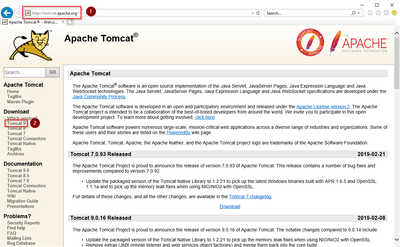
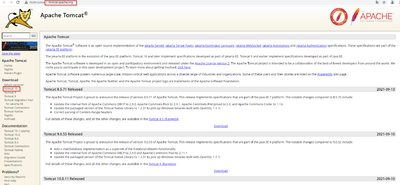
Download the "32-bit/64-bit Windows Service Installer"
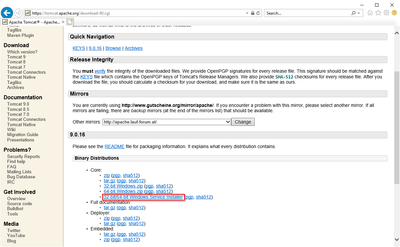
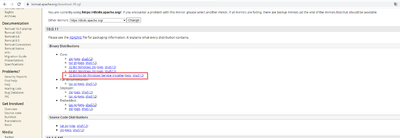
|
|
Please note that the download on your Windows server with Internet Explorer only works if you have configured the Internet Explorer Advanced Security Settings in the Server Manager. Please refer to the technical documentation from Microsoft. |
|
|
This guide uses version 910.0.16 12 of Apache Tomcat and is just an example of the latest version that you can download at the time of installation. |
Installing Apache Tomcat[edit | edit source]
Open the downloaded file "apache-tomcat-910.0.1612.exe".
Start the installation by clicking "Next >":
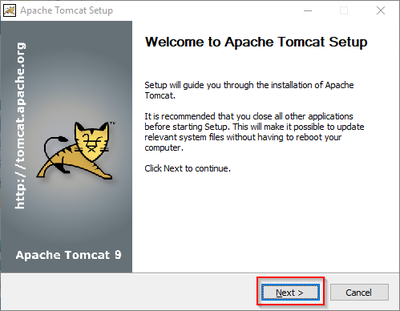
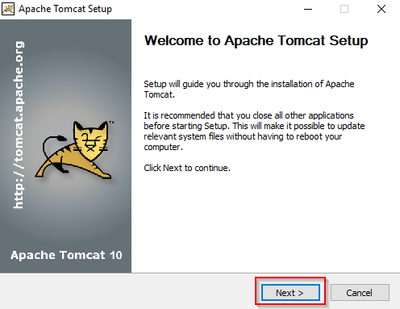
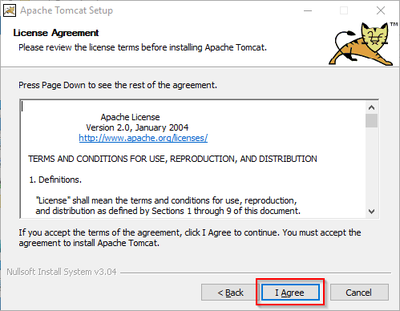
Confirm the license agreement by clicking "I Agree":
Click "Next >":
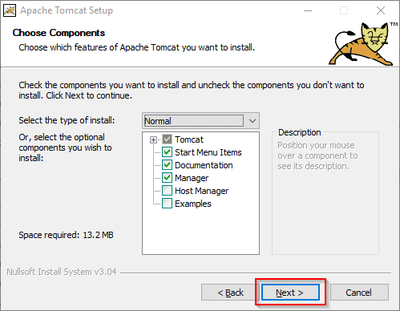
Click "Next >" again:
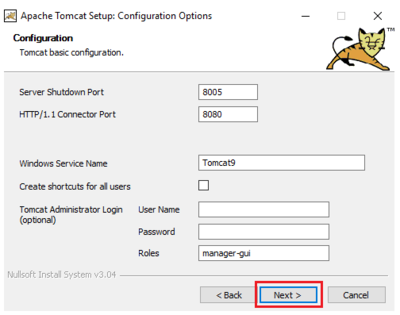
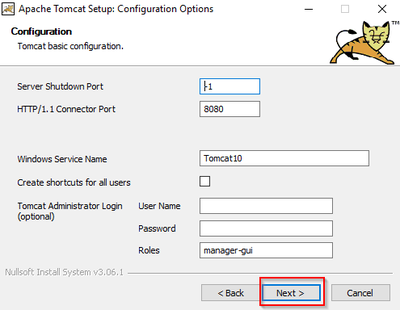
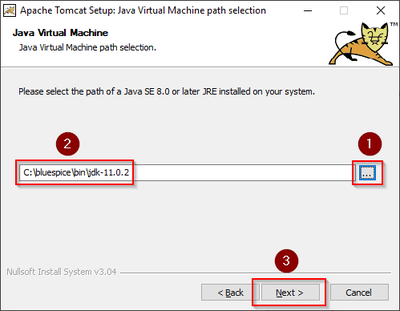
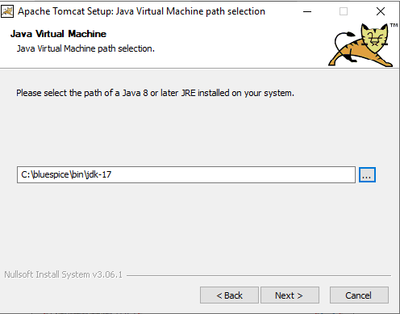
Select (1) the home directory of your OpenJDK Installation (2) and click "Next>" (3):
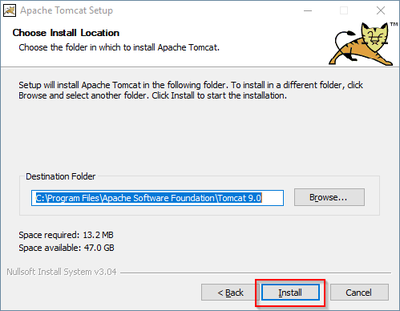
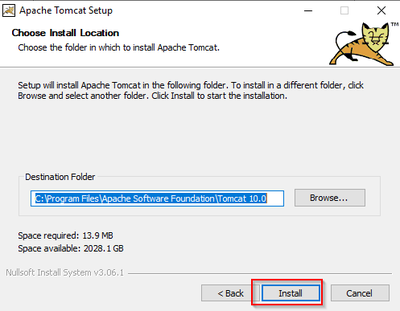
Start the Tomcat Installation:
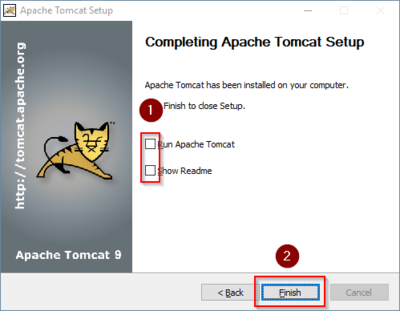
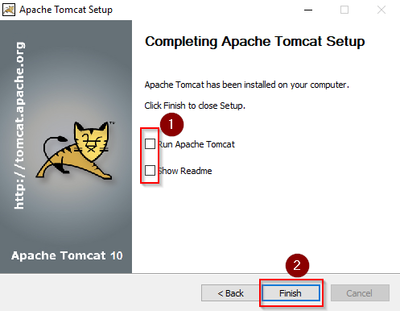
At the end of the installation, leave both preselected checkboxes (1) and finish the setup (2)
Configuring Apache Tomcat[edit | edit source]
Change to the installation directory of Tomcat. By default, you can find it at C:\Program Files\Apache Software Foundation\Tomcat 9.0\conf.
Open the context.xml file in a text editor and replace the one-time line
<Context>
with
<Context mapperContextRootRedirectEnabled="true">
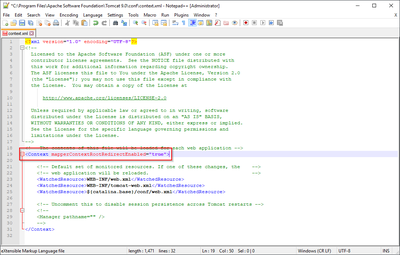
Save and close the file.
In the same directory, open the file server.xml in a text editor and make sure that the complete block
<Connector port="8080" protocol="HTTP/1.1"
	... />
looks like this:
<Connector port="8080" protocol="HTTP/1.1"
	connectionTimeout="20000"
	URIEncoding="UTF-8"
	redirectPort="8443"
	address="127.0.0.1" />
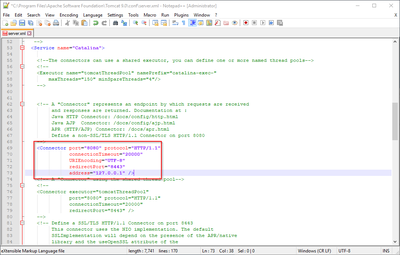
Save and close the file.
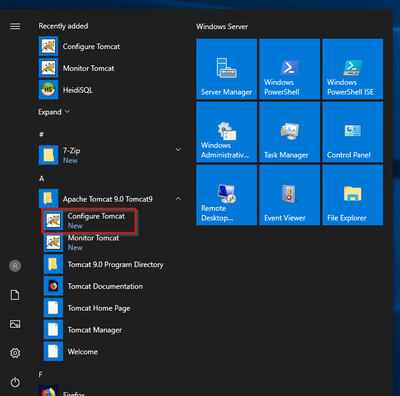
Find the entry "Configure Tomcat" in the start menu and open it:
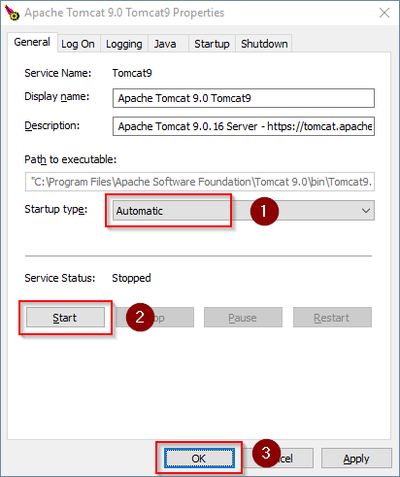
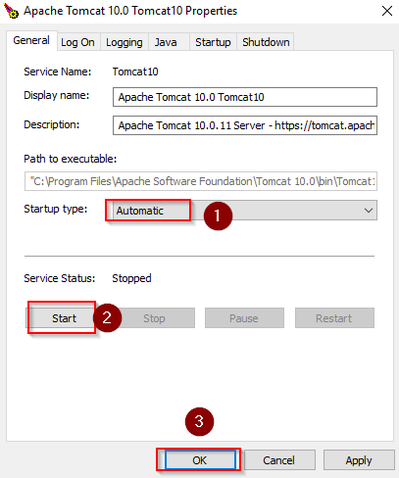
Set "Startup type" to "Automatic" (1) and start Tomcat (2). Then exit the configuration console (3):
Reviewing the installation[edit | edit source]
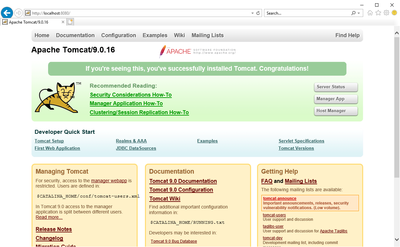
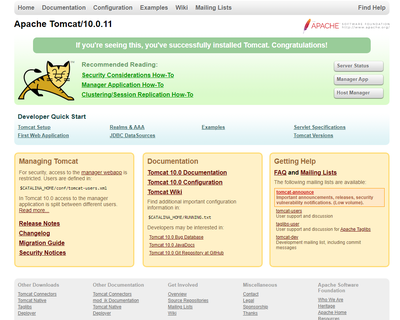
To check if Tomcat is working correctly, open the address http://localhost:8080/ in a browser on the server.
You should now see the homepage of the Tomcat server:
Installing the web apps[edit | edit source]
|
|
Please unzip the installed BlueSpice folder and move the subfolder to C:\bluespice\var\www. Rename the folder to "w". |
After the successful installation of BlueSpice, please follow the next steps to install the web services and activate the respective BlueSpice extension:
- PDF-Export
- VisualDiff (BlueSpice pro only)
- LatexRenderer (nurBlueSpice pro only)
Next step[edit | edit source]
If you have completed all steps successfully, you can delete the previously downloaded "apache-tomcat-910.0.1611.exe" file from your hard drive and continue to the next step " Elasticsearch".
{{DISPLAYTITLE:Apache Tomcat on Windows}}
__TOC__
{{Template:Optional|text=Apache Tomcat is required for the PDF export, VisualDiff (BlueSpice pro only) and the LaTeX renderer (BlueSpice pro only). The following steps are optional and only required if you want to use one or more of these services in your BlueSpice installation.}}
{{Template:Hint|text=Operation of Apache Tomcat requires [[Setup:Installation Guide/System Preparation/Windows/OpenJDK| OpenJDK]]. If you have not installed it, follow the link above.}}
==Download==
Open the [http://tomcat.apache.org/ official download page] (1) in your browser and go to the version 910 (2) download page.
[[File:Setup:Tomcat_Download_01tc1.png|center|400px400x400px|Tomcat Download 01]]
Download the "32-bit/64-bit Windows Service Installer"
[[File:Setup:Tomcat_Download_02tc2.png|center|400px400x400px|Tomcat Download 02]]
{{Template:Hint|text=Please note that the download on your Windows server with Internet Explorer only works if you have configured the Internet Explorer Advanced Security Settings in the Server Manager. Please refer to the technical documentation from Microsoft.}}
{{Template:Hint|text=This guide uses version 910.0.1612 of Apache Tomcat and is just an example of the latest version that you can download at the time of installation.}}
==Installing Apache Tomcat==
Open the downloaded file "apache-tomcat-910.0.1612.exe".
Start the installation by clicking "Next >":
[[File:Setup:Tomcat_Install_01tm v3.png|center|400px400x400px|Tomcat Installation 01]]
Confirm the license agreement by clicking "I Agree":
[[File:Setup:Tomcat_Install_02.png|center|400px|Tomcat Installation 02]]
Click "Next >":
[[File:Setup:Tomcat_Install_03.png|center|400px|Tomcat Installation 03]]
Click "Next >" again:
[[File:Setup:Tomcat_Install_04tm v4.png|center|400px400x400px|Tomcat Installation 04]]
Select (1) the home directory of your [[Setup:Installation Guide/System Preparation/Windows/OpenJDK | OpenJDK Installation]] (2) and click "Next>" (3):
[[File:Setup:Tomcat_Install_05tm3.png|center|400px400x400px|Tomcat Installation 05]]
Start the Tomcat Installation:
[[File:Setup:Tomcat_Install_06tm4.png|center|400px400x400px|Tomcat Installation 06]]
At the end of the installation, leave both preselected checkboxes (1) and finish the setup (2)
[[File:Setup:Tomcat_Install_07tm v7.png|center|400px400x400px|Tomcat Installation 07]]
==Configuring Apache Tomcat==
Change to the installation directory of Tomcat. By default, you can find it at <code>C:\Program Files\Apache Software Foundation\Tomcat 9.0\conf</code>.
Open the context.xml file in a text editor and replace the one-time line
<pre><Context></pre>
with
<pre><Context mapperContextRootRedirectEnabled="true"></pre>
[[File:Setup:Tomcat_Configuration_01.png|center|400px|Tomcat Configuration 01]]
Save and close the file.
In the same directory, open the file server.xml in a text editor and make sure that the complete block
<pre><Connector port="8080" protocol="HTTP/1.1"
... /></pre>
looks like this:
<pre><Connector port="8080" protocol="HTTP/1.1"
connectionTimeout="20000"
URIEncoding="UTF-8"
redirectPort="8443"
address="127.0.0.1" /></pre>
[[File:Setup:Tomcat_Configuration_02.png|center|400px|Tomcat Configuration 02]]
Save and close the file.
Find the entry "Configure Tomcat" in the start menu and open it:
[[File:Setup:Tomcat_Configuration_03.png|center|400px|Tomcat Configuration 03]]
Set "Startup type" to "Automatic" (1) and start Tomcat (2). Then exit the configuration console (3):
[[File:Setup:Tomcat_Configuration_04tm5.png|center|400px479x479px|Tomcat Configuration 04]]
==Reviewing the installation==
To check if Tomcat is working correctly, open the address <nowiki>http://localhost:8080/</nowiki> in a browser on the server. <br />
You should now see the homepage of the Tomcat server:
[[File:Setup:Tomcat_Check_01tm6.png|center|400px400x400px|Tomcat Check 01]]
==Installing the web apps==
{{Hint|text=Please unzip the installed BlueSpice folder and move the subfolder to C:\bluespice\var\www. Rename the folder to "w".}}
After the successful installation of BlueSpice, please follow the next steps to install the web services and activate the respective BlueSpice extension:
*[[Setup:Installation Guide/Webservices/PDF-Export|PDF-Export]]
*[[Setup:Installation Guide/Webservices/VisualDiff|VisualDiff]] (BlueSpice pro only)
*[[Setup:Installation Guide/Webservices/LatexRenderer|LatexRenderer]] (nurBlueSpice pro only)
==Next step==
If you have completed all steps successfully, you can delete the previously downloaded "apache-tomcat-910.0.1611.exe" file from your hard drive and continue to the next step "[[Setup: Installation Guide/System Preparation/Windows/Elasticsearch | Elasticsearch]]".
[[en:{{FULLPAGENAME}}]]
[[de:Setup:Installationsanleitung/Systemvorbereitung/Windows/Apache_Tomcat]]| (4 intermediate revisions by 2 users not shown) | |||
| Line 5: | Line 5: | ||
{{Template:Hint|text=Operation of Apache Tomcat requires [[Setup:Installation Guide/System Preparation/Windows/OpenJDK| OpenJDK]]. If you have not installed it, follow the link above.}} | {{Template:Hint|text=Operation of Apache Tomcat requires [[Setup:Installation Guide/System Preparation/Windows/OpenJDK| OpenJDK]]. If you have not installed it, follow the link above.}} | ||
==Download== | ==Download== | ||
| − | Open the [http://tomcat.apache.org/ official download page] (1) in your browser and go to the version | + | Open the [http://tomcat.apache.org/ official download page] (1) in your browser and go to the version 10 (2) download page. |
| − | + | [[File:Setup:tc1.png|center|400x400px|Tomcat Download 01]] | |
| − | [[File:Setup: | ||
| − | |||
Download the "32-bit/64-bit Windows Service Installer" | Download the "32-bit/64-bit Windows Service Installer" | ||
| − | + | [[File:Setup:tc2.png|center|400x400px|Tomcat Download 02]] | |
| − | [[File:Setup: | ||
{{Template:Hint|text=Please note that the download on your Windows server with Internet Explorer only works if you have configured the Internet Explorer Advanced Security Settings in the Server Manager. Please refer to the technical documentation from Microsoft.}} | {{Template:Hint|text=Please note that the download on your Windows server with Internet Explorer only works if you have configured the Internet Explorer Advanced Security Settings in the Server Manager. Please refer to the technical documentation from Microsoft.}} | ||
| − | {{Template:Hint|text=This guide uses version | + | {{Template:Hint|text=This guide uses version 10.0.12 of Apache Tomcat and is just an example of the latest version that you can download at the time of installation.}} |
==Installing Apache Tomcat== | ==Installing Apache Tomcat== | ||
| − | Open the downloaded file "apache-tomcat- | + | Open the downloaded file "apache-tomcat-10.0.12.exe". |
Start the installation by clicking "Next >": | Start the installation by clicking "Next >": | ||
| − | + | [[File:Setup:tm v3.png|center|400x400px|Tomcat Installation 01]] | |
| − | [[File:Setup: | ||
| − | |||
Confirm the license agreement by clicking "I Agree": | Confirm the license agreement by clicking "I Agree": | ||
| Line 33: | Line 28: | ||
Click "Next >" again: | Click "Next >" again: | ||
| − | + | [[File:Setup:tm v4.png|center|400x400px|Tomcat Installation 04]] | |
| − | [[File:Setup: | ||
| − | |||
Select (1) the home directory of your [[Setup:Installation Guide/System Preparation/Windows/OpenJDK | OpenJDK Installation]] (2) and click "Next>" (3): | Select (1) the home directory of your [[Setup:Installation Guide/System Preparation/Windows/OpenJDK | OpenJDK Installation]] (2) and click "Next>" (3): | ||
| − | + | [[File:Setup:tm3.png|center|400x400px|Tomcat Installation 05]] | |
| − | [[File:Setup: | ||
| − | |||
Start the Tomcat Installation: | Start the Tomcat Installation: | ||
| − | + | [[File:Setup:tm4.png|center|400x400px|Tomcat Installation 06]] | |
| − | [[File:Setup: | ||
| − | |||
At the end of the installation, leave both preselected checkboxes (1) and finish the setup (2) | At the end of the installation, leave both preselected checkboxes (1) and finish the setup (2) | ||
| − | + | [[File:Setup:tm v7.png|center|400x400px|Tomcat Installation 07]] | |
| − | [[File:Setup: | ||
==Configuring Apache Tomcat== | ==Configuring Apache Tomcat== | ||
| Line 79: | Line 67: | ||
Set "Startup type" to "Automatic" (1) and start Tomcat (2). Then exit the configuration console (3): | Set "Startup type" to "Automatic" (1) and start Tomcat (2). Then exit the configuration console (3): | ||
| − | [[File:Setup: | + | [[File:Setup:tm5.png|center|479x479px|Tomcat Configuration 04]] |
==Reviewing the installation== | ==Reviewing the installation== | ||
| Line 86: | Line 74: | ||
| − | [[File:Setup: | + | [[File:Setup:tm6.png|center|400x400px|Tomcat Check 01]] |
==Installing the web apps== | ==Installing the web apps== | ||
| + | {{Hint|text=Please unzip the installed BlueSpice folder and move the subfolder to C:\bluespice\var\www. Rename the folder to "w".}} | ||
After the successful installation of BlueSpice, please follow the next steps to install the web services and activate the respective BlueSpice extension: | After the successful installation of BlueSpice, please follow the next steps to install the web services and activate the respective BlueSpice extension: | ||
| Line 96: | Line 85: | ||
==Next step== | ==Next step== | ||
| − | If you have completed all steps successfully, you can delete the previously downloaded "apache-tomcat- | + | If you have completed all steps successfully, you can delete the previously downloaded "apache-tomcat-10.0.11.exe" file from your hard drive and continue to the next step "[[Setup: Installation Guide/System Preparation/Windows/Elasticsearch | Elasticsearch]]". |
[[en:{{FULLPAGENAME}}]] | [[en:{{FULLPAGENAME}}]] | ||
[[de:Setup:Installationsanleitung/Systemvorbereitung/Windows/Apache_Tomcat]] | [[de:Setup:Installationsanleitung/Systemvorbereitung/Windows/Apache_Tomcat]] | ||